

Build Your No-Code Forms in Minutes
Effortlessly create, customize, and automate forms inside Salesforce no coding needed.
Talk to Our TeamIf you’ve been searching for a way to create Salesforce forms without coding, you’re in the right place. Getting data into Salesforce is essential for business growth, but not every method is efficient. Some require time-consuming manual work, while others lack flexibility.
That’s why choosing a Salesforce Form Builder that is both powerful and easy to use is key. With the right no code form builder, you can design forms for any purpose—whether it’s a Salesforce lead form, a customer support case form, or even a donation form without touching a single line of code.
In this guide, we’ll explore the available methods for Salesforce form creation, why a No Code Salesforce Form Builder is the best option, and how you can streamline your data collection process while keeping everything secure inside Salesforce.
Your guide to create a form in Salesforce: the easy way, without coding
Every business needs to capture and send data into Salesforce, be it new lead details, customer support cases, event registrations, or internal requests. Manual data entry is not only time-intensive but also prone to human error.
Luckily, there are automated methods to create a form in Salesforce with no code. Let’s explore your options.
Automated methods
Here are the three most common ways to integrate forms with Salesforce:
Option 1: Export/import data manually using Data Loader
Sometimes, businesses receive a bulk list of contacts, say, from an event signup sheet that must be uploaded into Salesforce. In such cases, tools like Data Loader can be useful. However, this method is not scalable and requires technical effort every time new data needs to be added.
Option 2: Use Salesforce’s native tools (Web-to-Lead & Web-to-Case)
Salesforce offers built-in options like Web-to-Lead and Web-to-Case forms. These allow you to collect leads or cases directly through your website. While easy to implement, they are limited in terms of customization and flexibility. For businesses that need advanced form logic, dynamic fields, or multi-object updates, native tools may fall short.
Option 3: Use an external Salesforce Form Builder platform
The most efficient method is to use an external Salesforce Form Builder app. These no-code platforms come with drag-and-drop interfaces, advanced customization, and robust Salesforce integration. A good form builder allows you to:
- Connect forms directly to standard and custom Salesforce objects
- Prefill data from Salesforce into forms
- Update or create records automatically
- Work with multiple objects in a single form
This method ensures your data flows seamlessly into Salesforce without manual effort.
Why use an external data collection platform?
An external Best Salesforce Form Builder gives you much more than simple form creation. Unlike Salesforce’s native tools, these platforms:
- Offer advanced customization and branding options
- Reduce manual effort by automating data sync
- Enhance accuracy with real-time validation
- Scale across departments and industries
With a no-code form builder, anyone on your team, not just developers, can create forms that integrate perfectly with Salesforce.
What are the uses for Salesforce forms?
Salesforce forms are versatile and can be used across industries. Here are a few examples:
Higher Education — Application and inquiry forms embedded in Salesforce Experience Cloud pages
Financial Services — Digital onboarding and compliance forms
Healthcare — Patient registration and intake forms
Government — Program enrollment and citizen service request forms
Nonprofit — Donation forms and volunteer signup forms
Other industries — Surveys, event signups, contact forms, and more
The right Salesforce Forms Builder tool ensures these use cases are covered with secure, reliable, and scalable solutions.
How Salesforce forms work
Salesforce forms are a great way to capture information directly into your CRM. They help businesses collect lead details, support requests, applications, and more. However, native Salesforce forms often lack the flexibility and advanced logic that many organizations require to manage complex workflows.
This is where a No Code Salesforce Form Builder proves valuable. Modern form builder platforms provide extended capabilities that go beyond basic data capture, allowing you to fully customize and automate the process. With the right tool, Salesforce forms can adapt to your unique business processes while maintaining data accuracy and efficiency.
A powerful Salesforce Forms Builder Solution makes it possible to:
- Push data seamlessly into standard and custom Salesforce objects
- Prefill forms with existing Salesforce data to reduce manual entry
- Conditionally create or update records based on form responses
- Upload files directly into Salesforce Files for secure storage
- Run real-time lookups in Salesforce forms for instant validation
- Generate Chatter posts automatically to keep teams updated
- And much more, depending on your business needs
With these advanced features, your Salesforce forms become more than just data collection points; they turn into automated workflows that save time, reduce errors, and improve productivity.
Forms Made Easy: No-Code Salesforce Form Builder: Step-by-Step Guide
Forms Made Easy is a no-code Salesforce Form Builder designed to simplify data collection and integration. With drag-and-drop functionality and seamless Salesforce connectivity, it helps businesses build customized forms, capture accurate data, and automate workflows all without writing a single line of code.
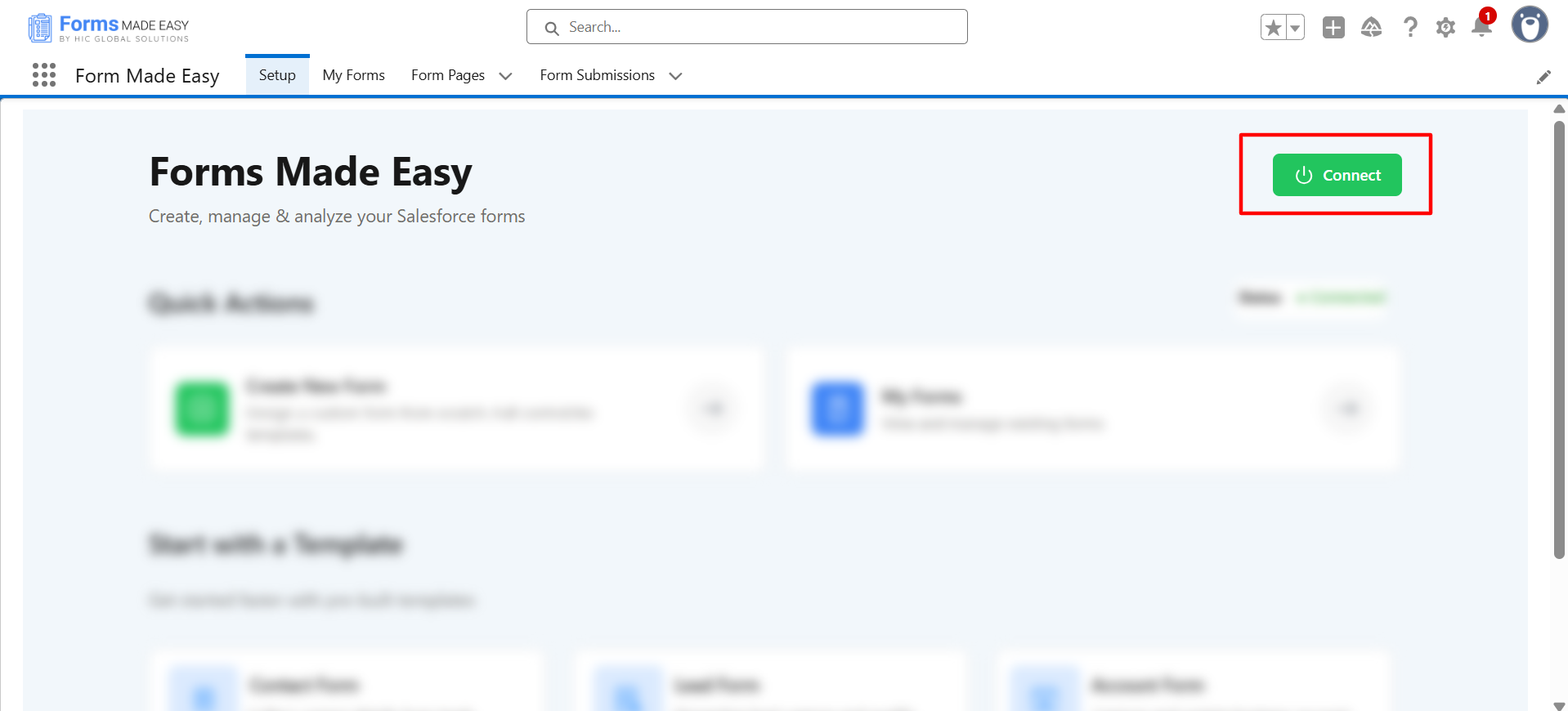
After installing the Forms Made Easy app, you will be redirected to the app’s ‘Setup’ page
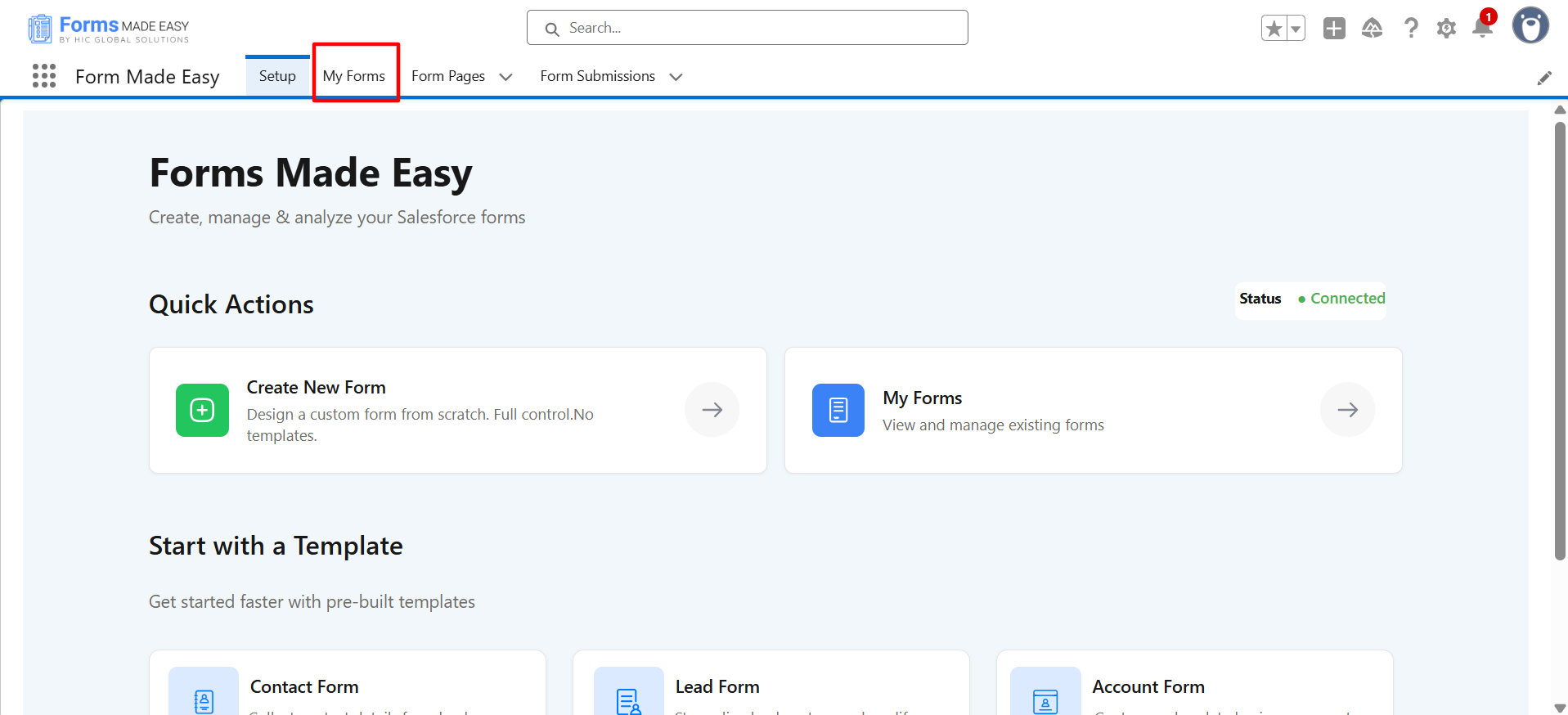
Step 1: Click on the “Connect” button to connect the app.
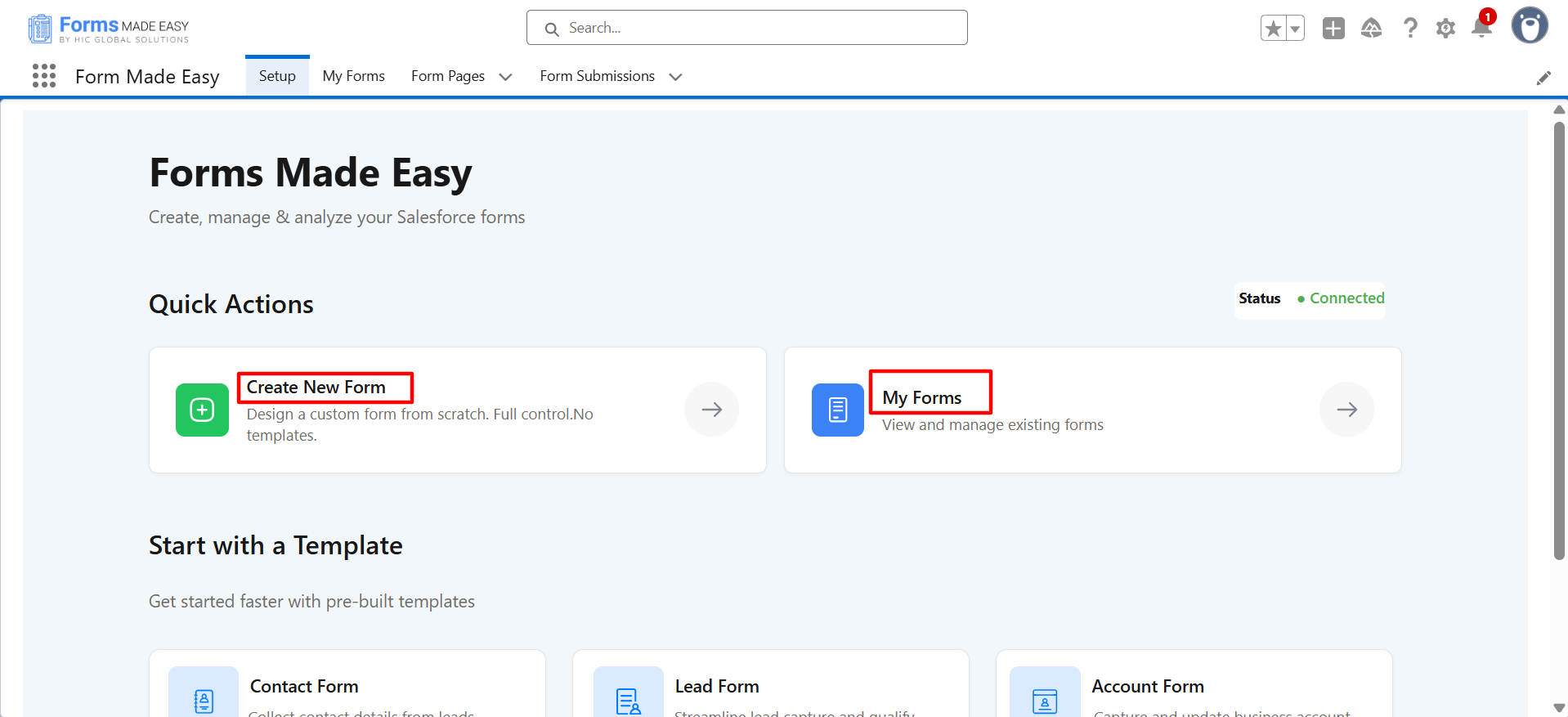
Step 2: On this page, you will see two options.
- Quick Actions
- Start with a Template

a. Quick Actions: In the Quick Actions section, you will see 2 options.
- Create Form
- My Forms
Create New Form: Create your own form in which you can select the desired objects you need, and also select child objects.
My Forms: Click on ‘My Forms’ to go directly to the My Forms page. On this page, you’ll see all the forms that have been created and check their status.
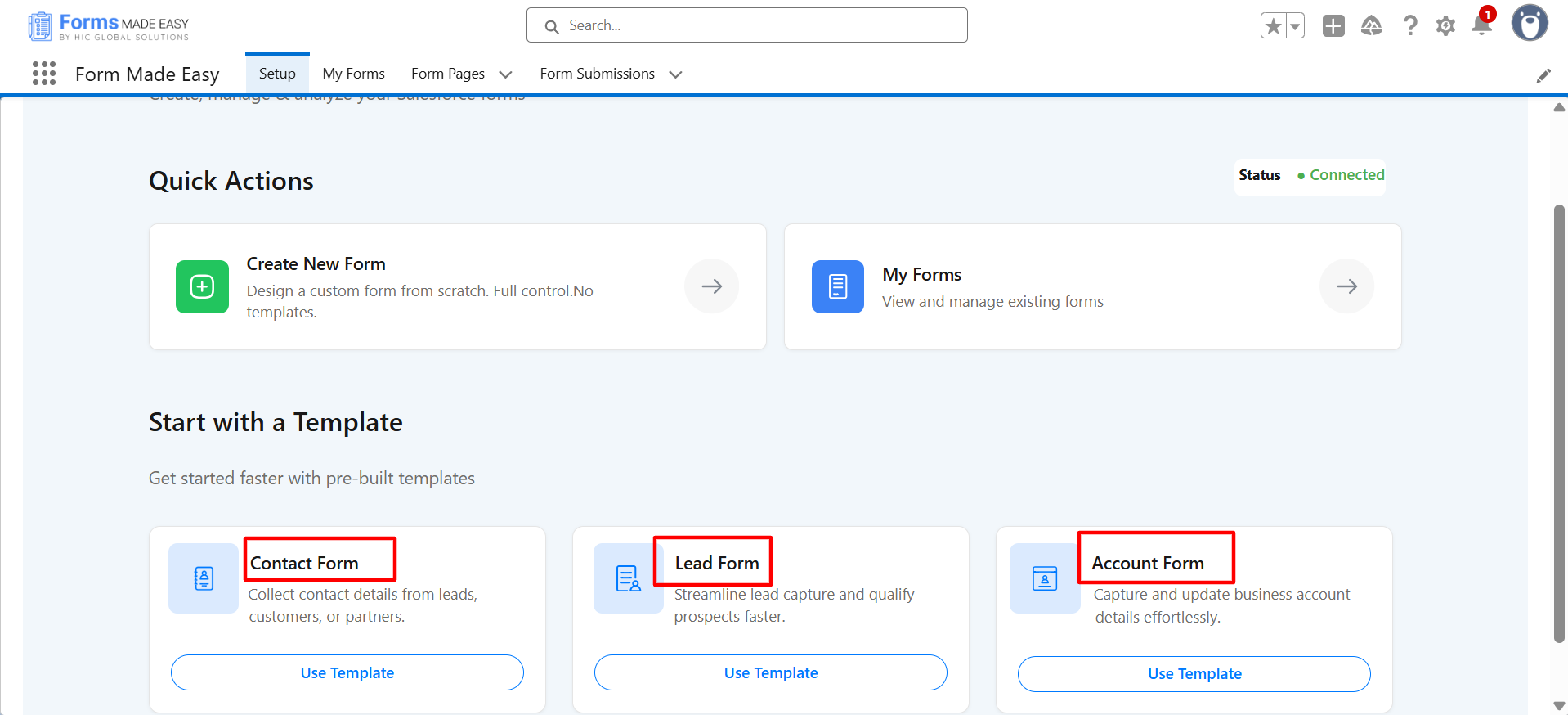
b. Start with a Template:
In the ‘Start with a Template’ section, you will see 3 options:
- Contact Form
- Lead Form
- Account Form
Choose from prebuilt templates – Contact, Lead, or Account, designed for quick setup. These templates come with predefined fields and do not allow selection of additional child objects to streamline the process for standard use cases.
Step 3: Now, click on the ‘My Forms’ tab.
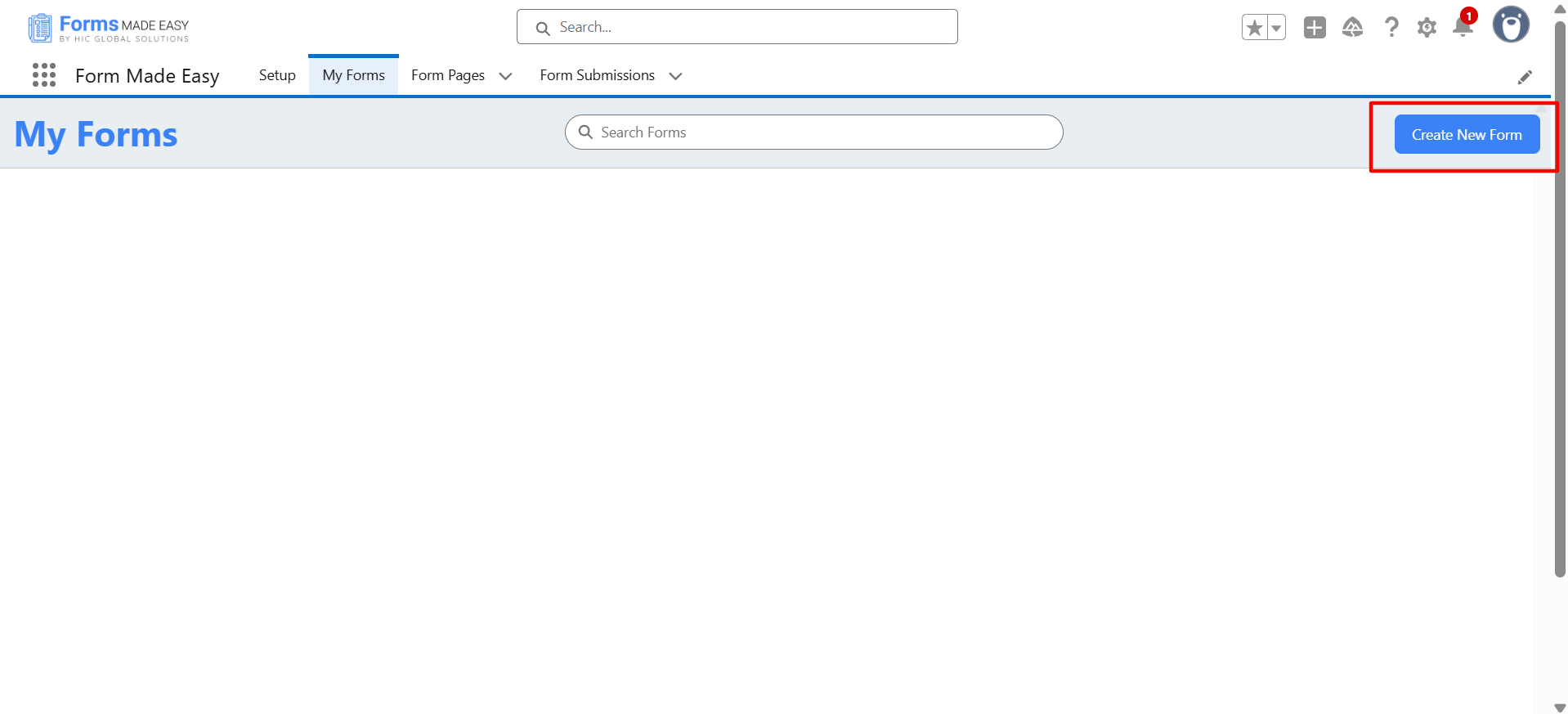
Step 4: Then click on the ‘Create New Form’ Button.
Step 5: Now, you will see 3 options.
- Form Name
- Select Form Type
- Back
a. Form Name: Fill in the name of the form that you want.
b. Select Form Type: In this section, there are 2 options:
- Salesforce Objects
- General Fields
Salesforce object: Here, you can select the Salesforce primary object and child object.
General Fields: In General fields, create forms without any Salesforce object.
c. Back: Click the ‘Back’ button to return to the My Forms page.
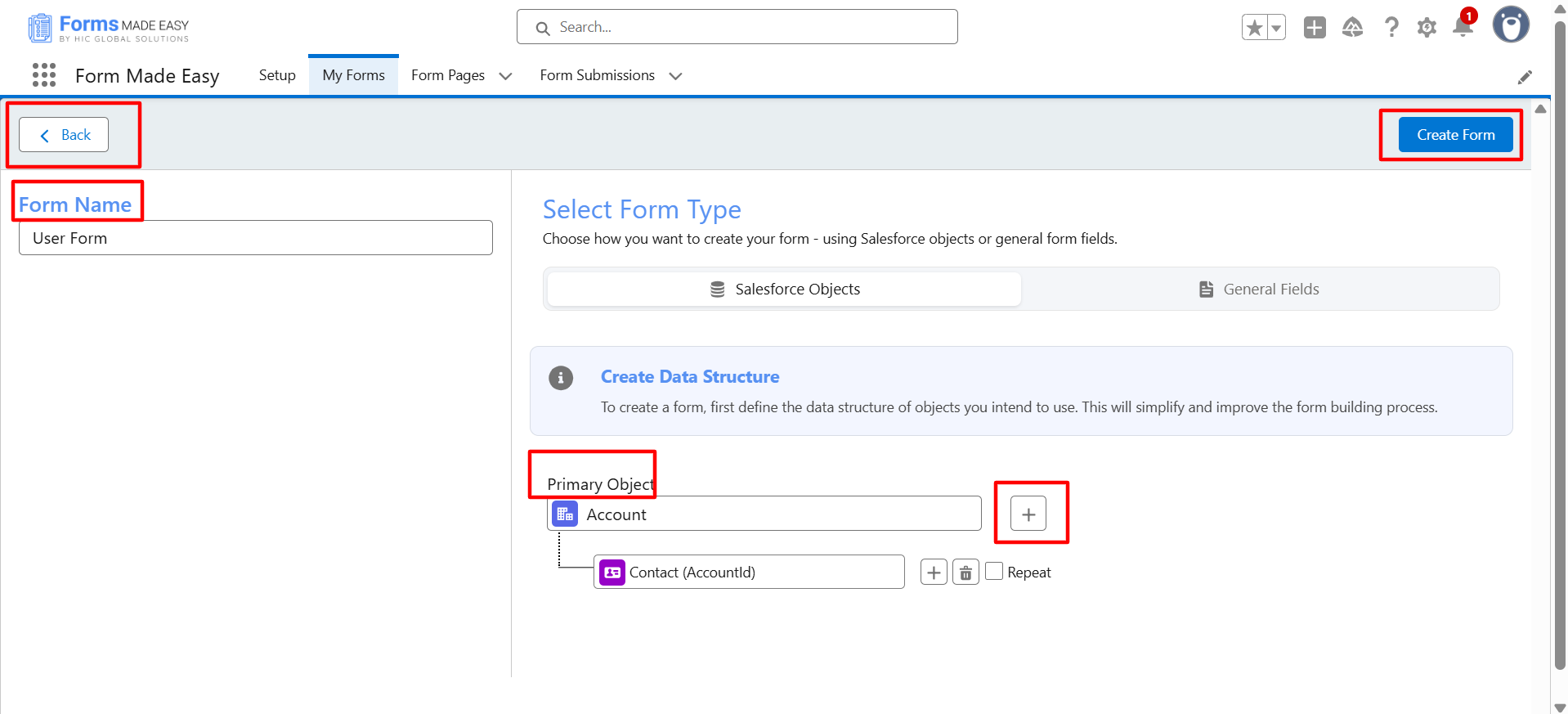
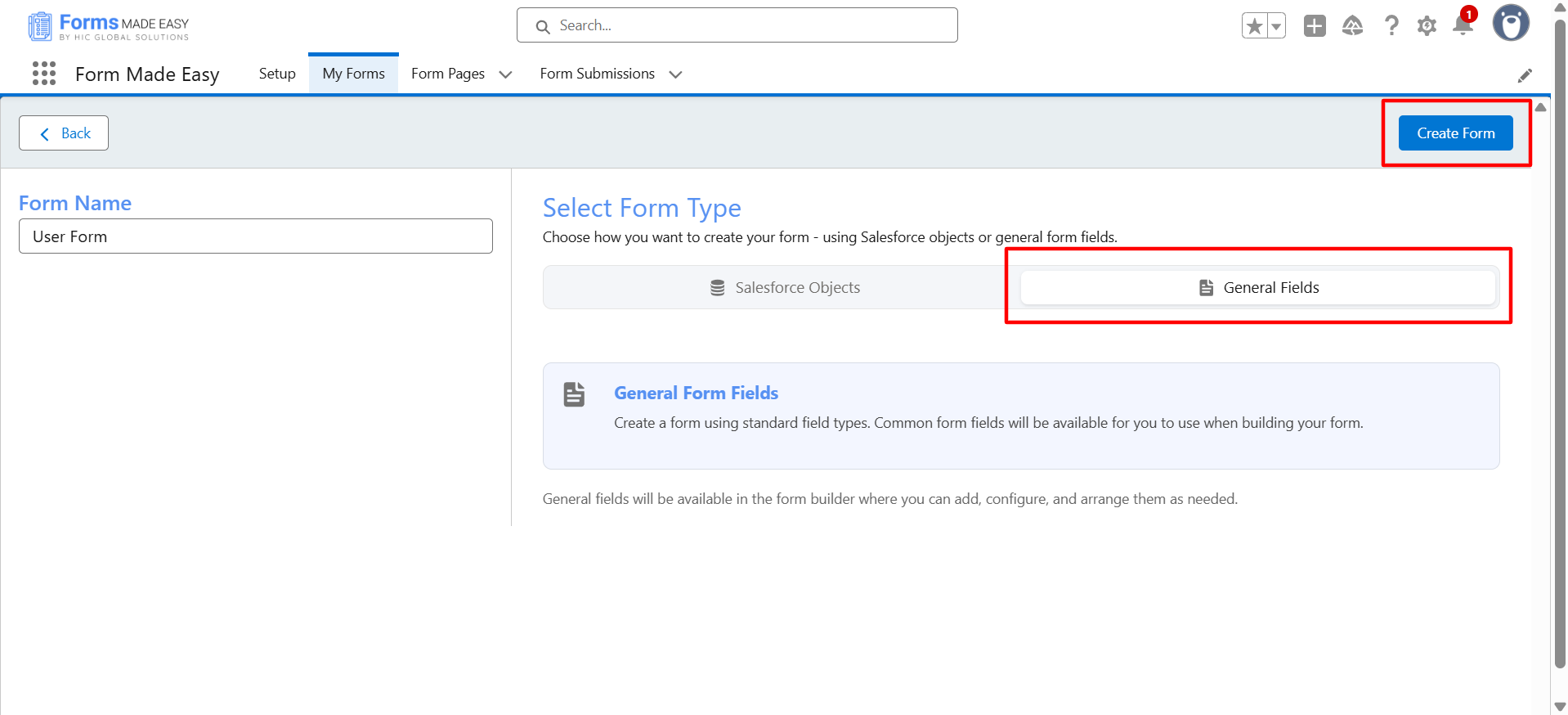
Step 6: Then, click on the ‘Create Form’ Button.
Step 7: The ‘Form Builder’ page will be opened.
On this page, you will see 3 options:
- Form Builder
- Form Style
- Form Rule
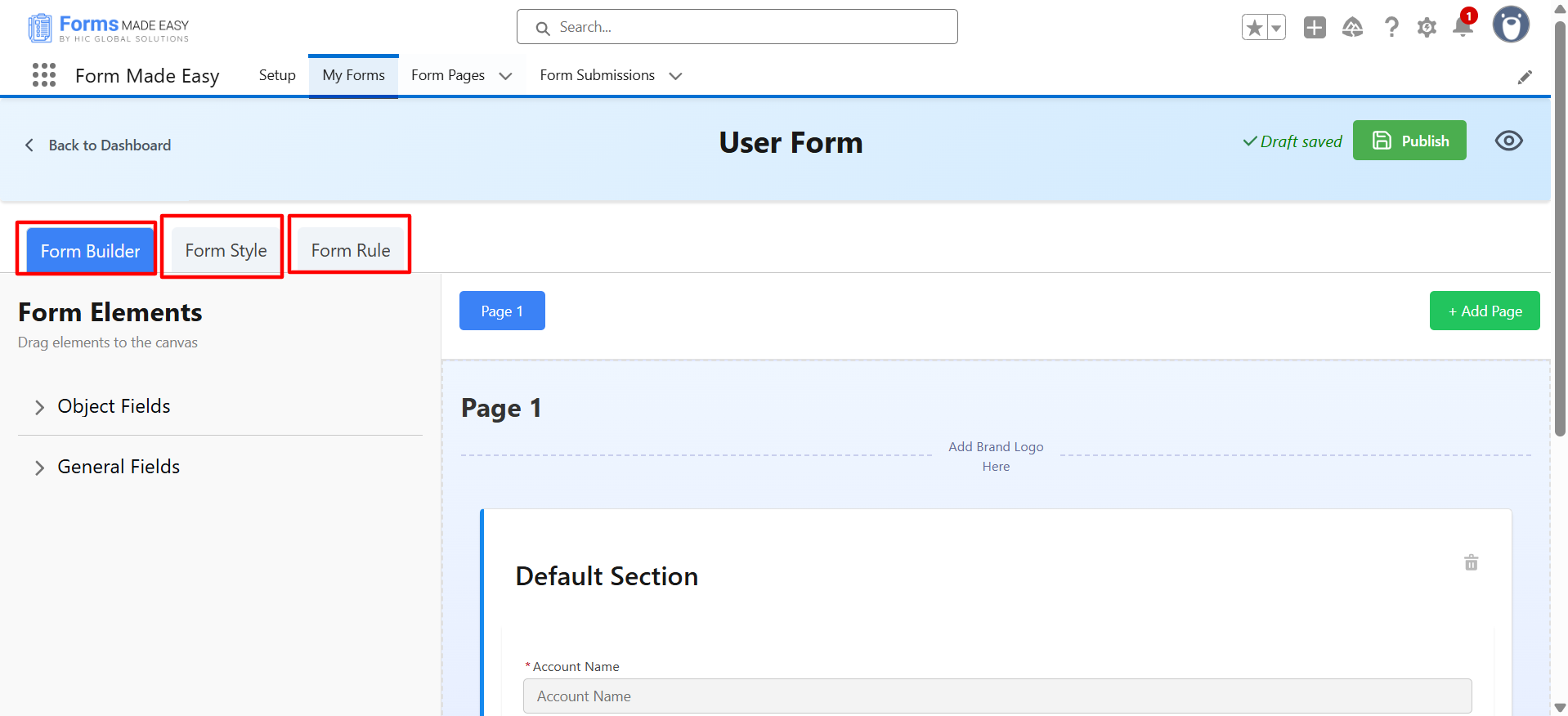
a. Form Builder
There are multiple options for Form Builder:
- Object Fields
- General Fields
- Add page
- Add Brand logo
- Reorder Section
- Add section
- Publish Form
- Preview Form
- Unpublish Form
- Edit Form Name
Object Fields: This option helps to drag & drop the object fields. Another option is to make a field required or optional.
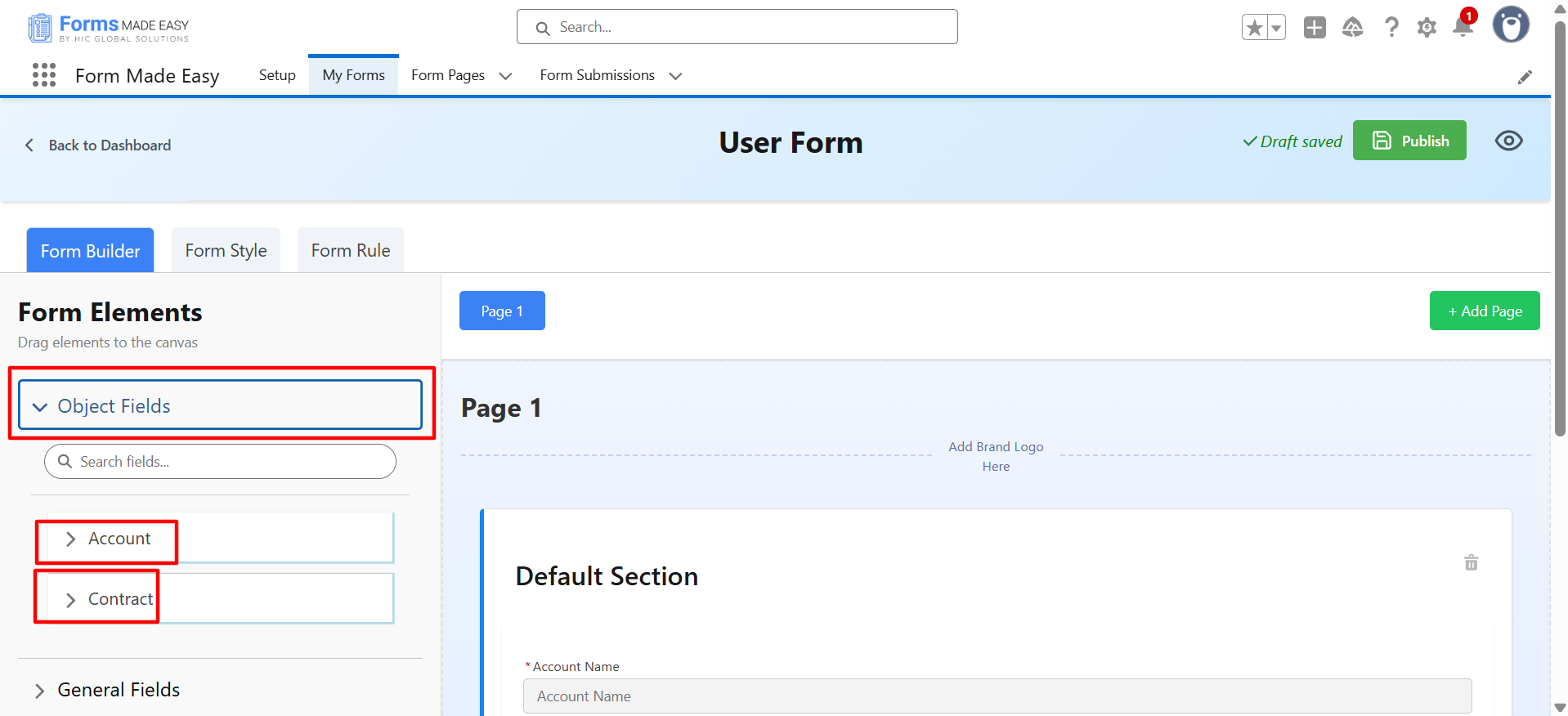
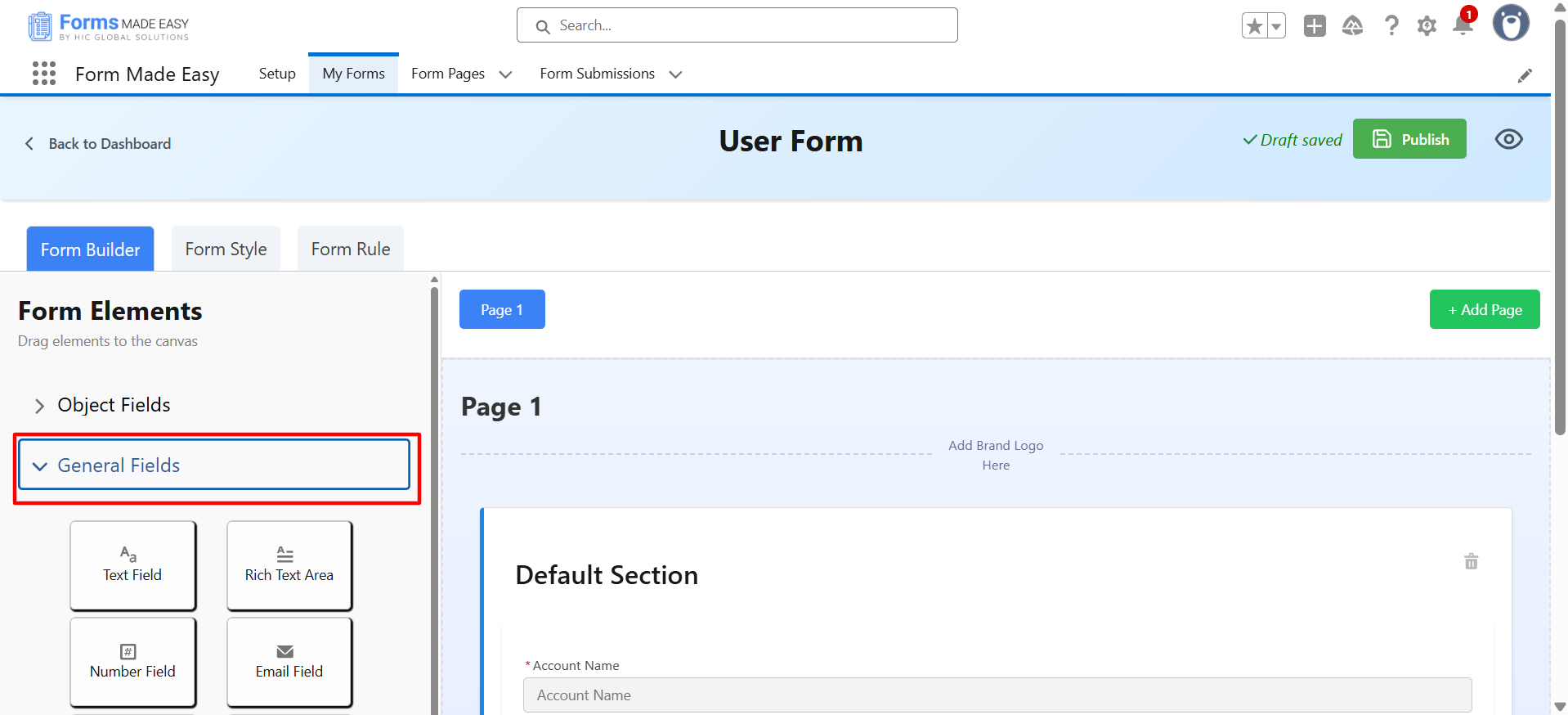
General Fields: It allows you to drag & drop the General Fields, such as Text, Text area, Email, Number, Signature, etc.
Note: You can edit the label of the fields and make a field required or optional.
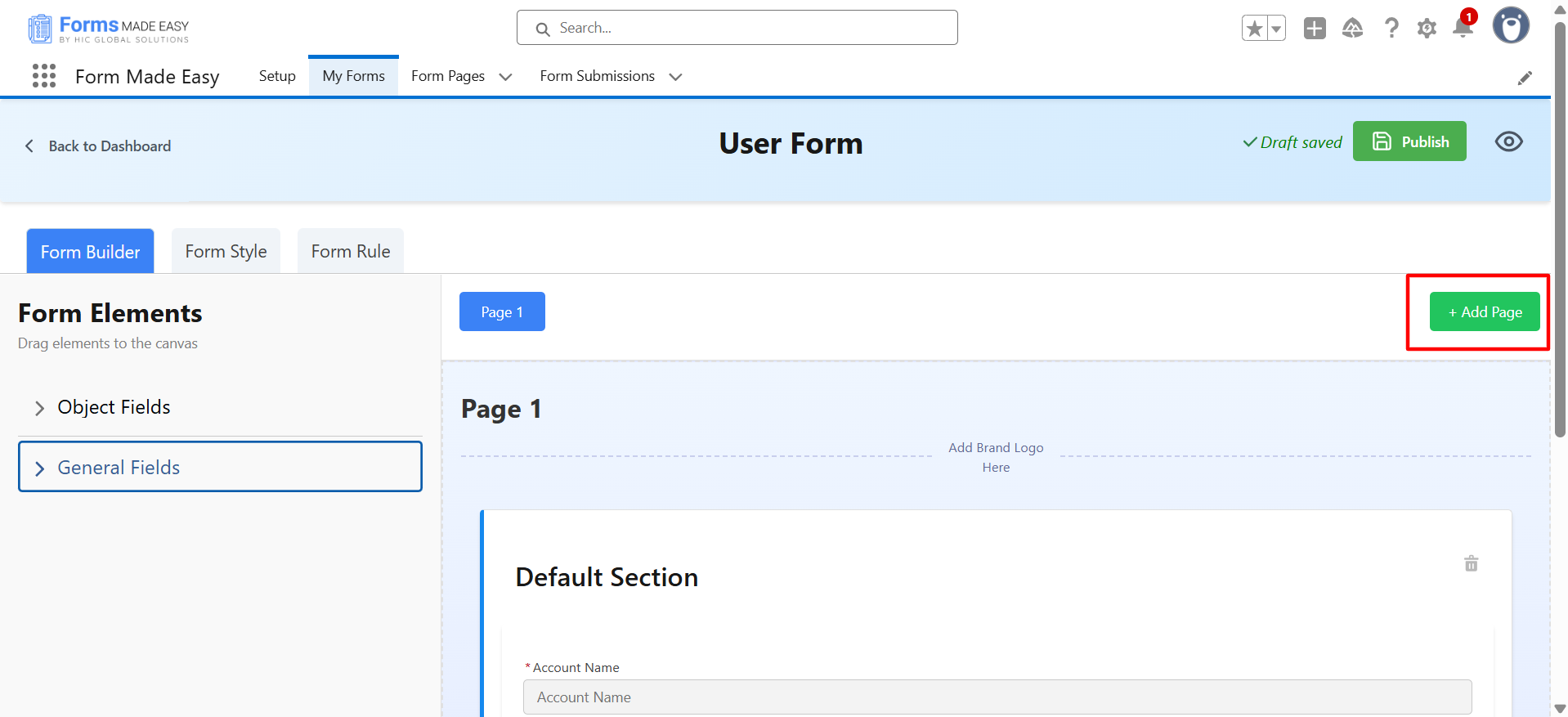
Add Page: It allows adding multiple pages to the form.
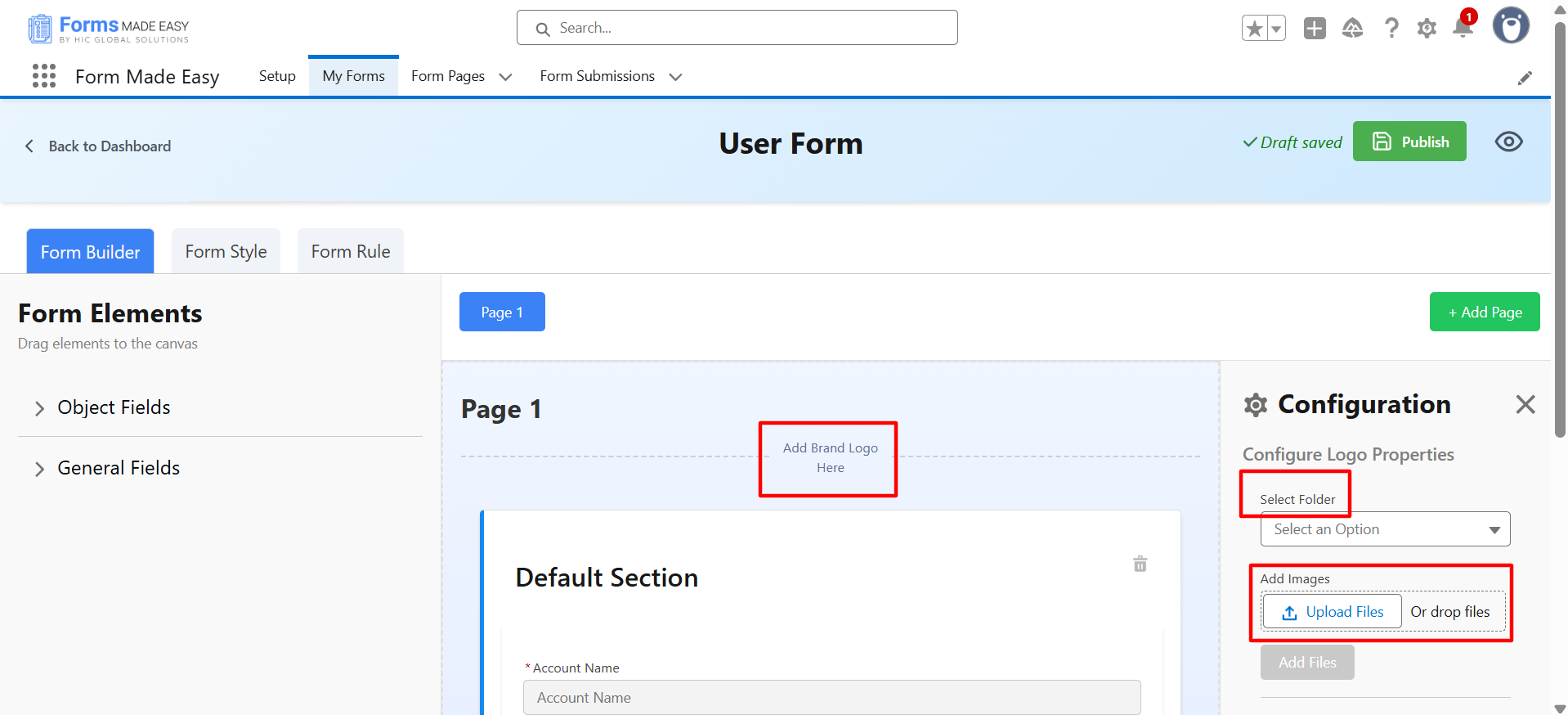
Add Brand Logo: You can upload any brand logo by the ‘Add Brand Logo Here’ option and change the position of the logo (like left, right, center).
Note: Forms Made Easy supports PNG, JPEG, JPG, and GIF images.
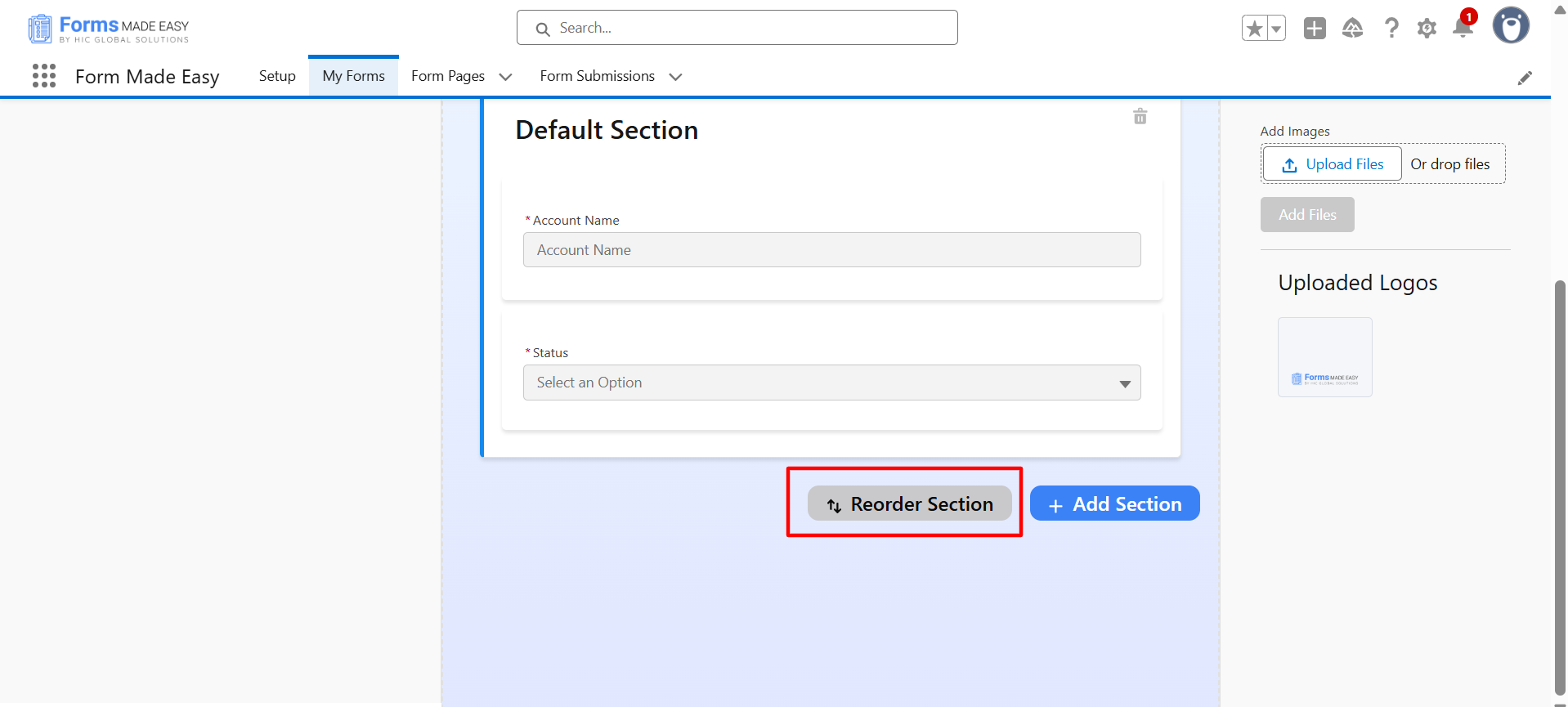
Reorder Section: With this option, you can reorder the sections of the same form.
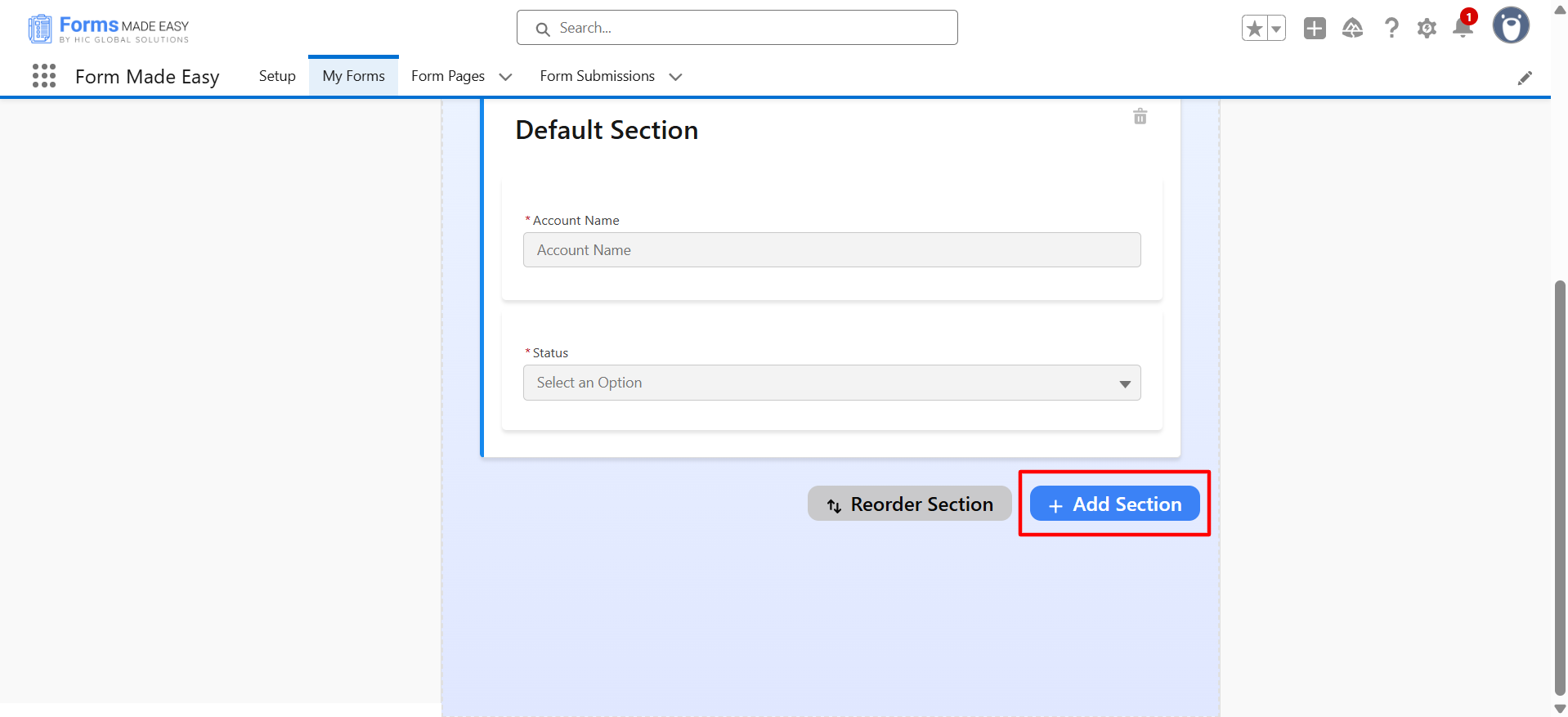
Add section: You can also add multiple sections or fields.
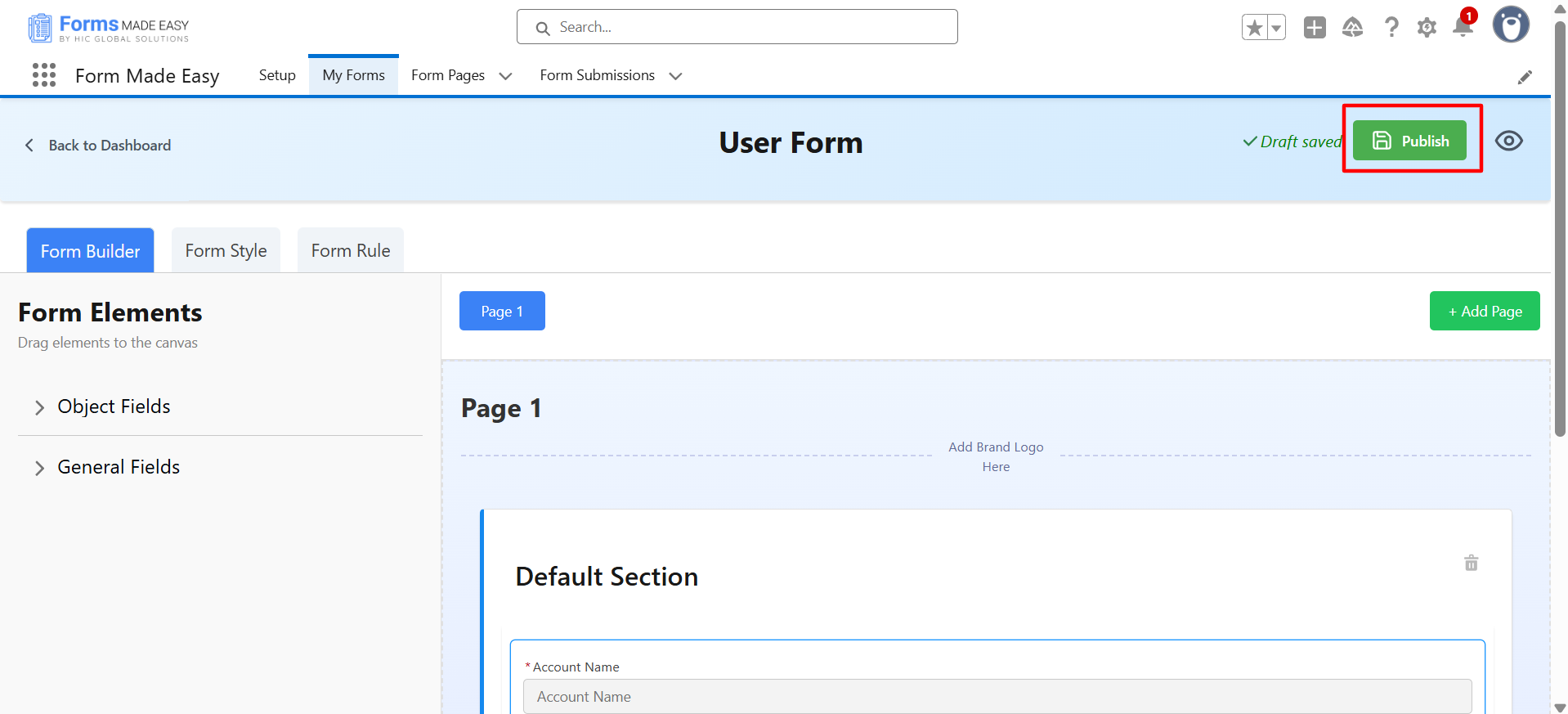
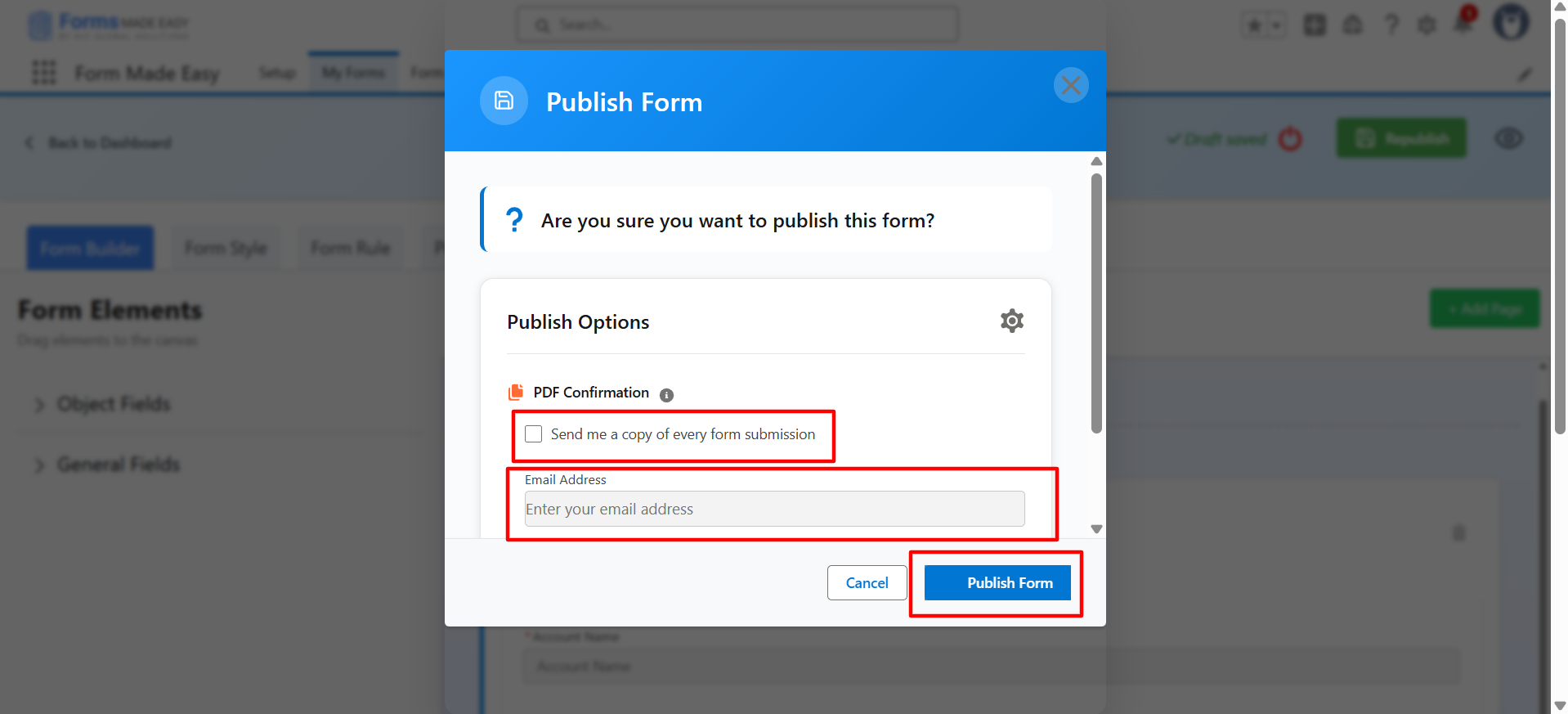
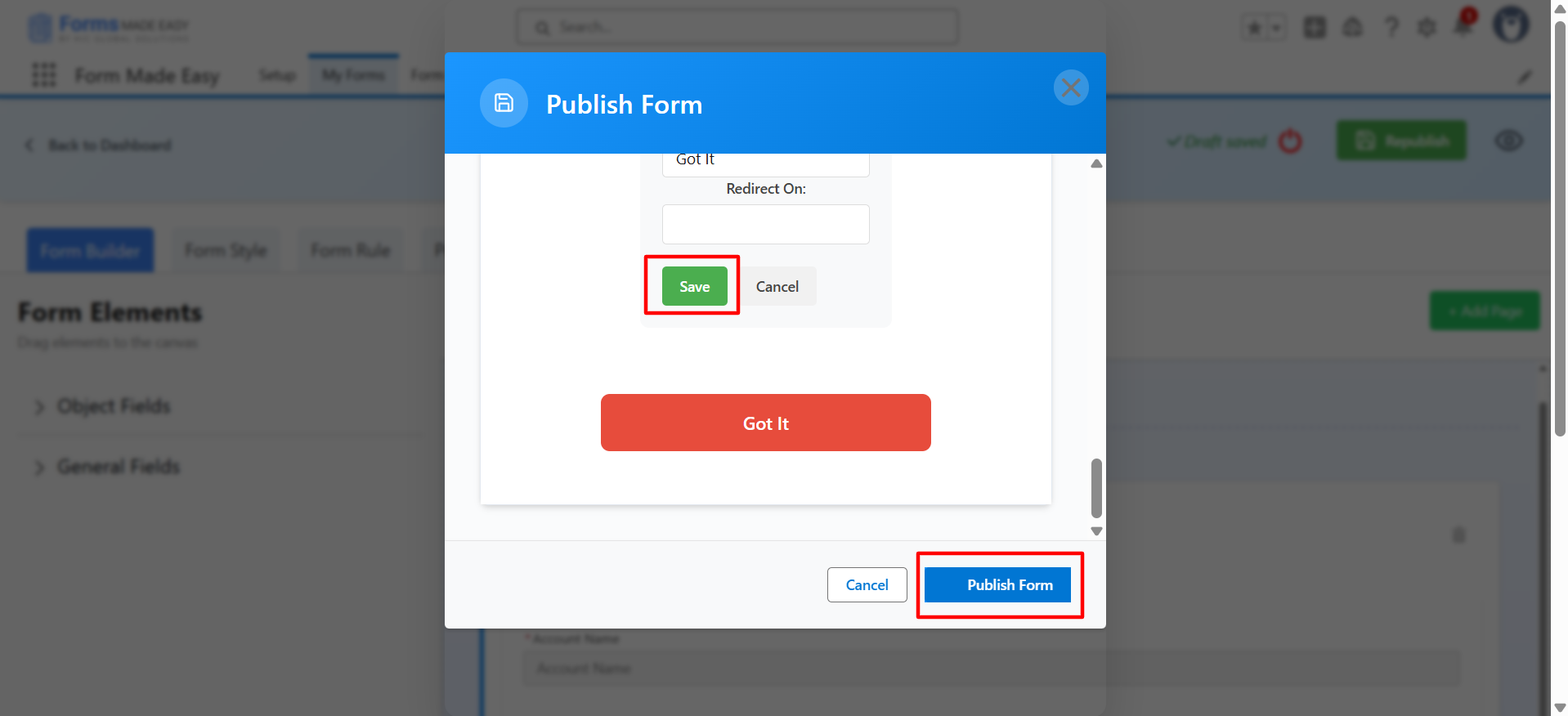
Publish Form: You can publish the form after that form is publicly available. First, tick the checkbox and then add the email address to get every submission of the form.
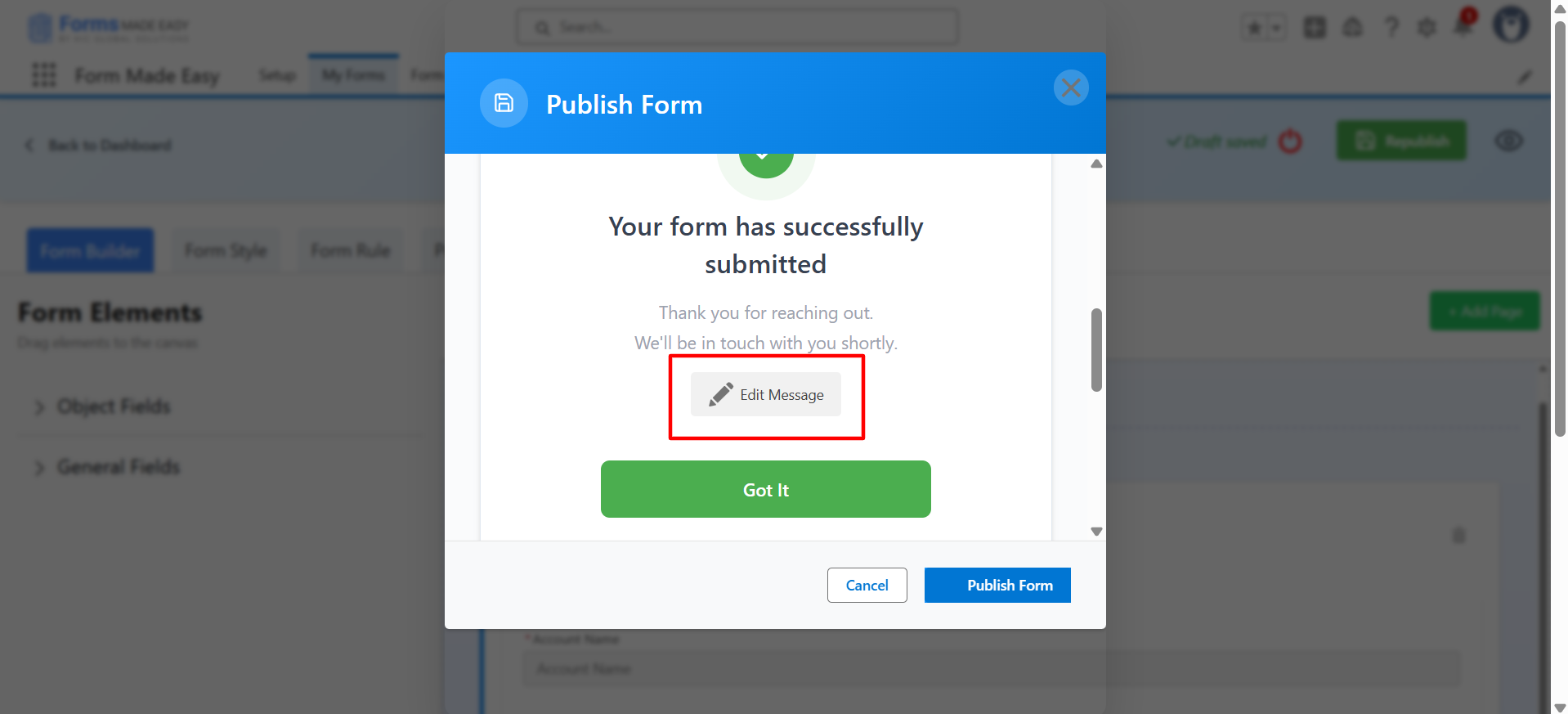
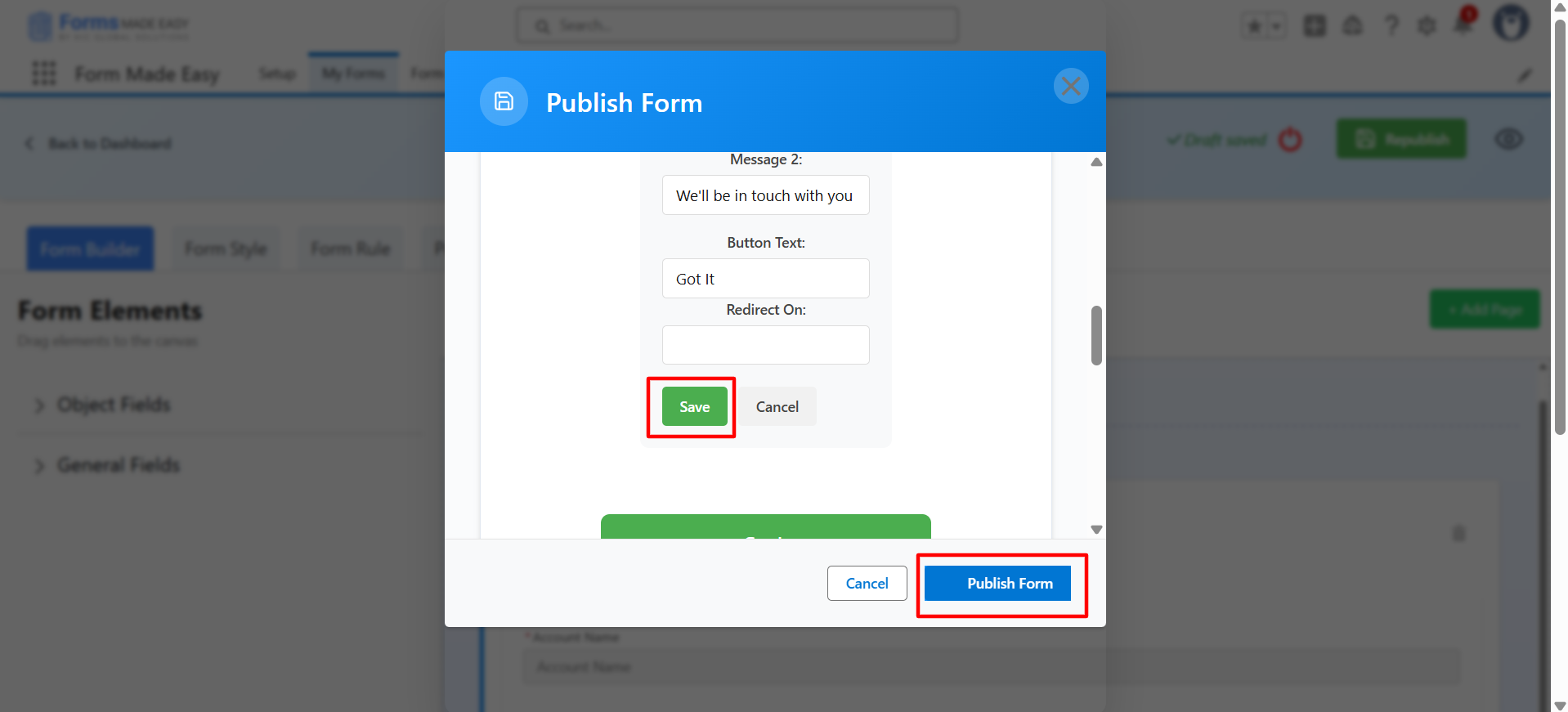
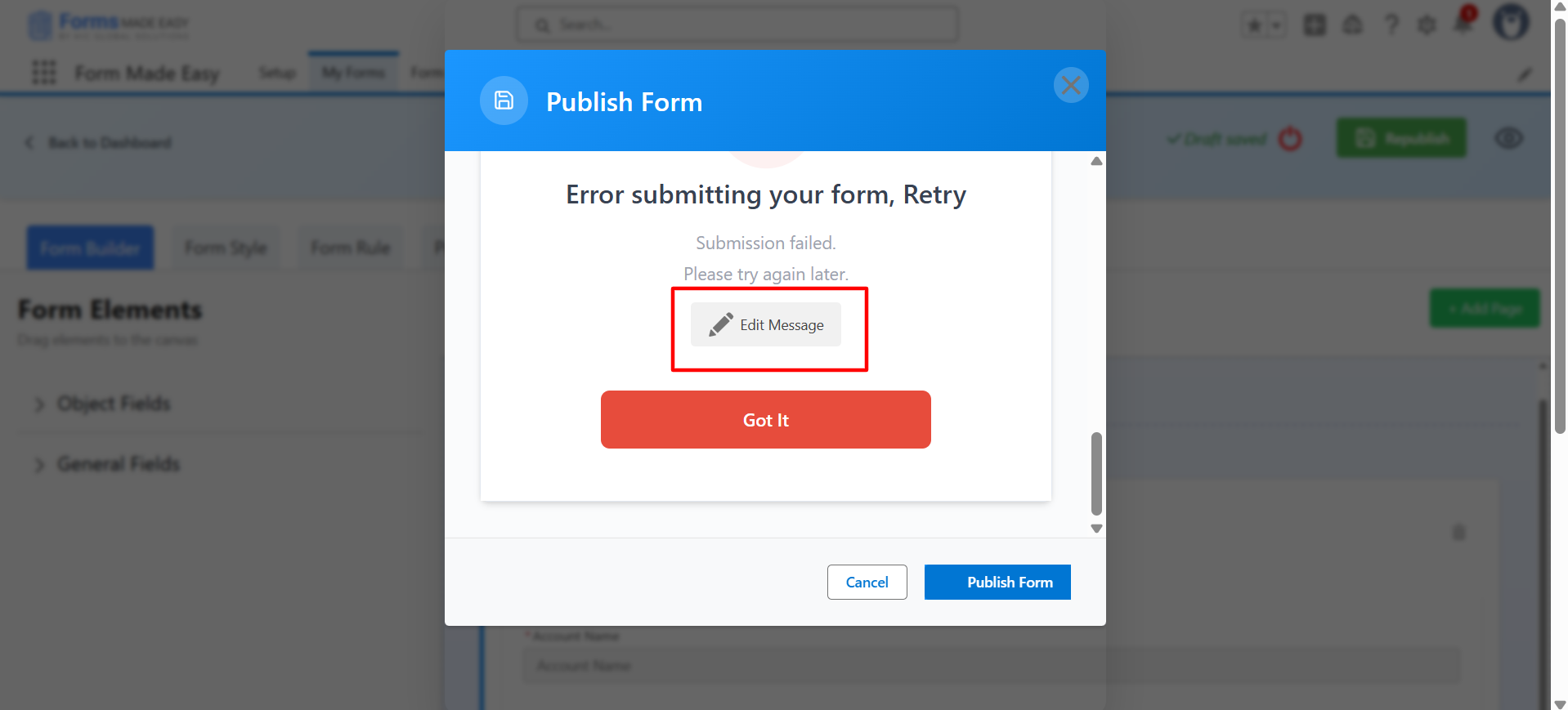
Note: You can also customize the ‘Thank You & Error Page’ message.
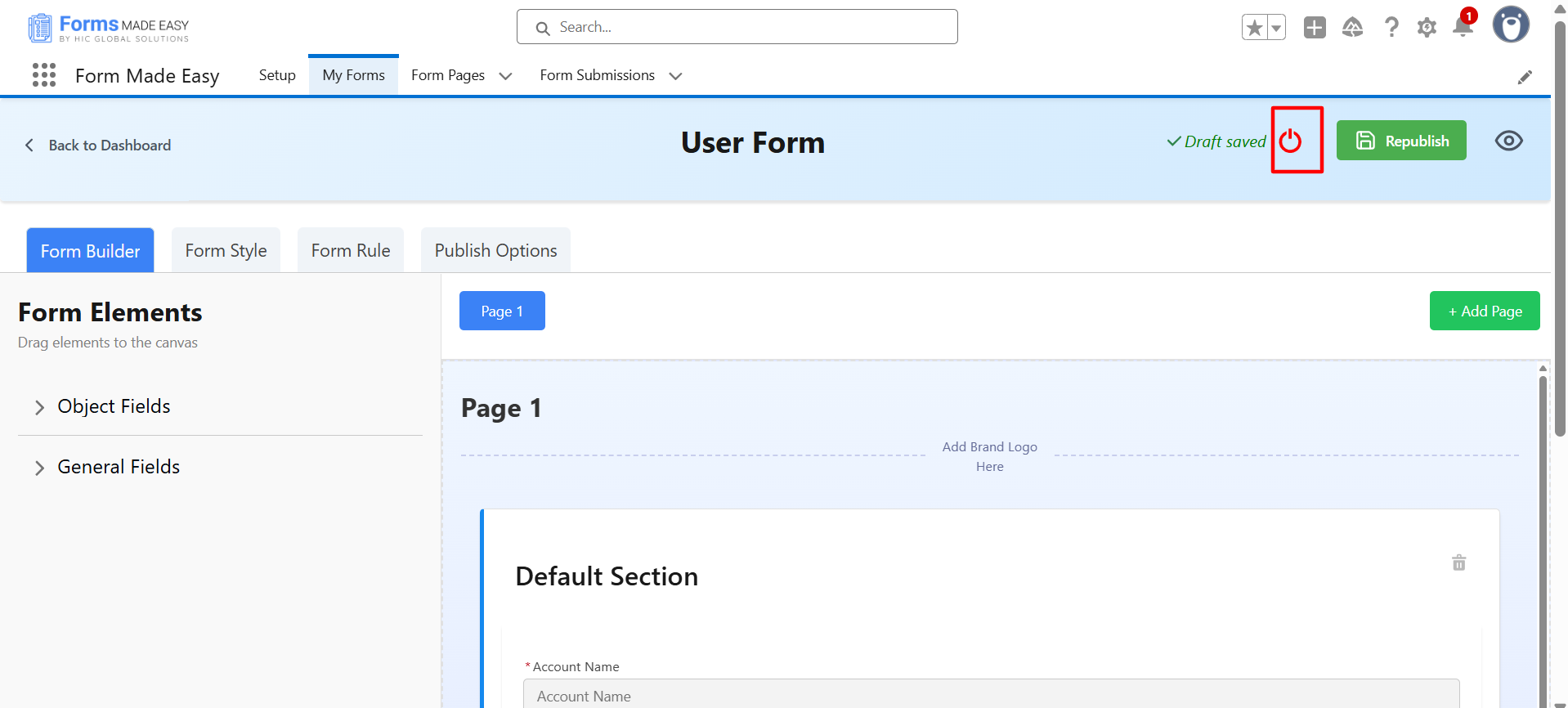
Unpublish Form: Unpublish the form to stop accepting responses.
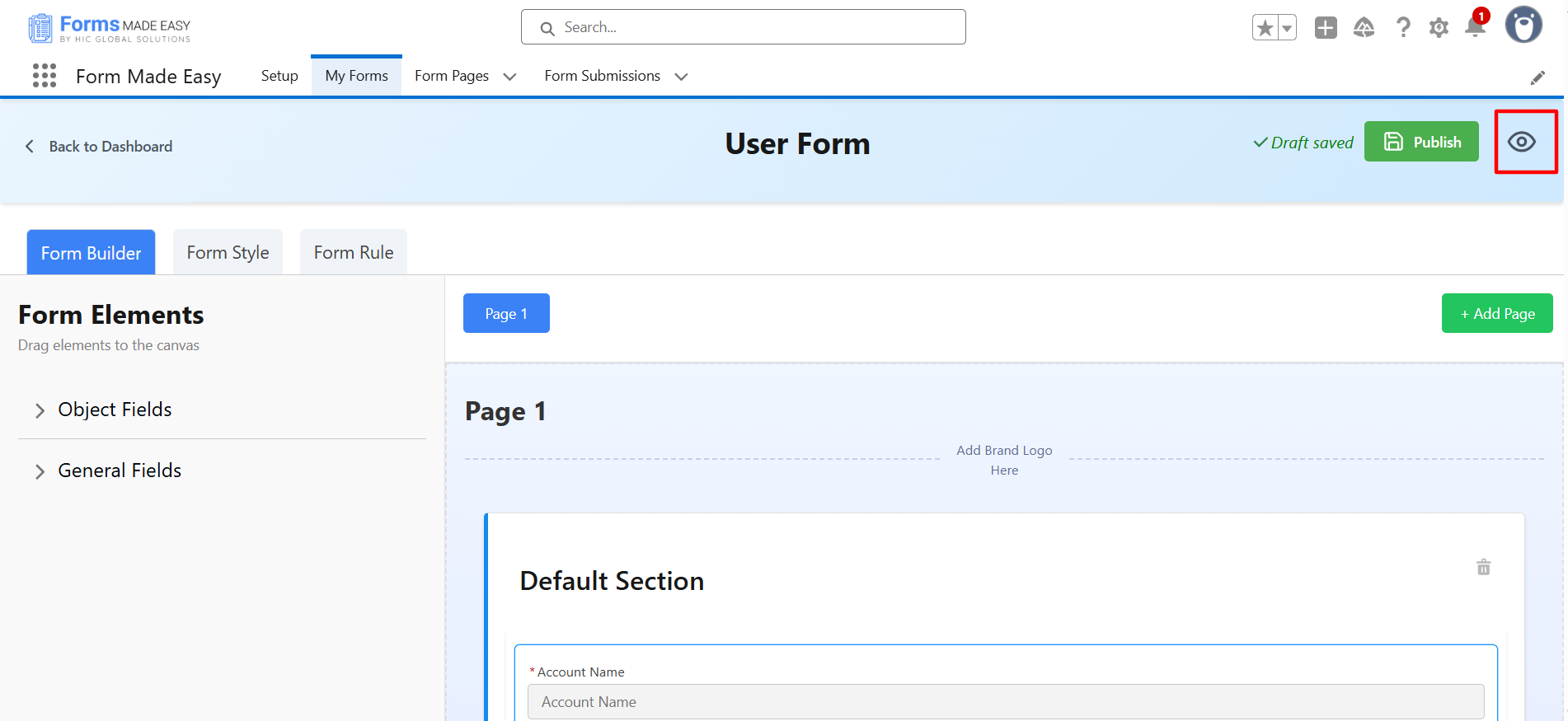
Preview Form: Preview the form before publishing so that you can see how the form will be displayed to other users.
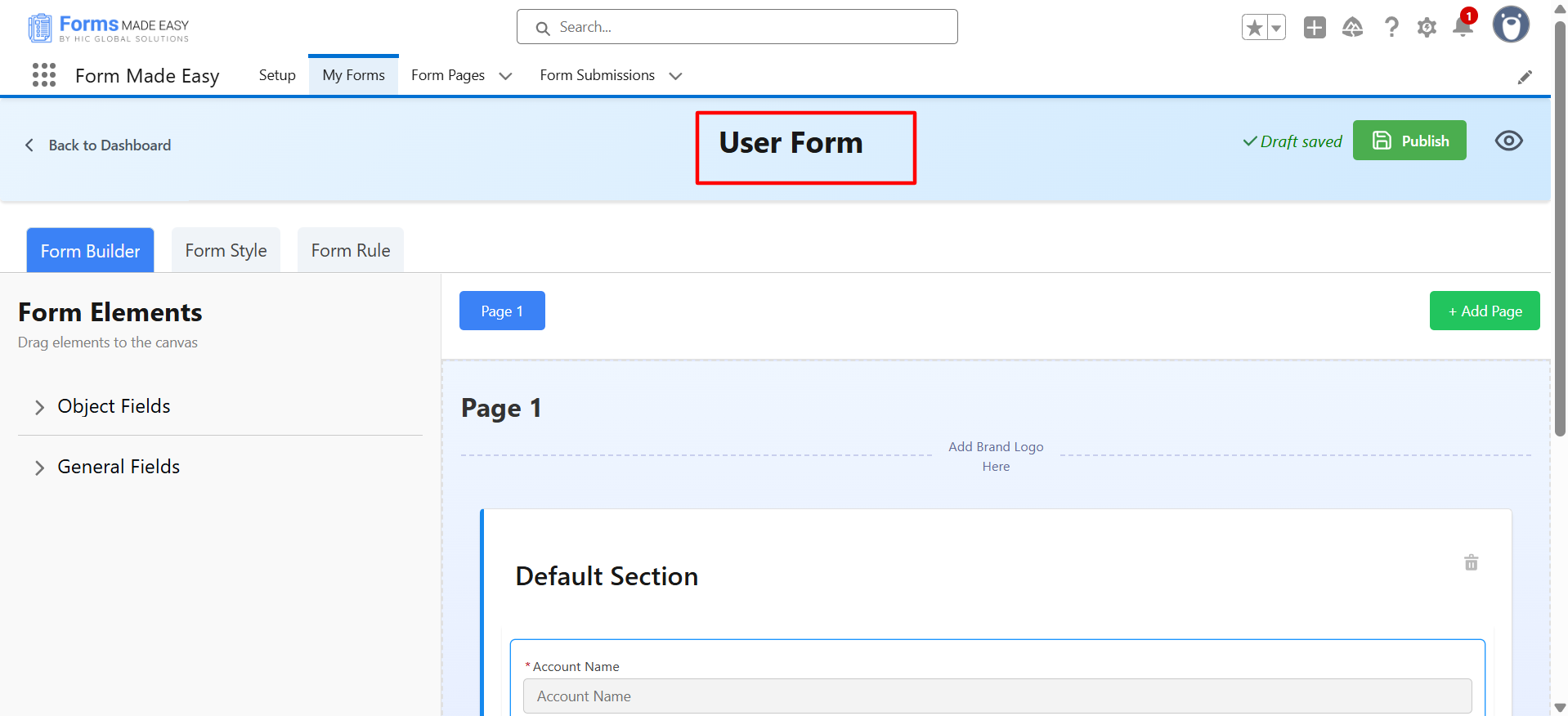
Edit Form Name: Also, you can edit and rename the form name.
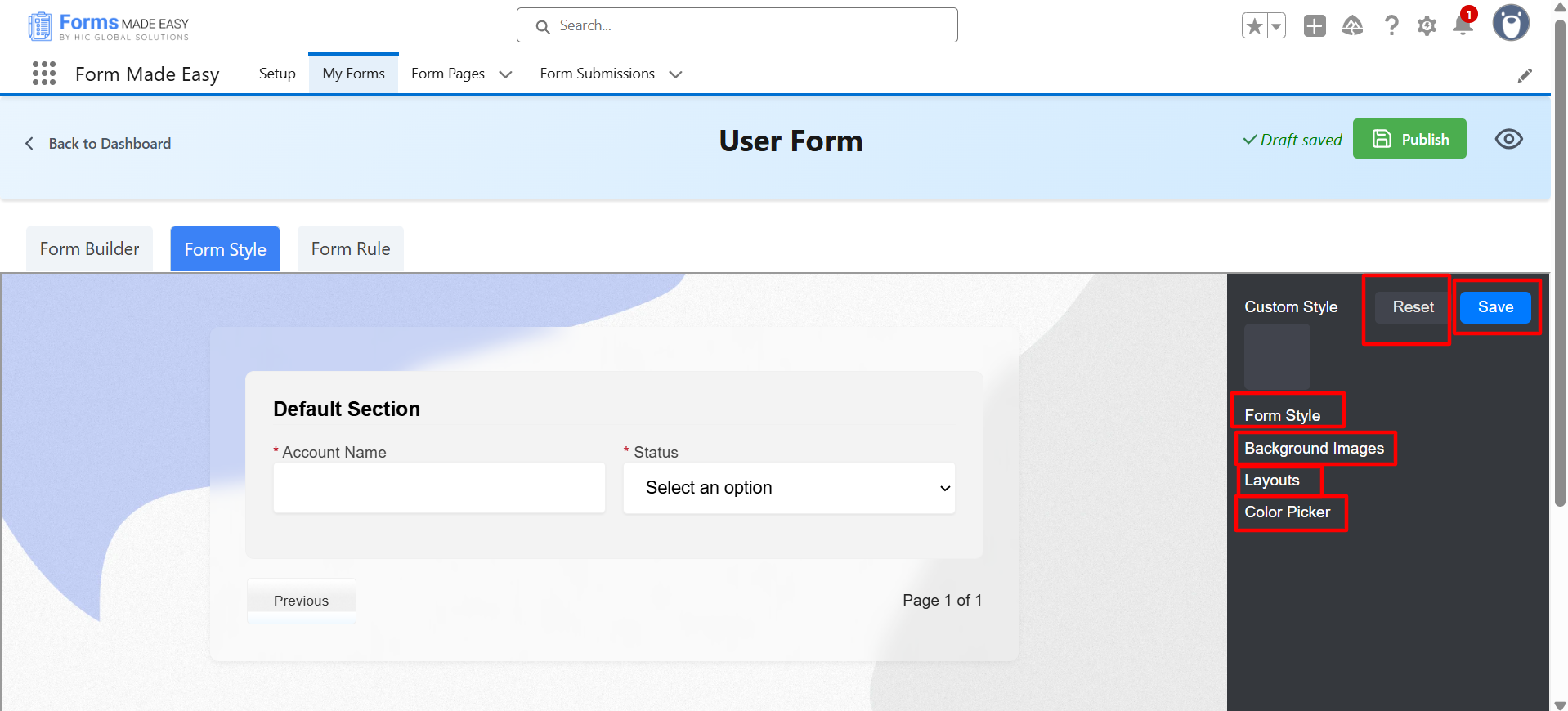
b. Form Style:
-
Form Style
-
Background Images
-
Layouts
-
Colour Picker
c. Form Rule: You can apply the rule for using And/Or functionality and apply multiple conditions.
After that, you can publish the form and see ‘Publish Options.’
Publish Options: On this page, you will see 3 options
- Quick Share
- Embed
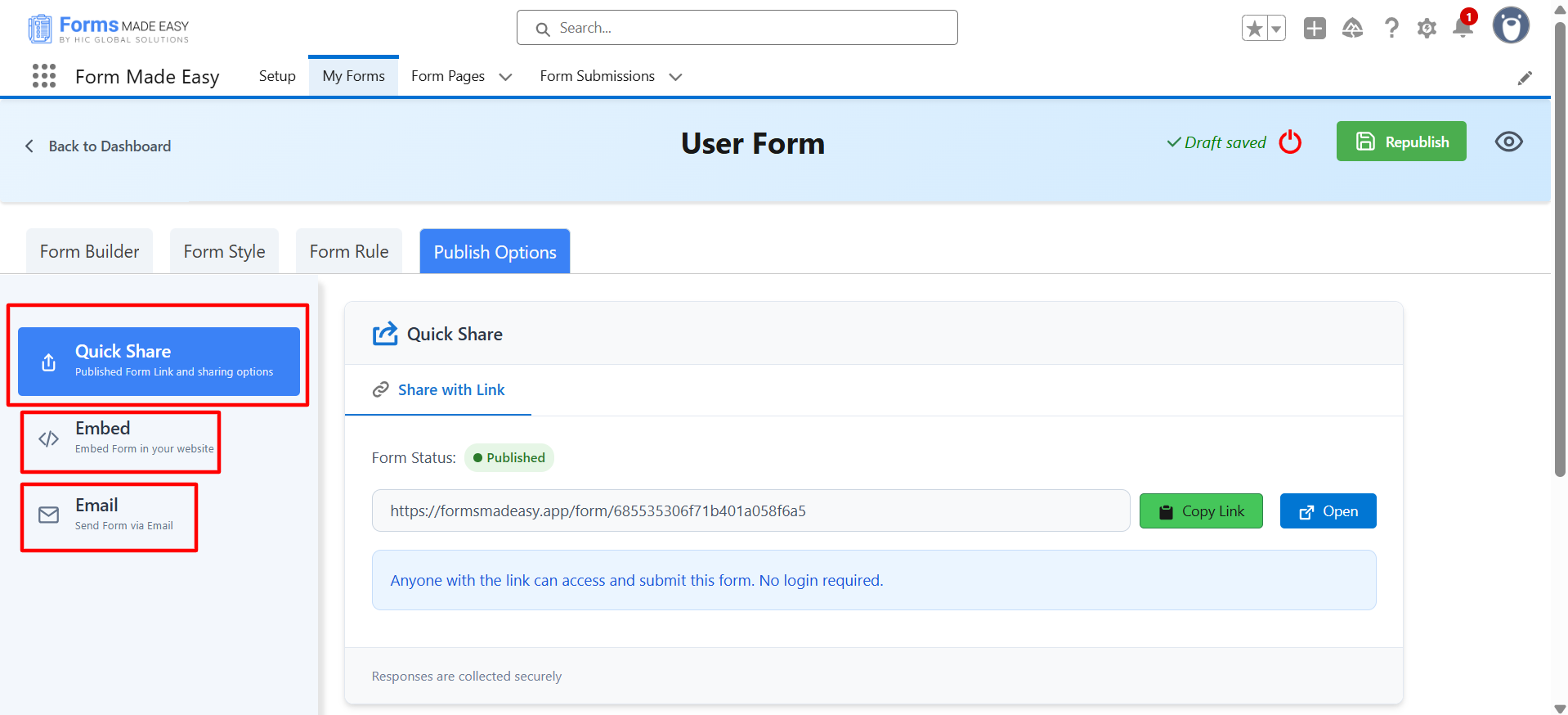
a. Quick Share: In Quick Section, you will get one option.
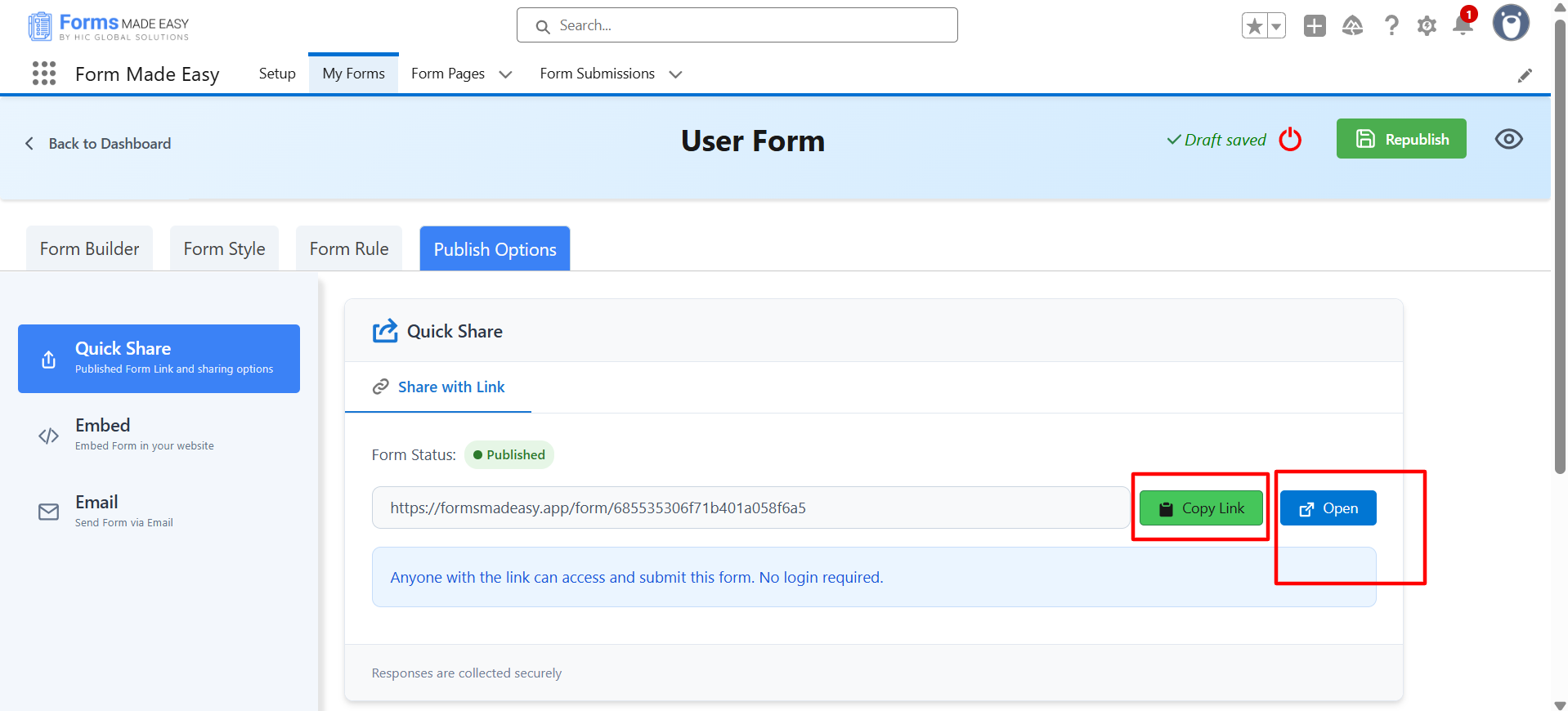
Share with link: Users can share the public URL of the form. Copy the URL or directly open the form.
b. Embed: You will have 3 options.
-
Embed JS
-
Iframe
-
Source code
Embed JS: You can copy the embed JS script and directly use it in your website.
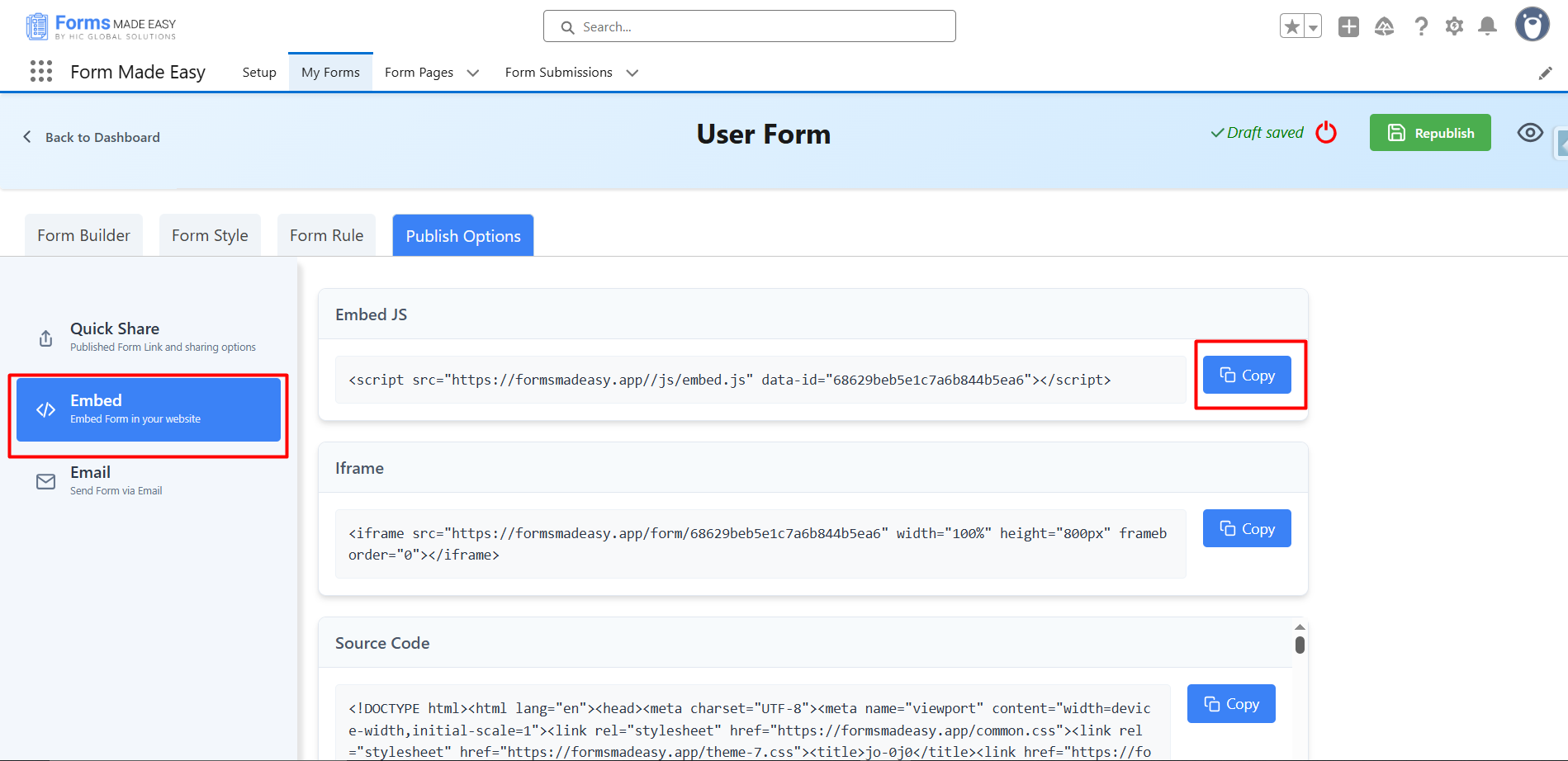
Iframe: Copy the URL and directly open the forms
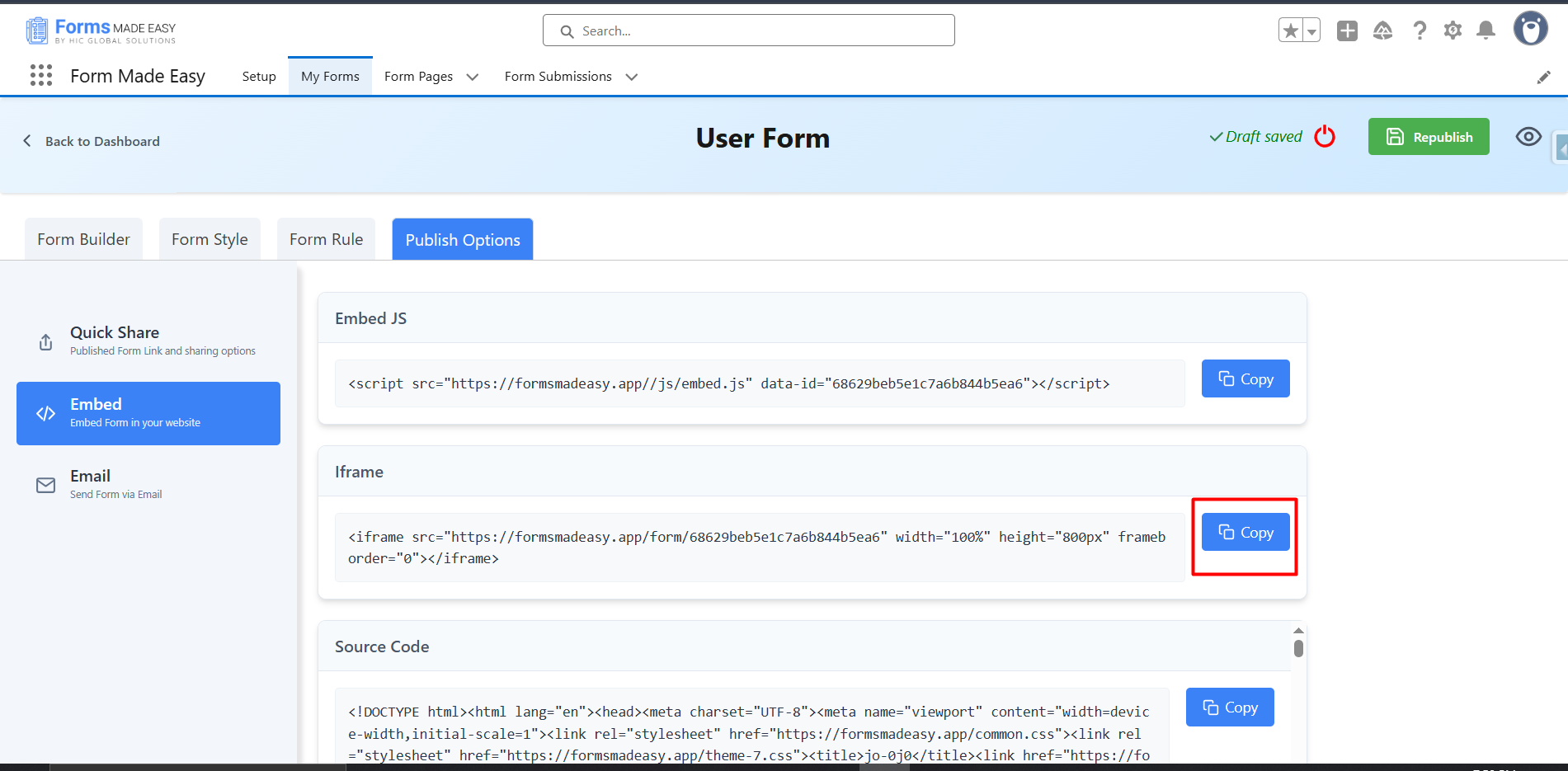
Source Code: Here, you can copy the code directly and access the source code of your form.
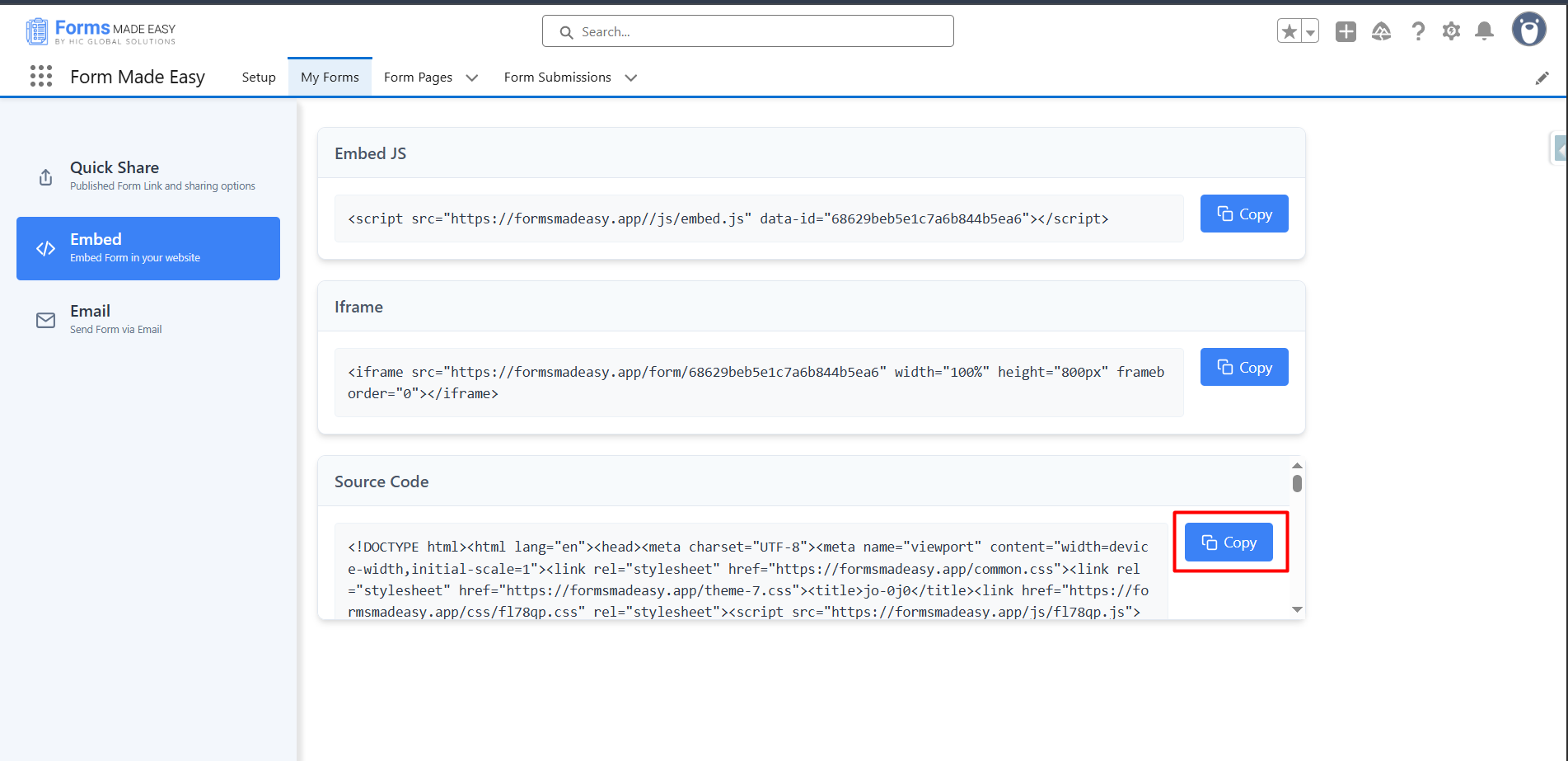
Note: Until you publish the form, this functionality will not be displayed to the user.
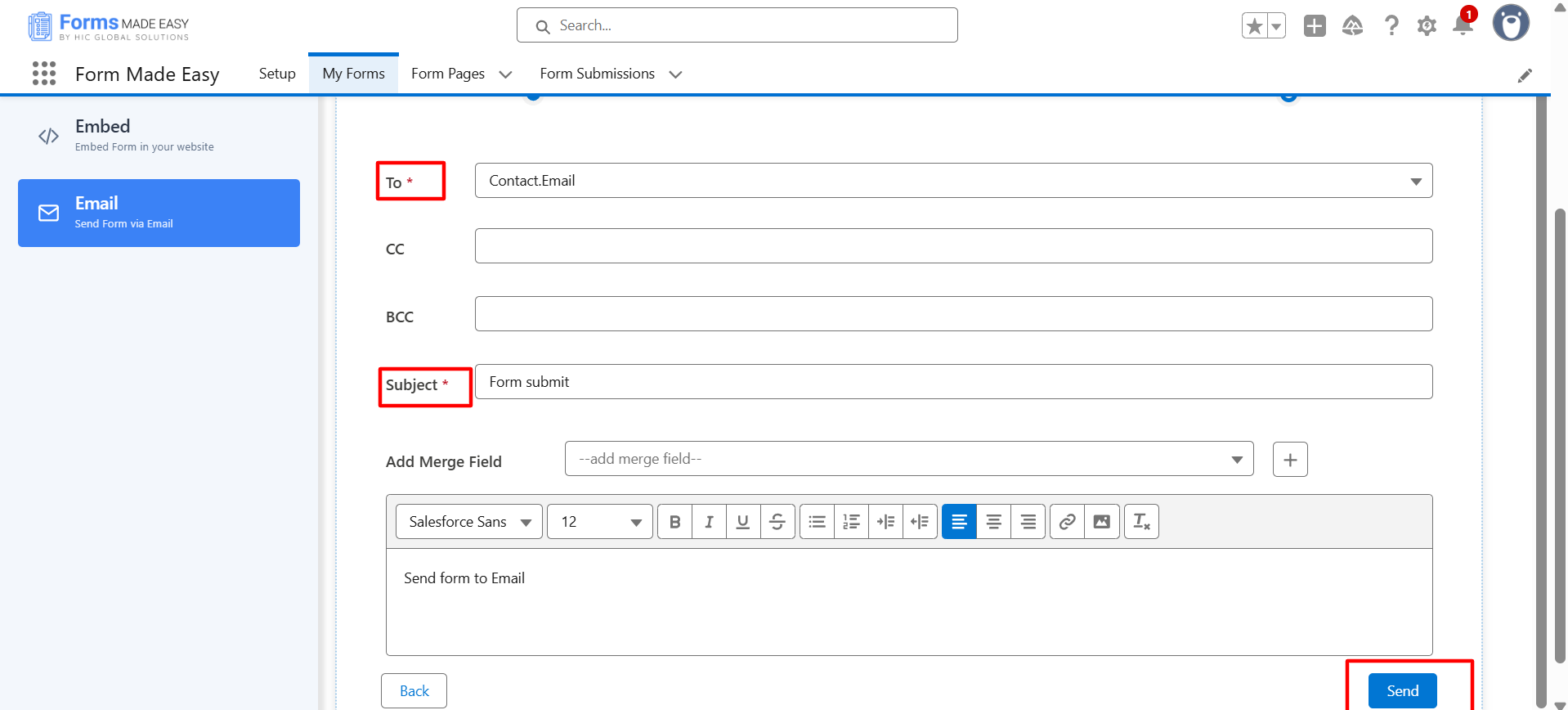
c. Email: The email will work only if the object that has been selected has an email field that you can drag and drop into the form.
In the email feature, you will have 2 options:
- You can share the form via email to specific or single records.
- In the second option, you can send bulk email using the list view.
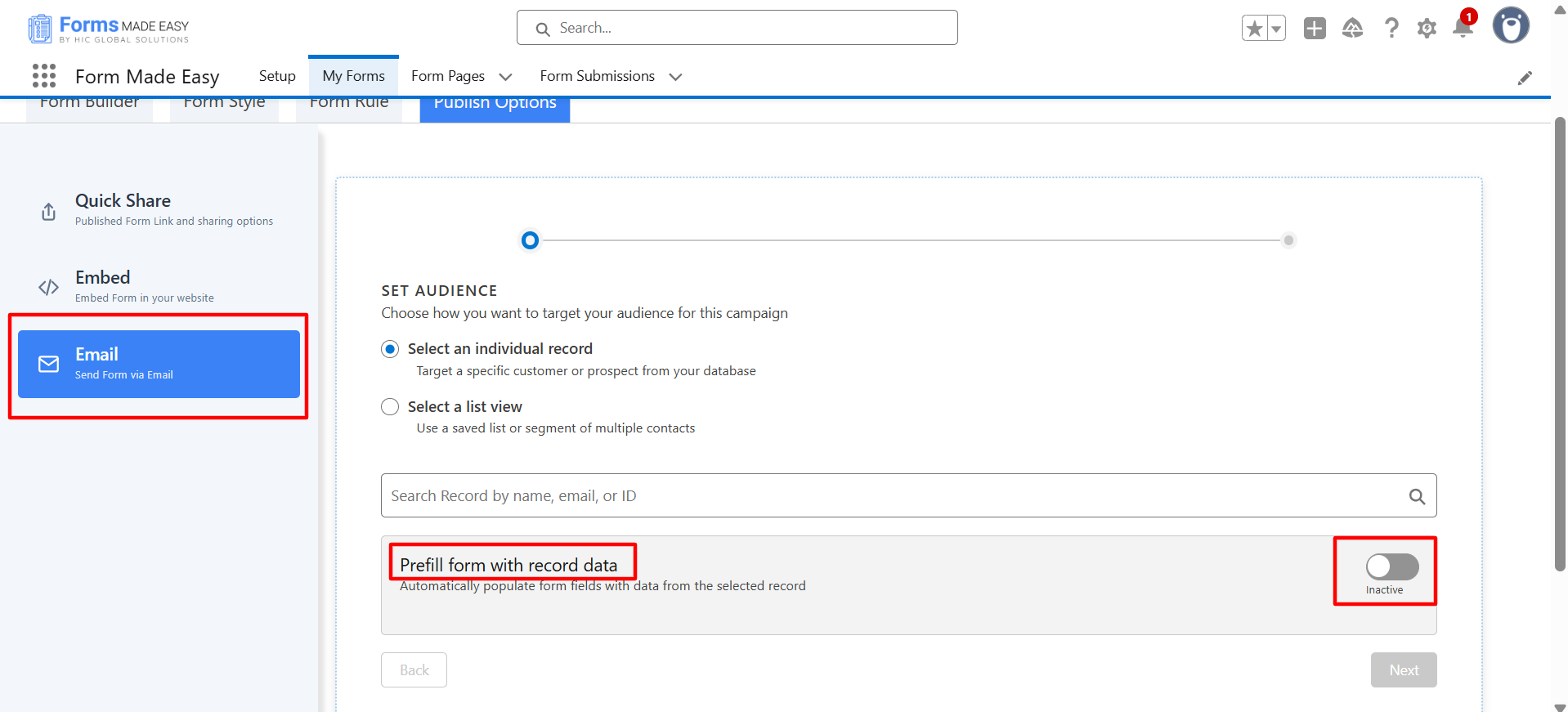
With this Email feature, you have a prefill option.
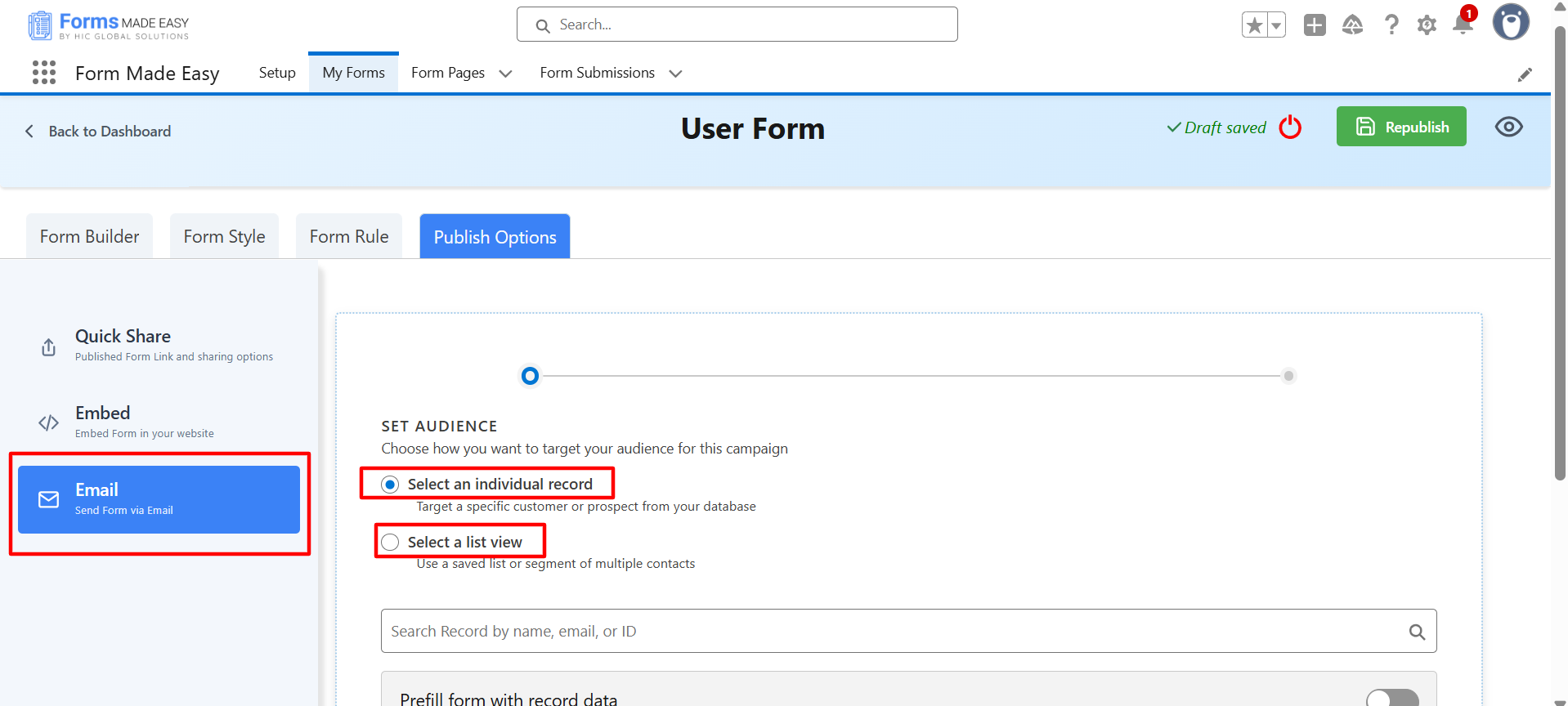
Prefill option: In the prefill option, when the user opens the form then some details of the user will already be filled (Prefilled).
After that, you can choose the options and click on the next button. Now, you can fill the required field and click on the send button.
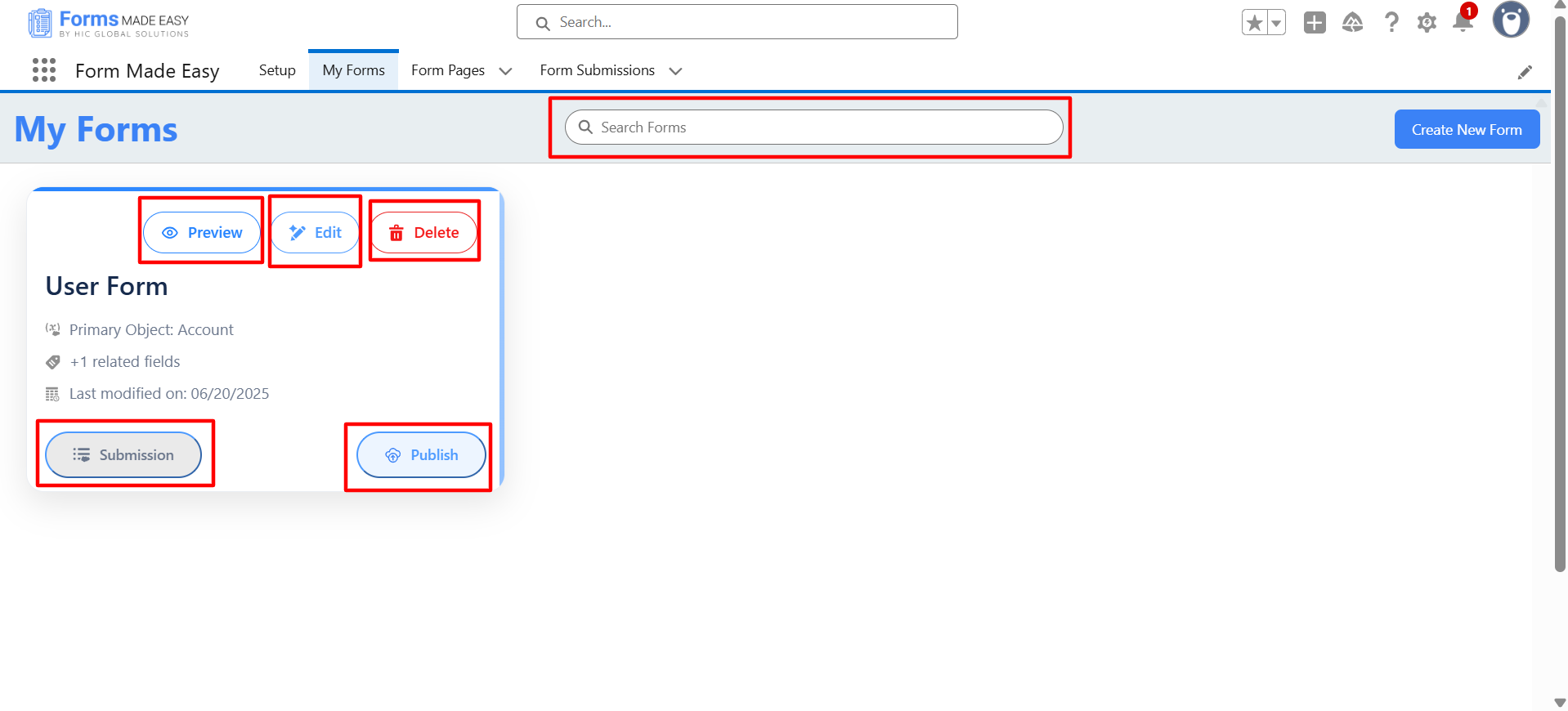
Step 8: In ‘My Form Tab’, users can see the status of the forms with
- Preview
- Edit
- Unpublish
- Submission
- Delete
- Search Box
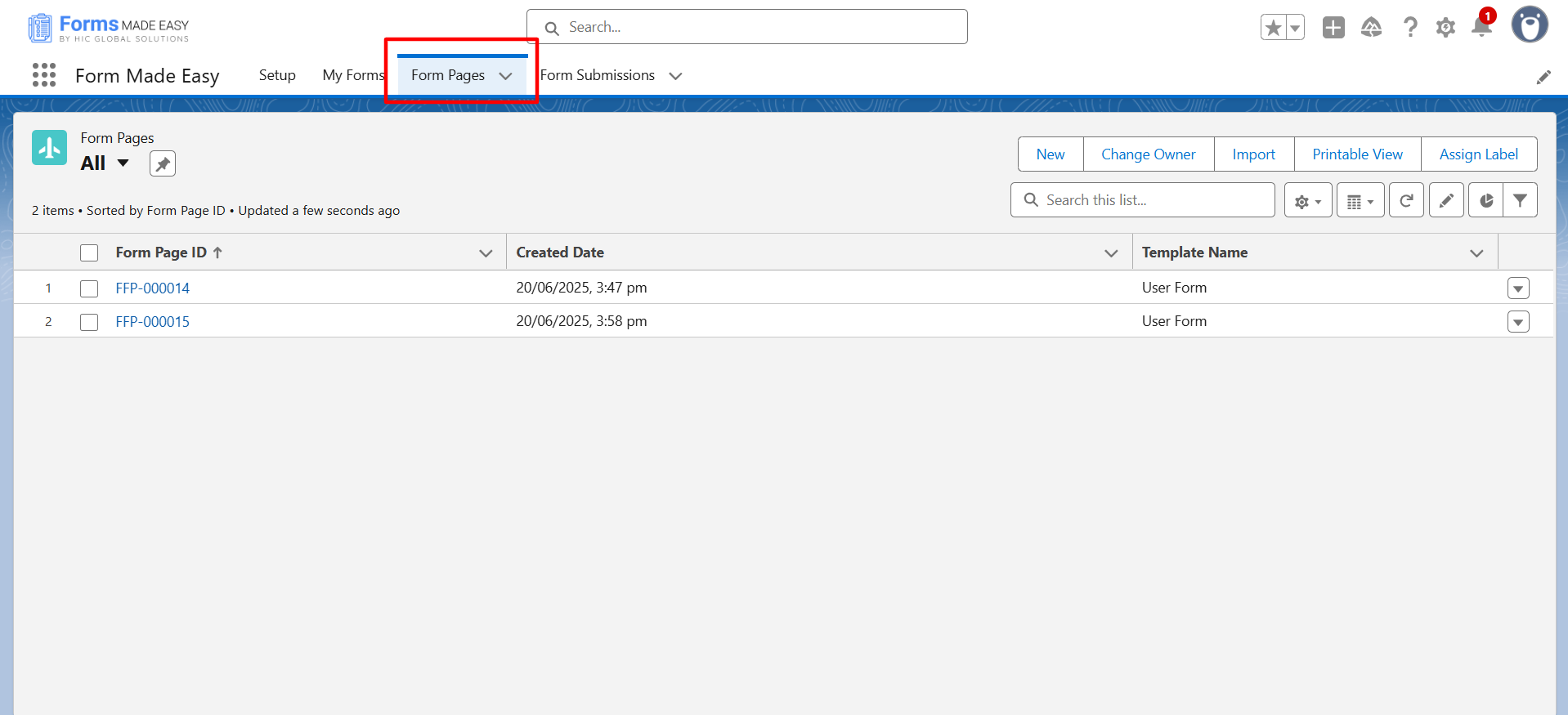
Step 9: Form Pages – In this object, you can see the form details.
Step 10: Form Submission – It stores the submission record of the form.
Note: You’re All Set to Build Smarter Forms! With Forms Made Easy, creating Salesforce-connected forms is effortless, whether you’re starting from a template or building from scratch. Ready to streamline your data collection?
Conclusion: Simplify Salesforce Form Creation with No-Code Solutions
Creating Salesforce forms doesn’t have to be complicated or limited by native tools. While manual methods and Salesforce’s built-in options may work for basic needs, they often fall short when it comes to flexibility, scalability, and automation. That’s where a no-code Salesforce Form Builder truly shines.
With the right tool, you can design smart, secure, and fully customizable forms that integrate seamlessly with your Salesforce org—helping you save time, reduce errors, and boost productivity across your business processes. From lead generation and case management to donations and compliance, the possibilities are endless.
💡 If you want to unlock the full potential of Salesforce forms without touching a single line of code, Forms Made Easy is your best choice.