



Turn Forms Into Automated Workflows
Design dynamic forms, streamline operations, and eliminate repetitive manual tasks — all without code.
Talk to Our ExpertsBuild Smarter Forms Faster
Create no-code forms inside Salesforce and automate data collection, approvals, and workflows without complexity.
Get StartedSimplify Your Form Workflows
Replace manual processes with intelligent forms that capture, route, and manage data seamlessly in Salesforce.
Book a DemoIn this guide, we will guide you on how a no-code form builder helps you customize form appearance with ease. Using the Salesforce form creation tool, you can design visually engaging layouts without technical effort. This process also highlights how Salesforce form builder solutions support style adjustments, giving you complete control over colors, backgrounds, and layouts to match your branding preferences effectively.
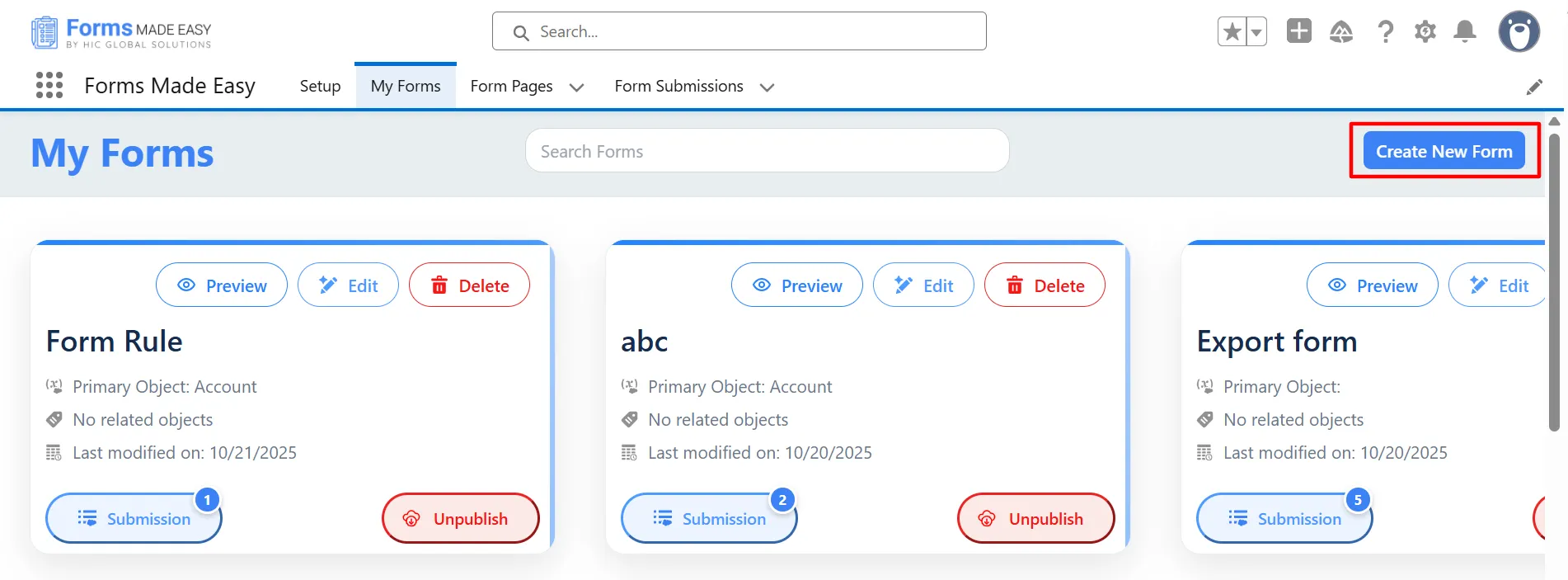
Step 1: Go to the My Forms tab and click on the “Create New Form” button.
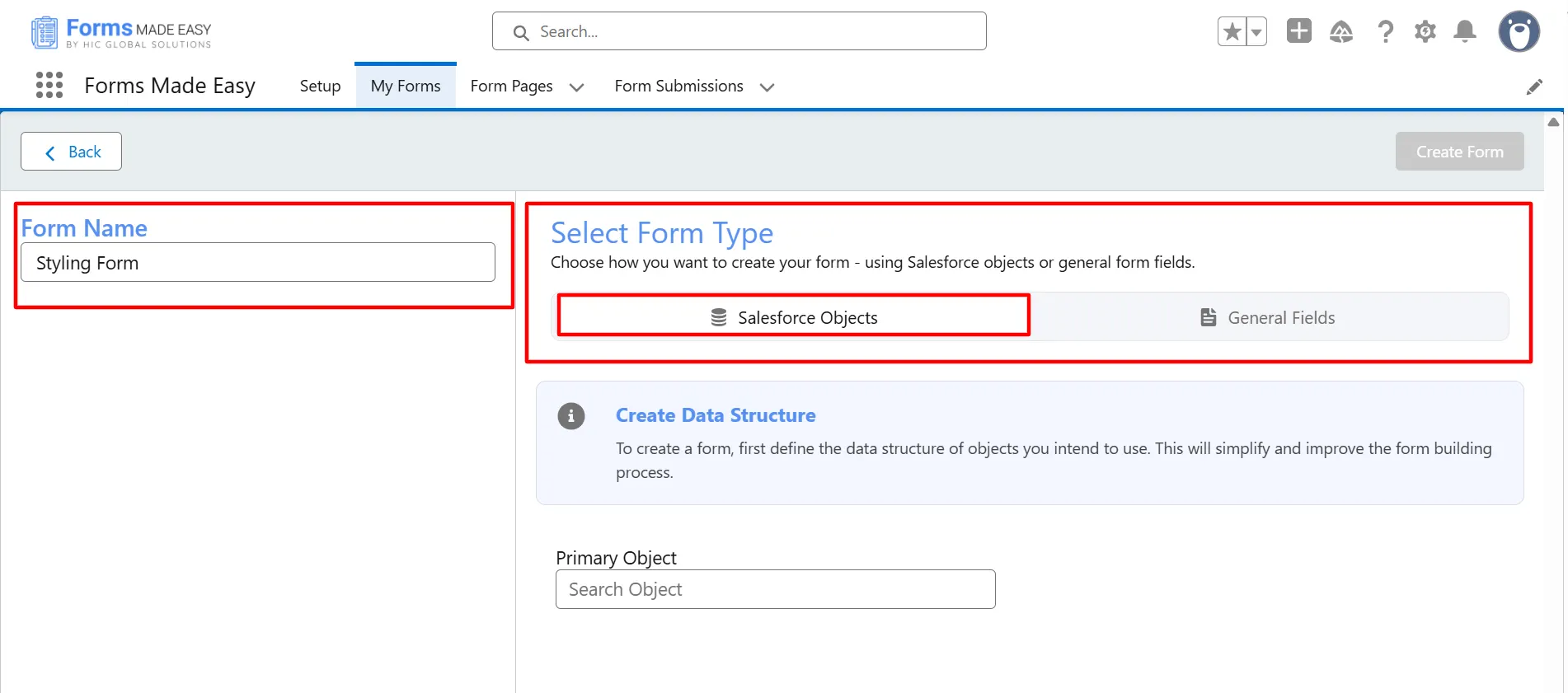
Step 2: Enter the form name and select the form type (Salesforce Objects or General Fields).
Currently, we have chosen the Salesforce Object option.
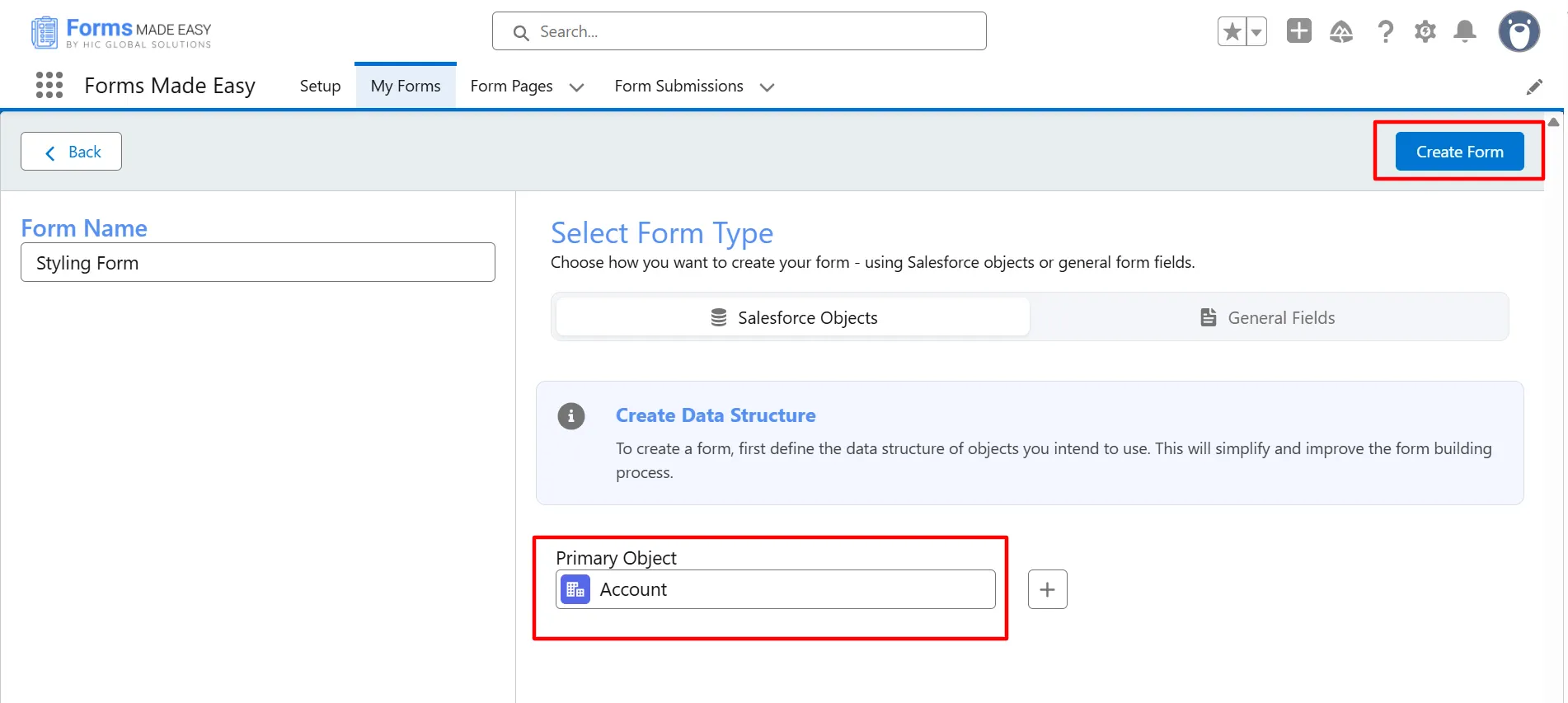
Step 3: Select “Account” as the Primary Object and click the “Create Form“ button.
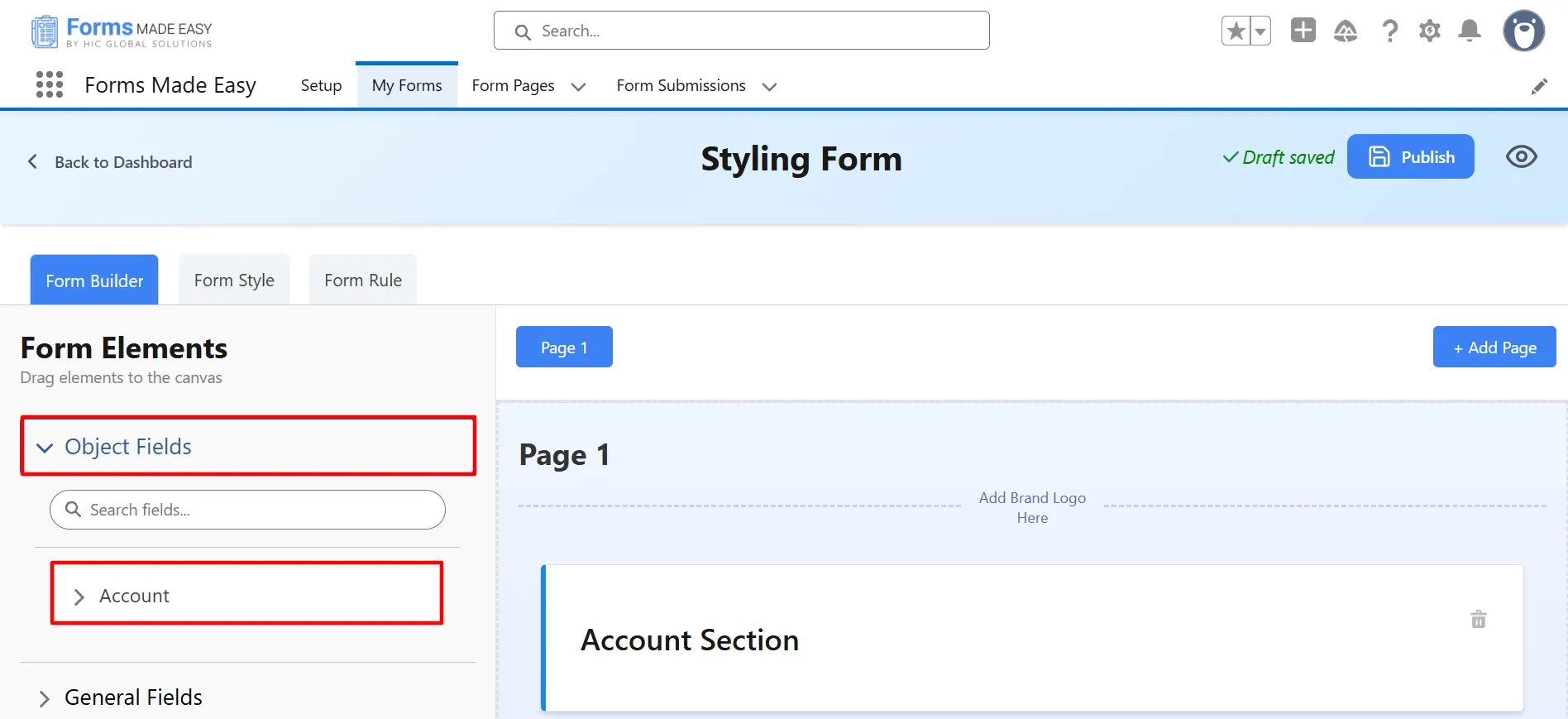
Step 4: Go to the Object Fields section and click on “Account.”
Step 5: Drag and drop your required fields onto the form.
Note: The Account Name field is a mandatory field on the Account Object in Salesforce.
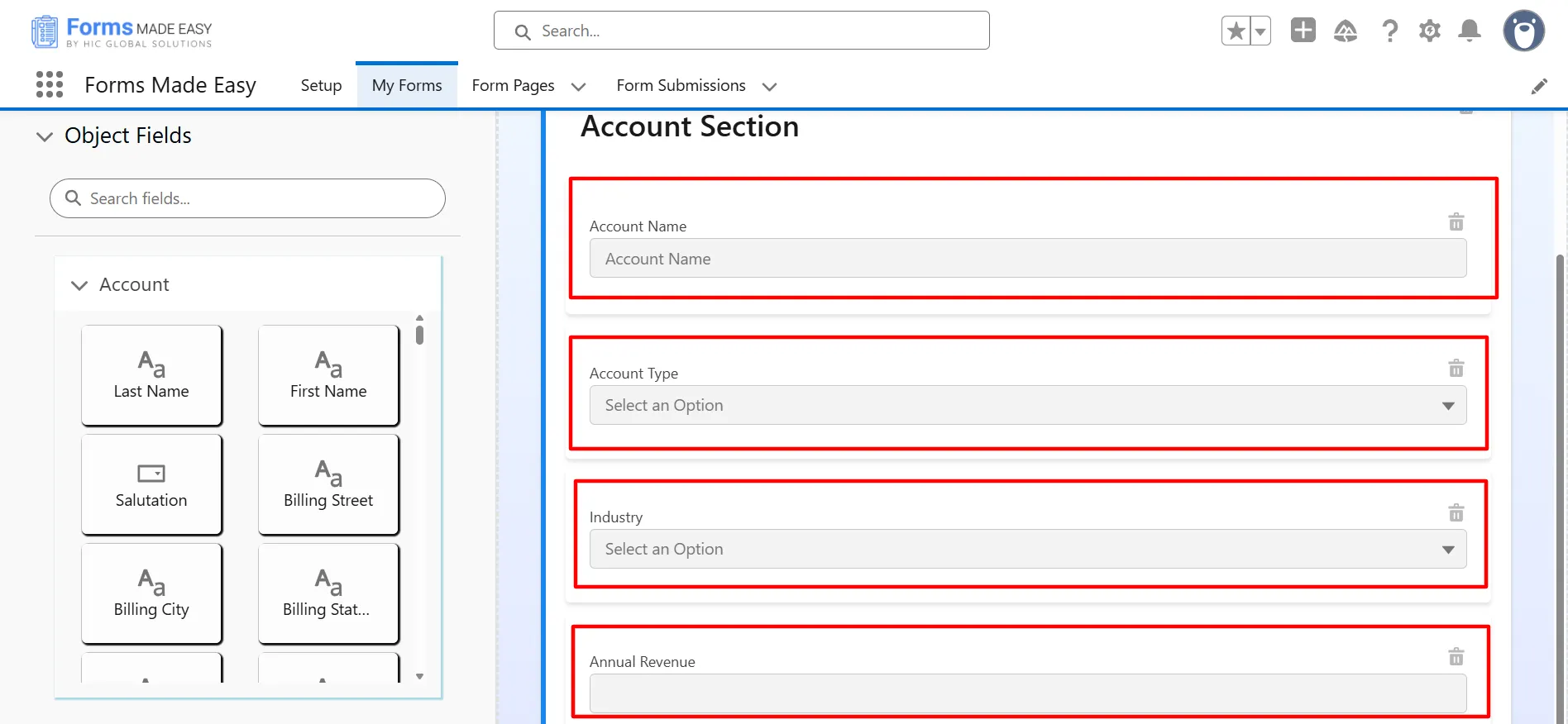
Step 6: After dragging and dropping all the required fields into your form, click on the “Form Style” tab to open it and start customizing your form’s appearance.
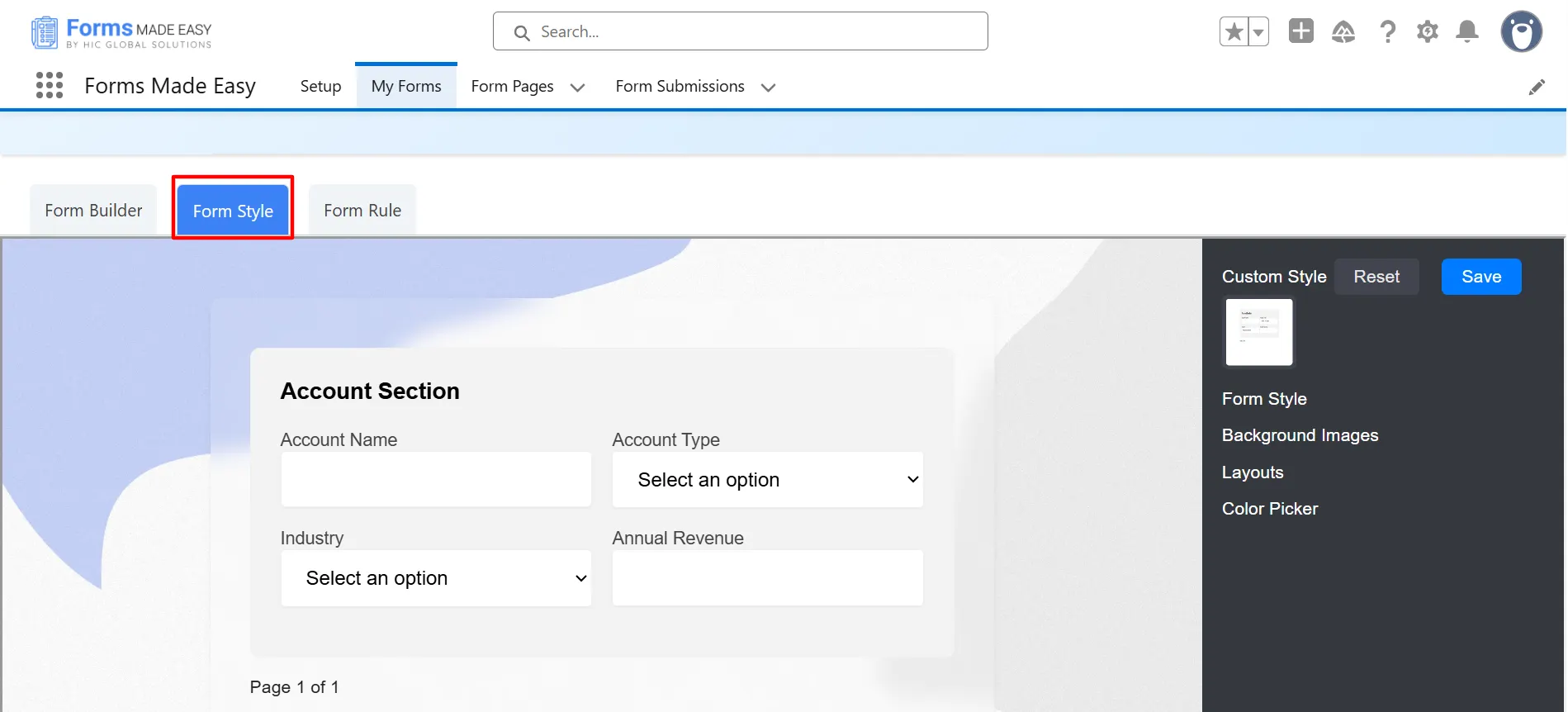
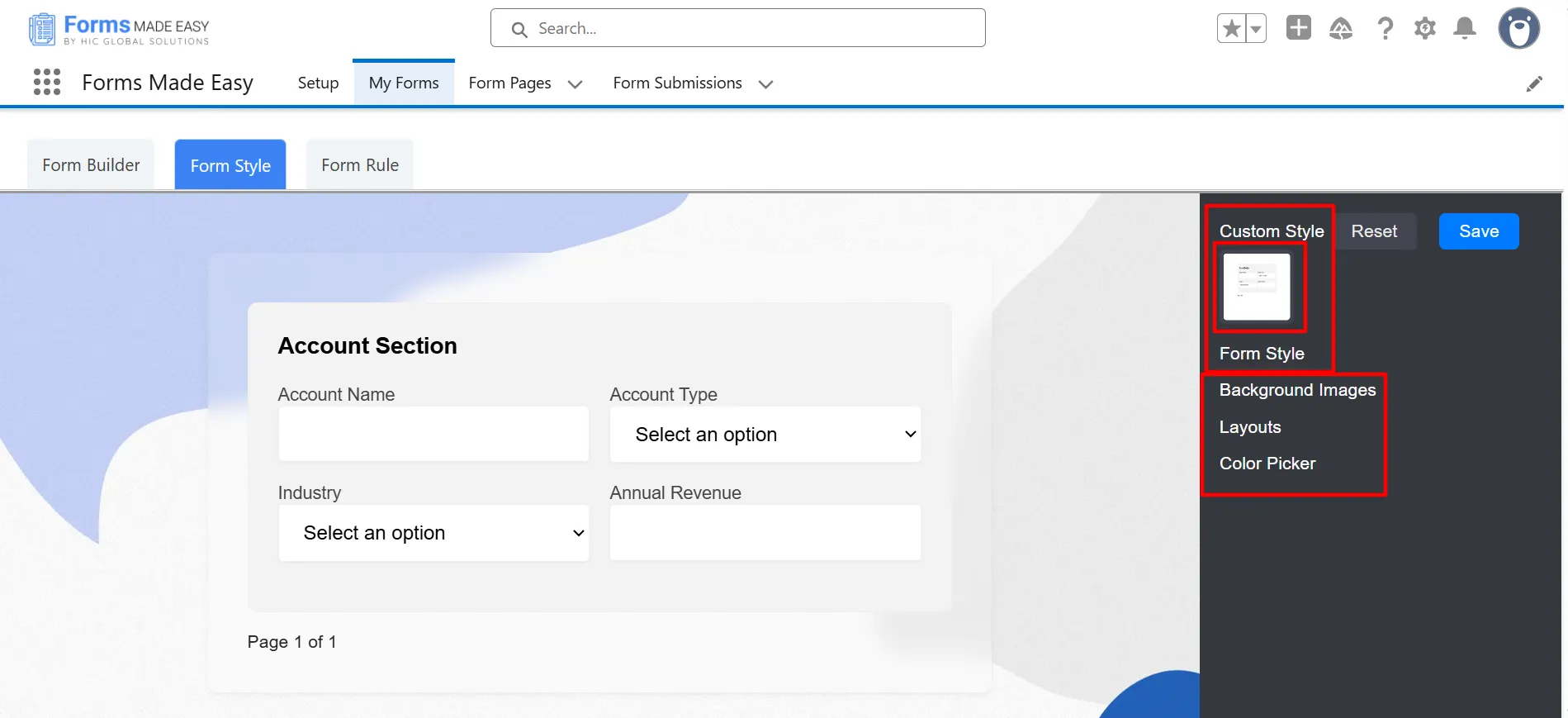
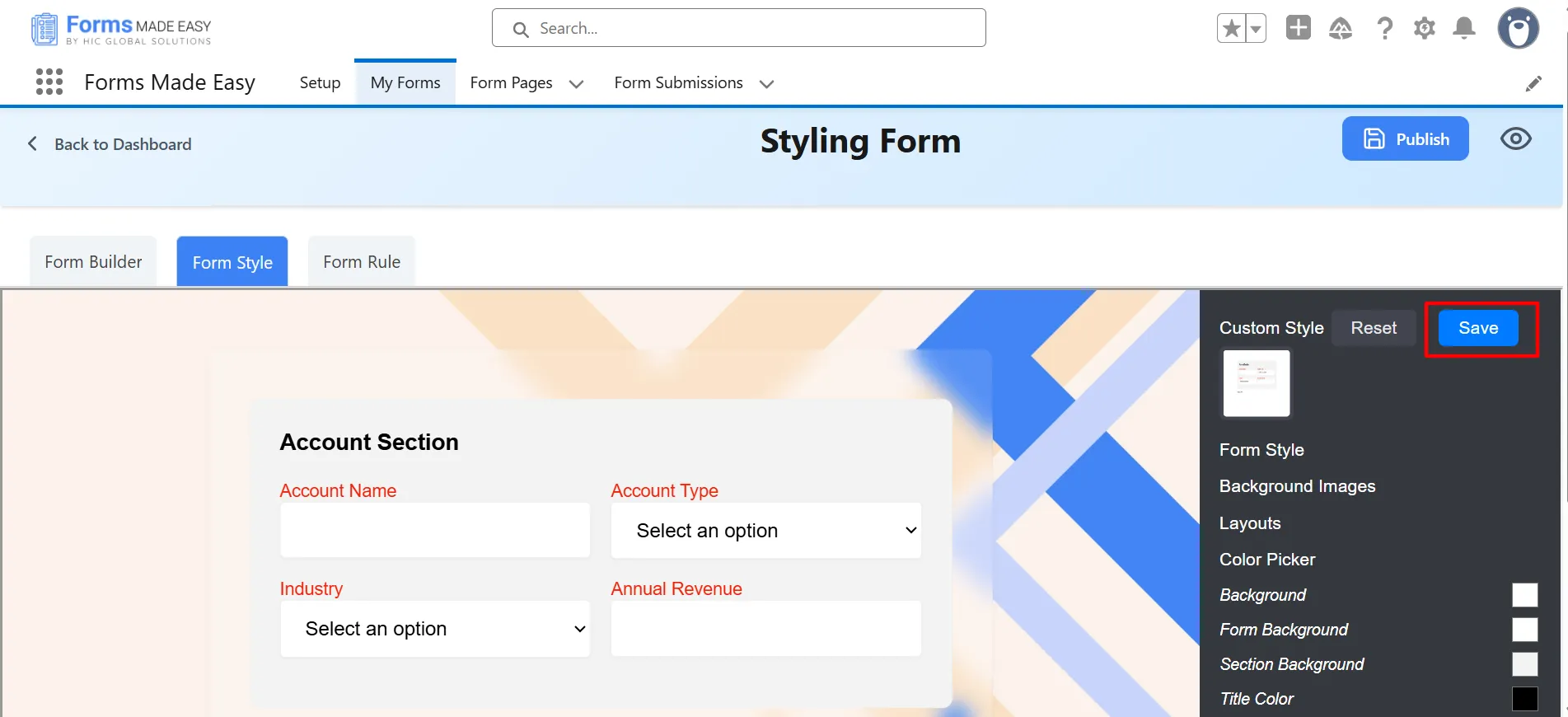
Step 7: Now, click on Custom Style. You will see the default styling of the form along with several options, including Form Style, Background Images, Layouts, and the Color Picker.
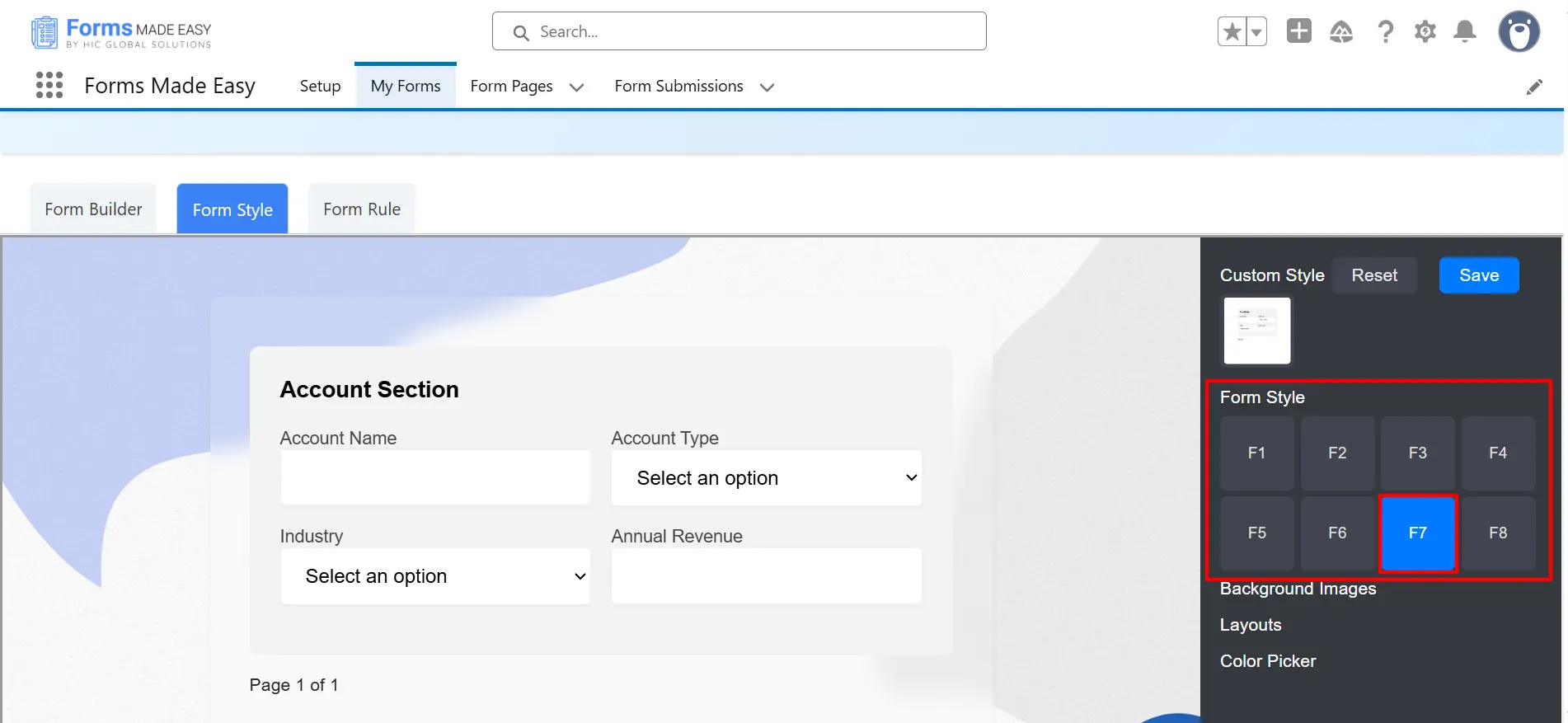
Step 8: Click on the Form Style option, and you will find multiple predefined styles labeled F1 to F8, each offering a different design and layout for the form. Choose the style that best fits your requirements to enhance the overall look and feel of your form.
Note: In this scenario, we will select the F7 style for the form.
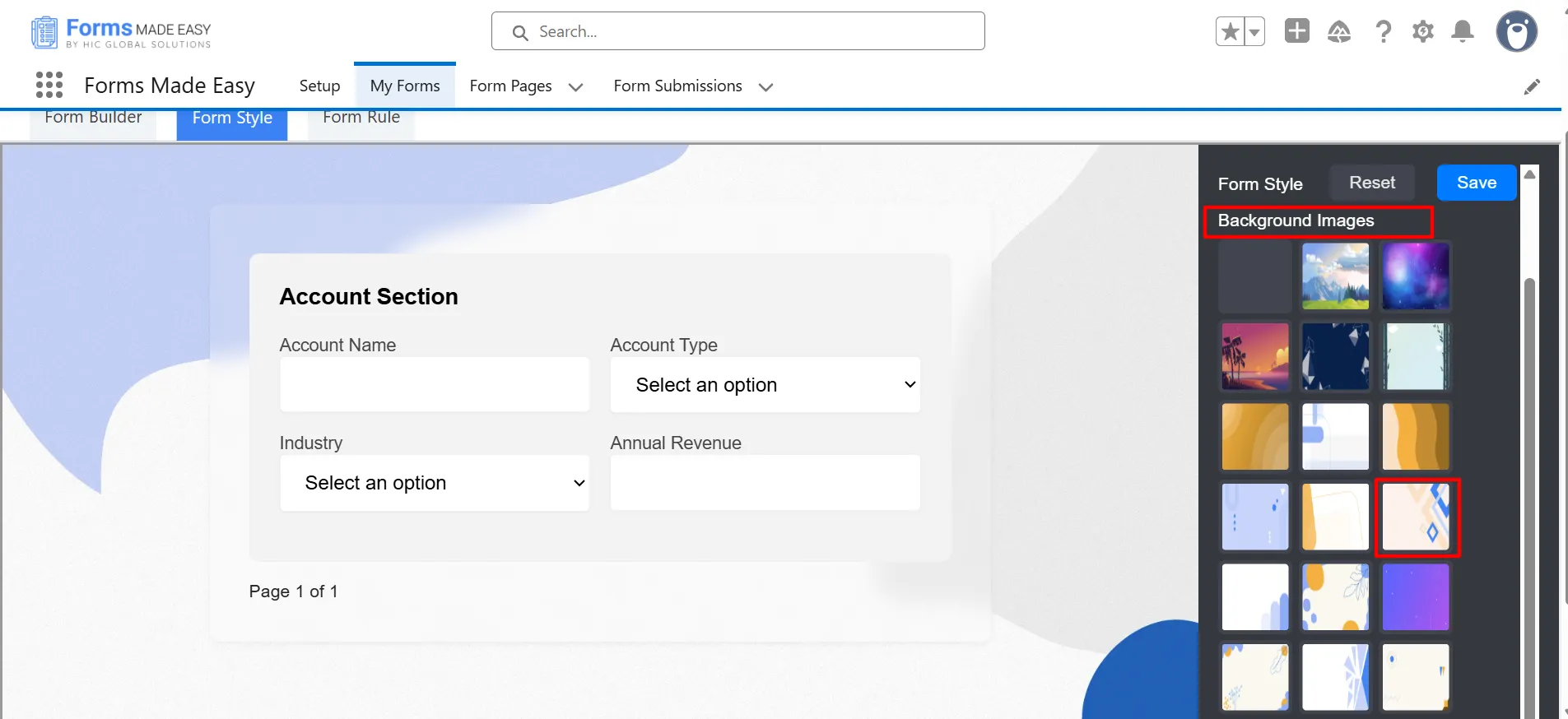
Step 9: Click on the Background Images option, and you will find various background image choices. Select the one that best suits your form’s design and aligns with your overall requirements.
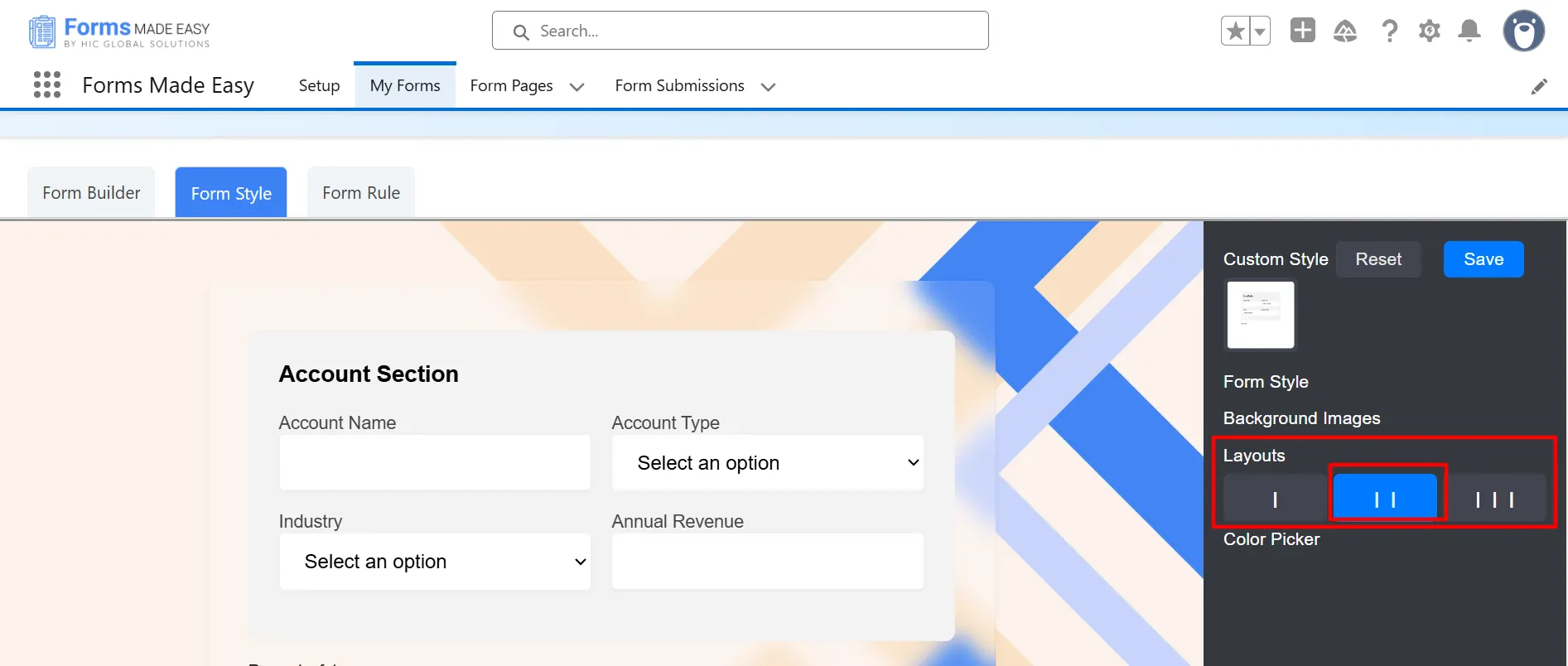
Step 10: Click on the Layout option, and you will find three layout choices: I, II, and III. Layout I displays one field in a single row, Layout II displays two fields in a single row, and Layout III displays three fields in a single row.
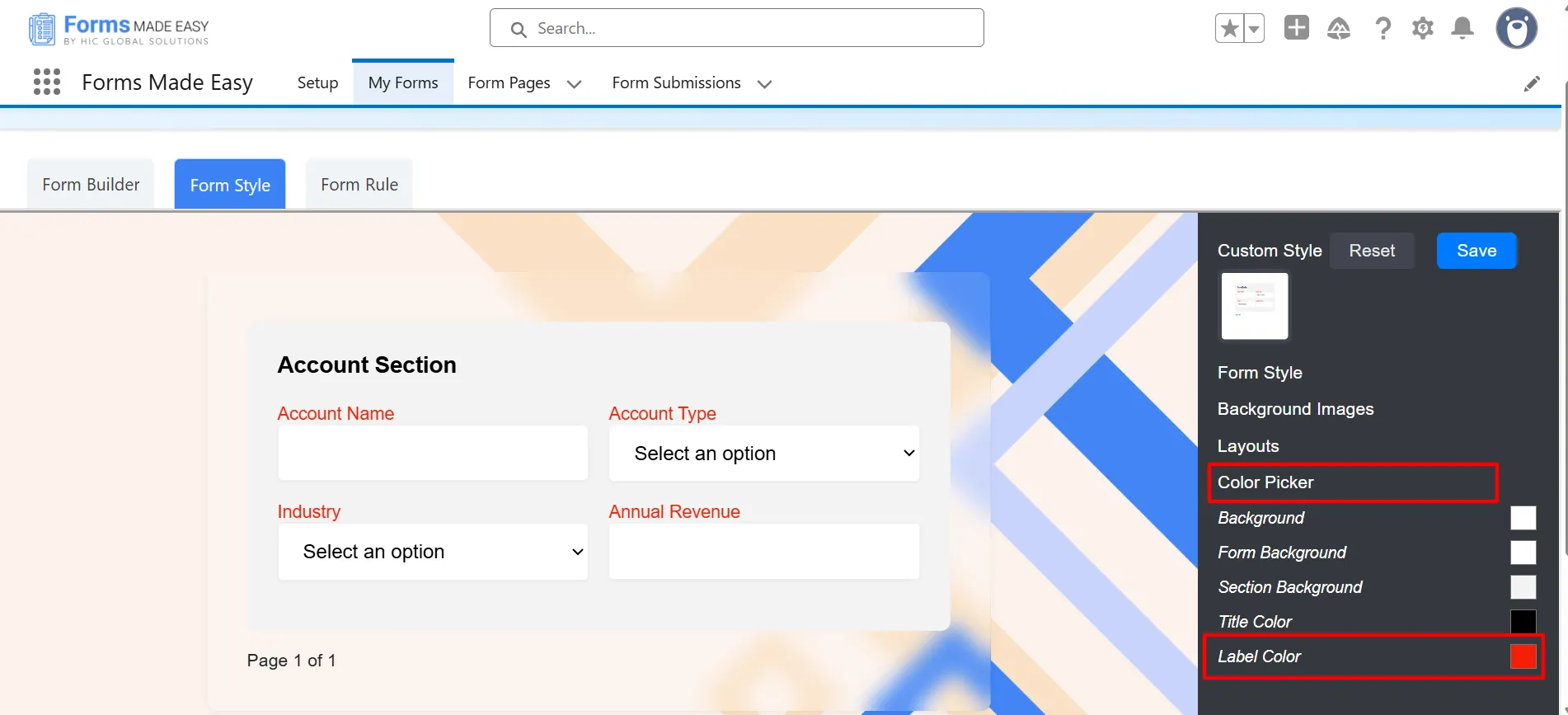
Step 11: Click on the Color Picker option, where you can pick the colors for various elements of your form, including Background Color, Form Background Color, Section Background Color, Title Color, and Label Color.
Note: In this scenario, we will select Label color as Red.
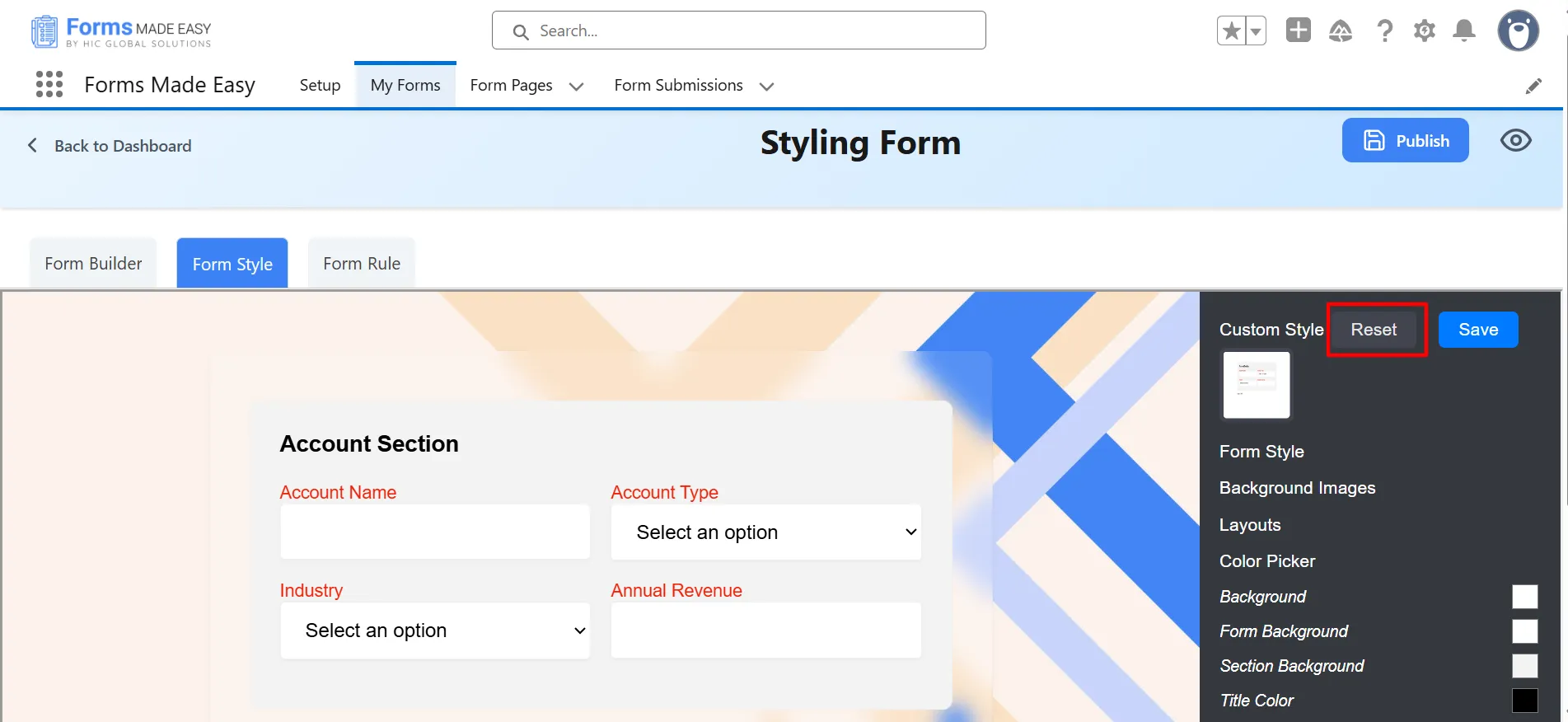
Step 12: Click on the Reset button if you want to discard all unsaved changes made to the form’s styling, restoring it to the previous saved state.
Step 13: Finally, click on the Save button to save all the changes you have made to the form’s styling.
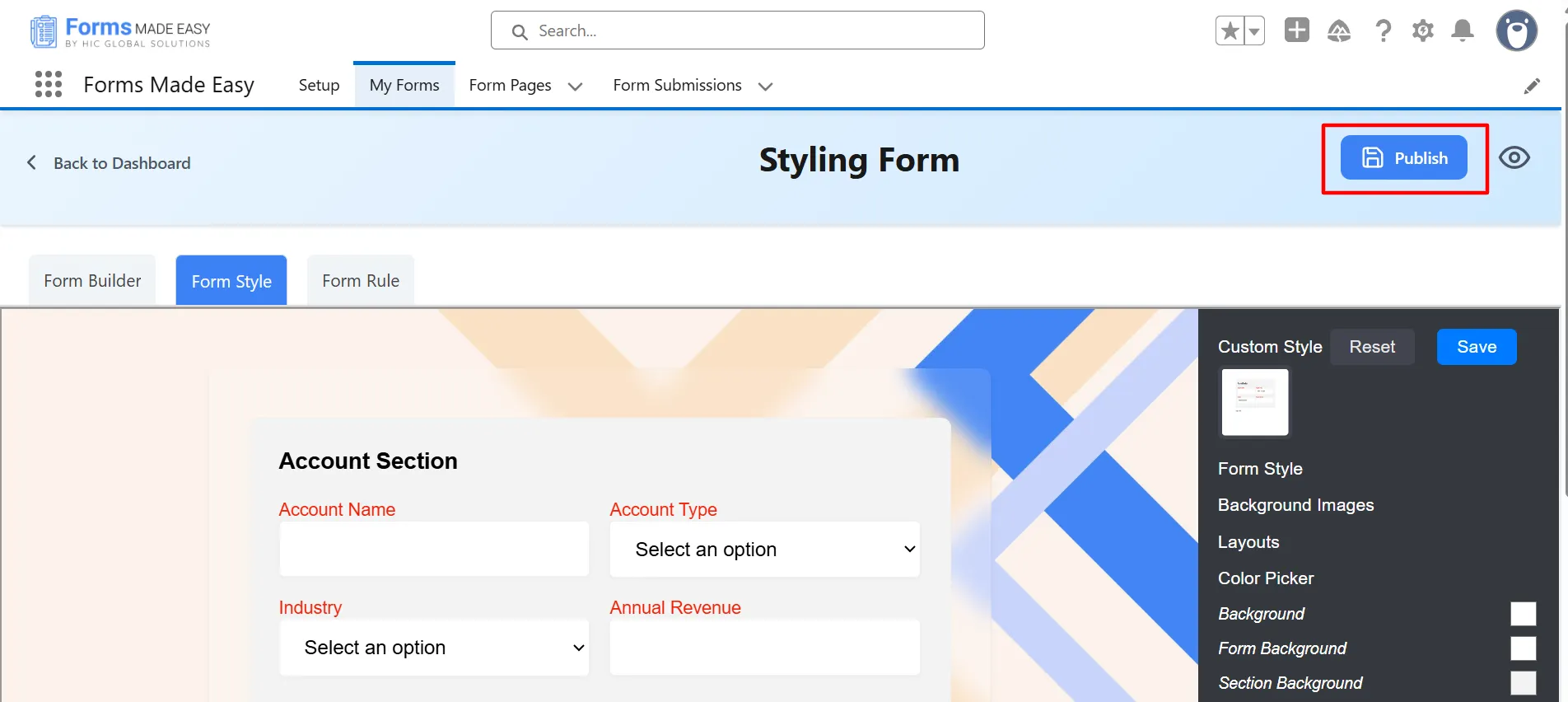
Step 14: After all of that, you can publish the form by clicking the “Publish” button.
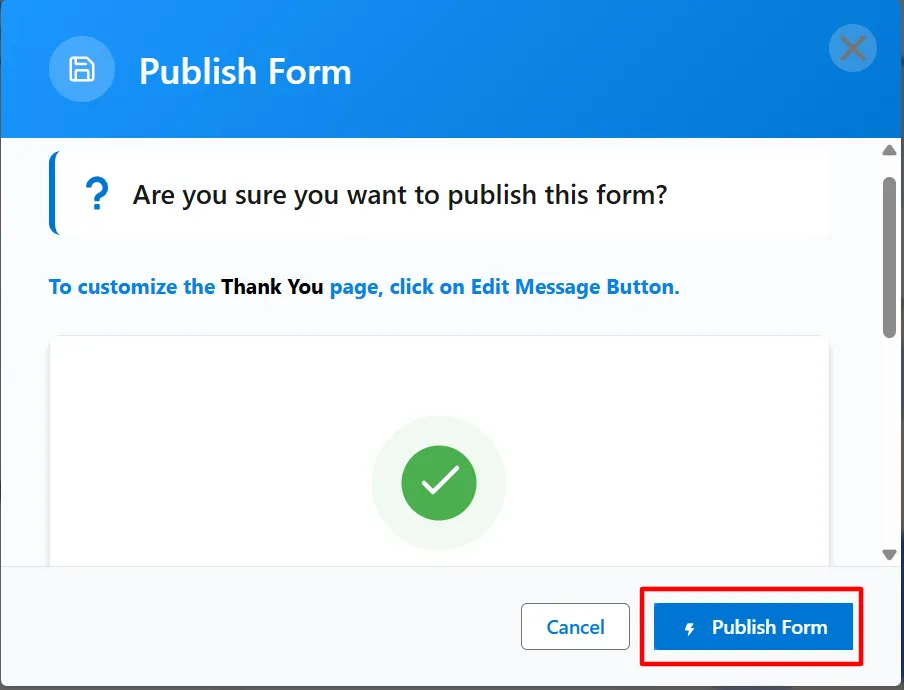
Step 15: Click the “Publish Form” button.
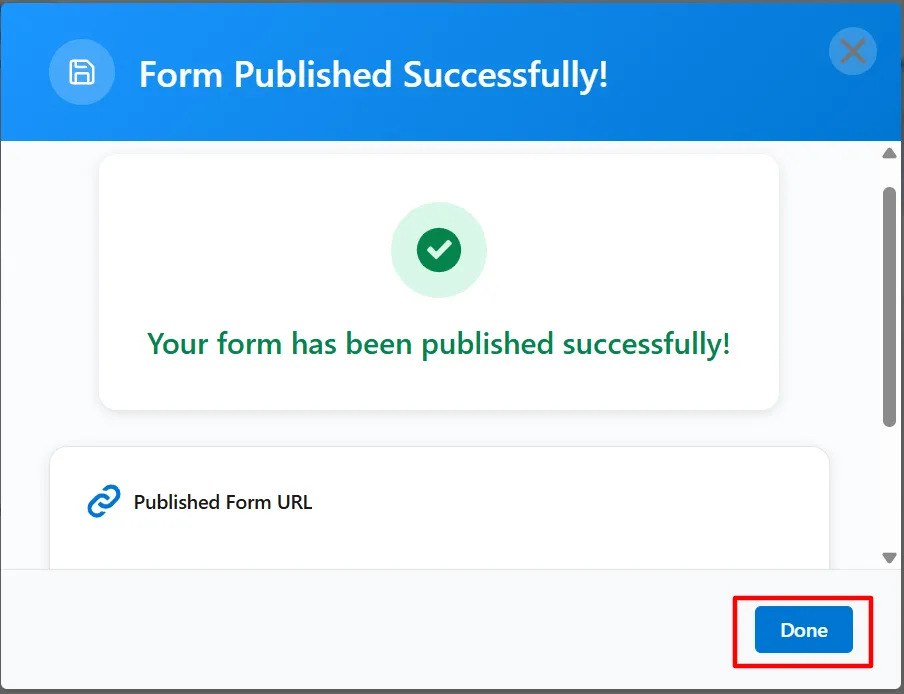
Step 16: Click on “Done” to close the modal.
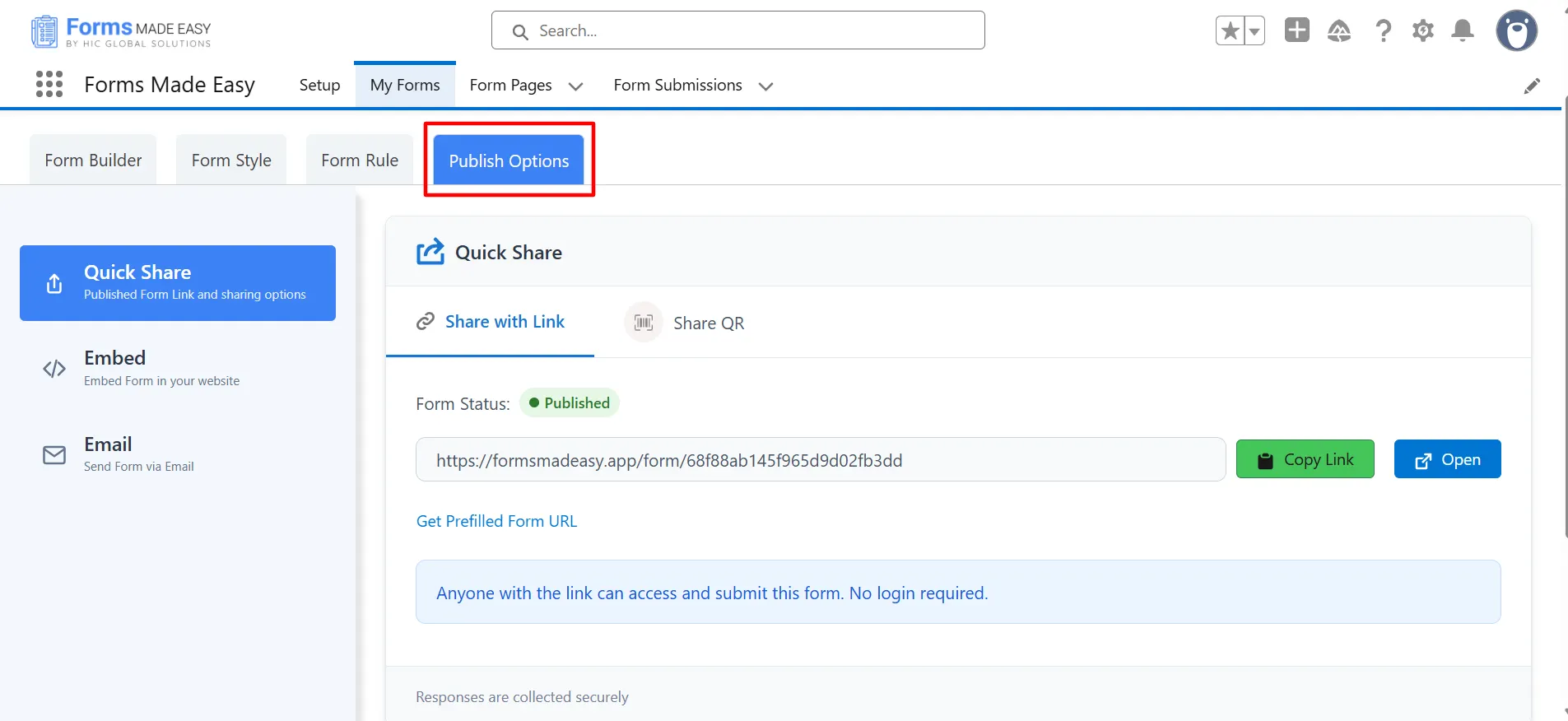
Step 17: Once the form is published, an additional Publish Options tab becomes available.
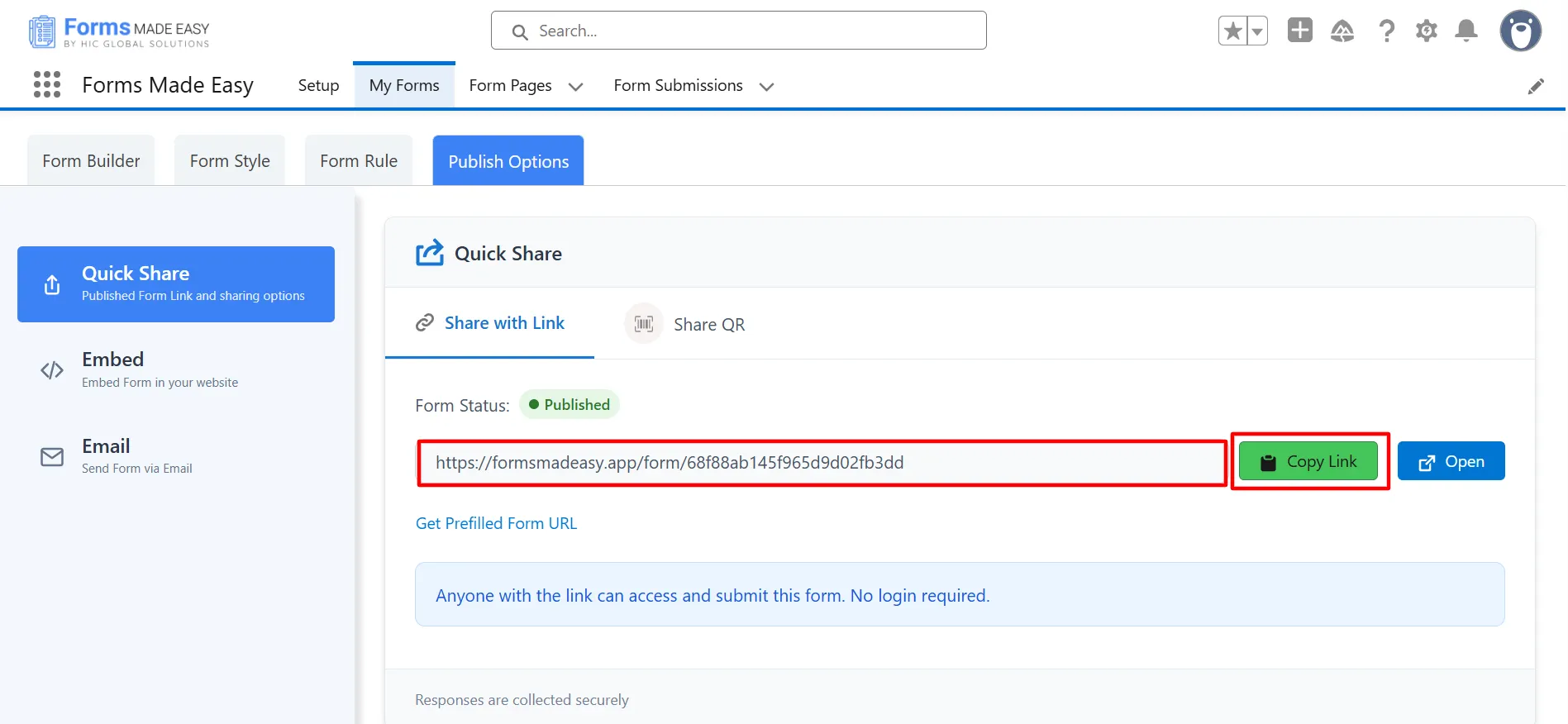
Step 18: Click on the “Copy Link” button to copy the form URL, which you can then share with others. You can also manually copy the link.
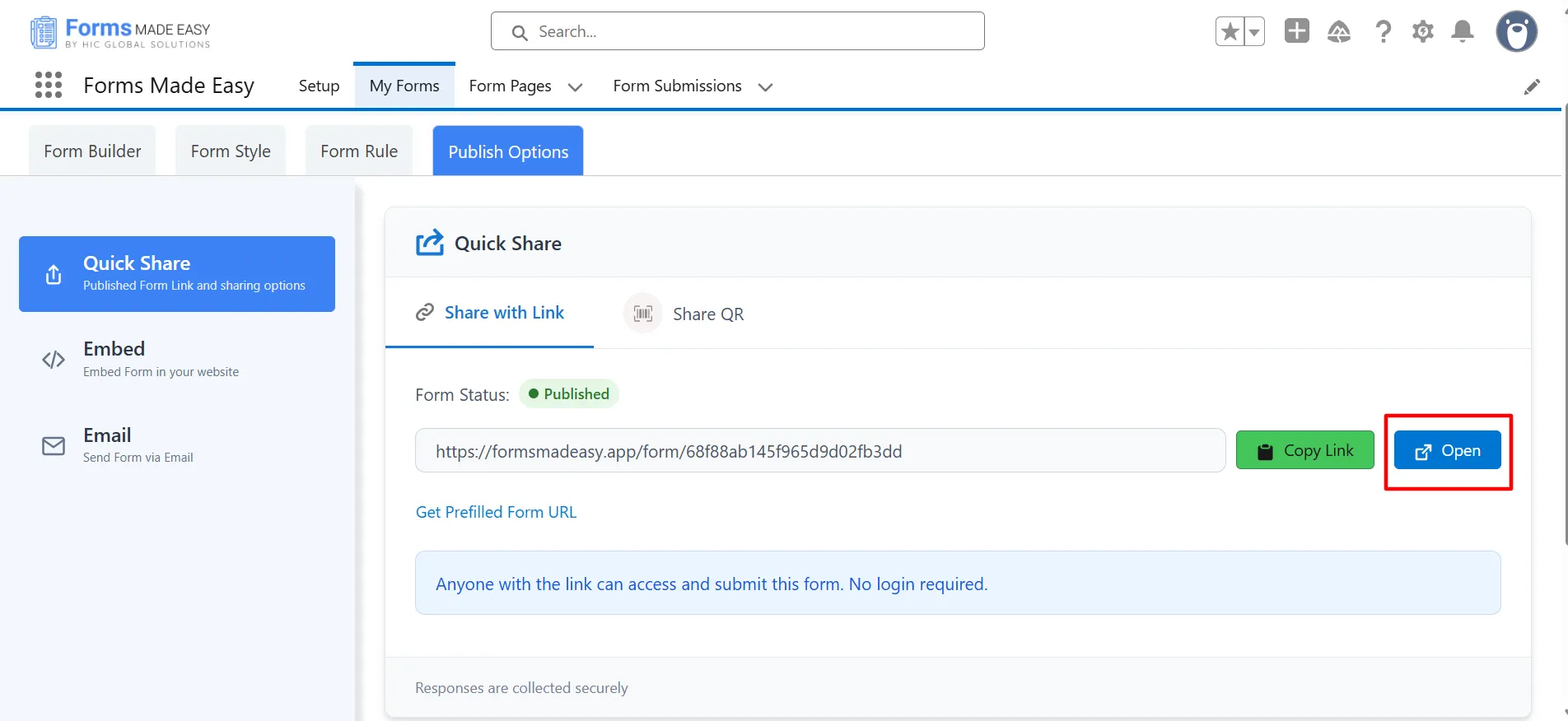
Step 19: Click on the “Open” button to directly open the form in your web browser.
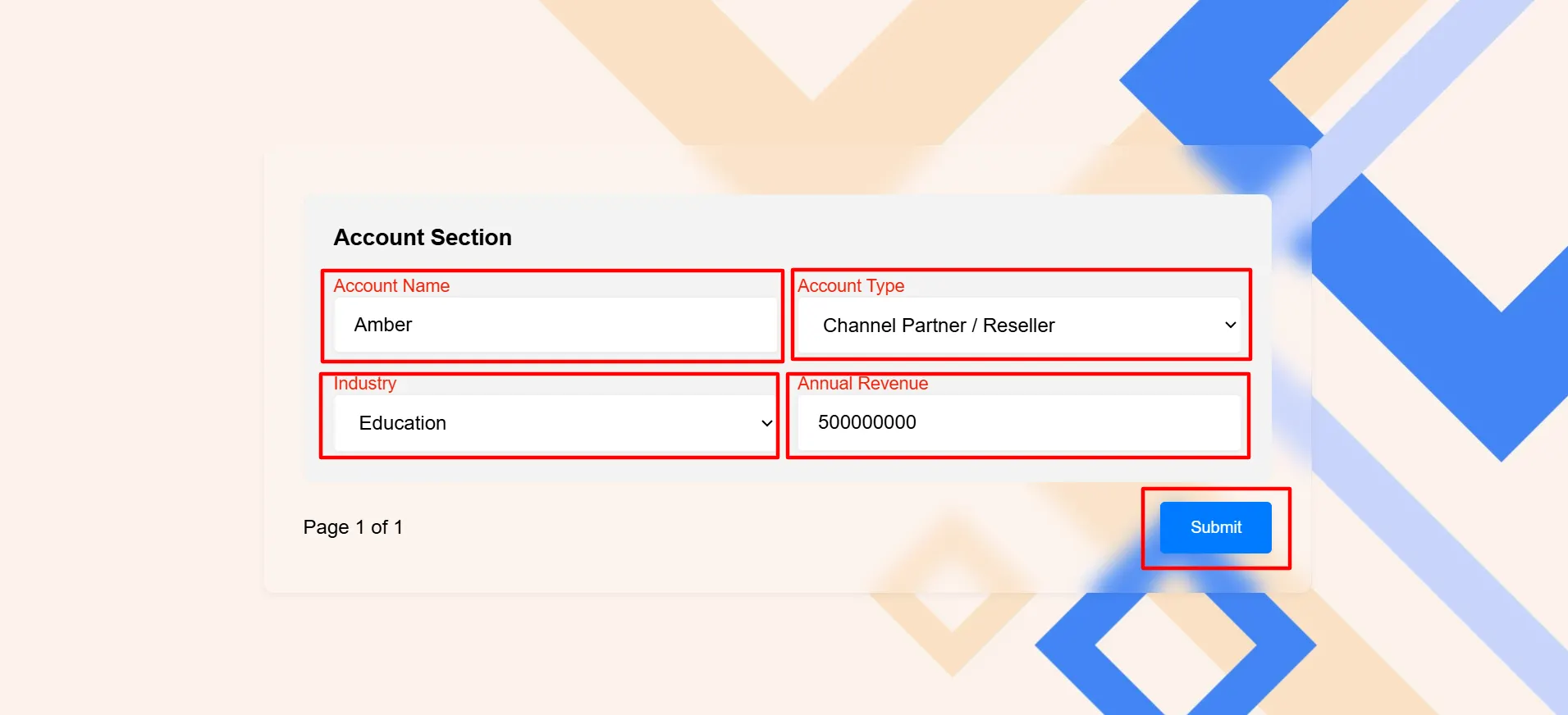
Step 20: After filling in all the information, click the Submit button to submit the records.
Step 21: Go to the “My Forms” tab and refresh the page.
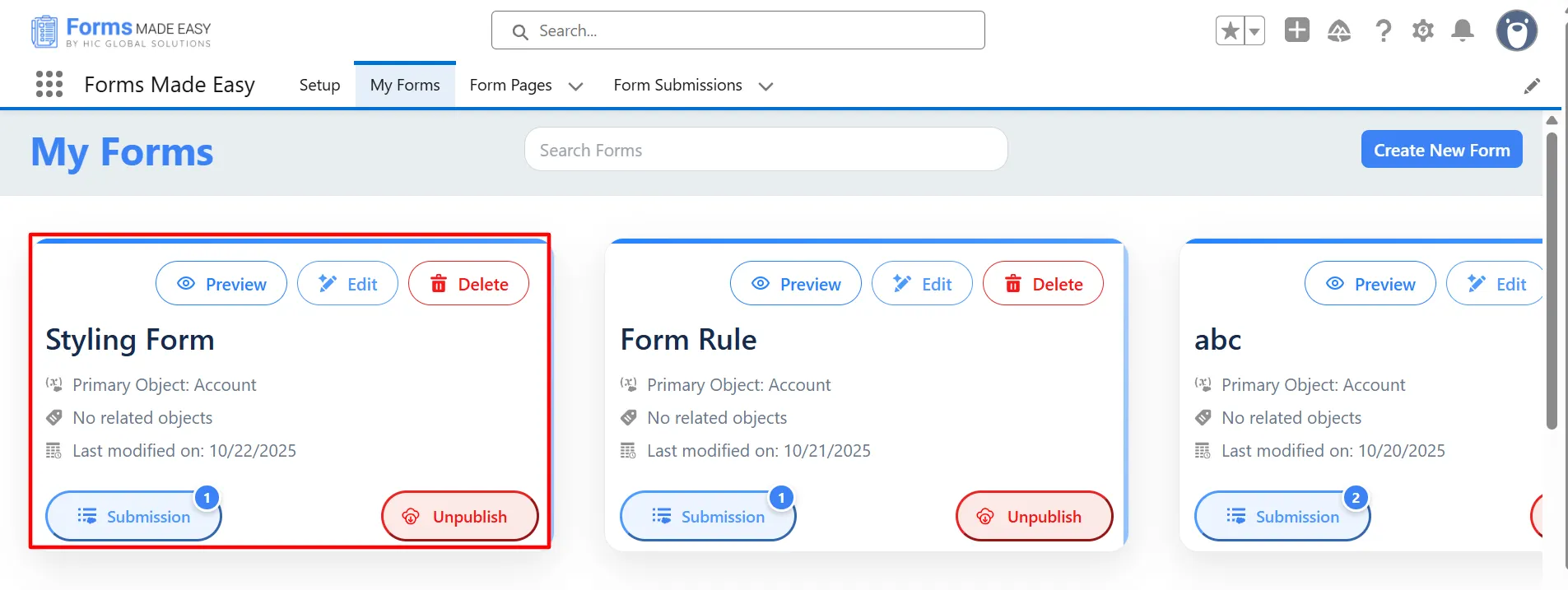
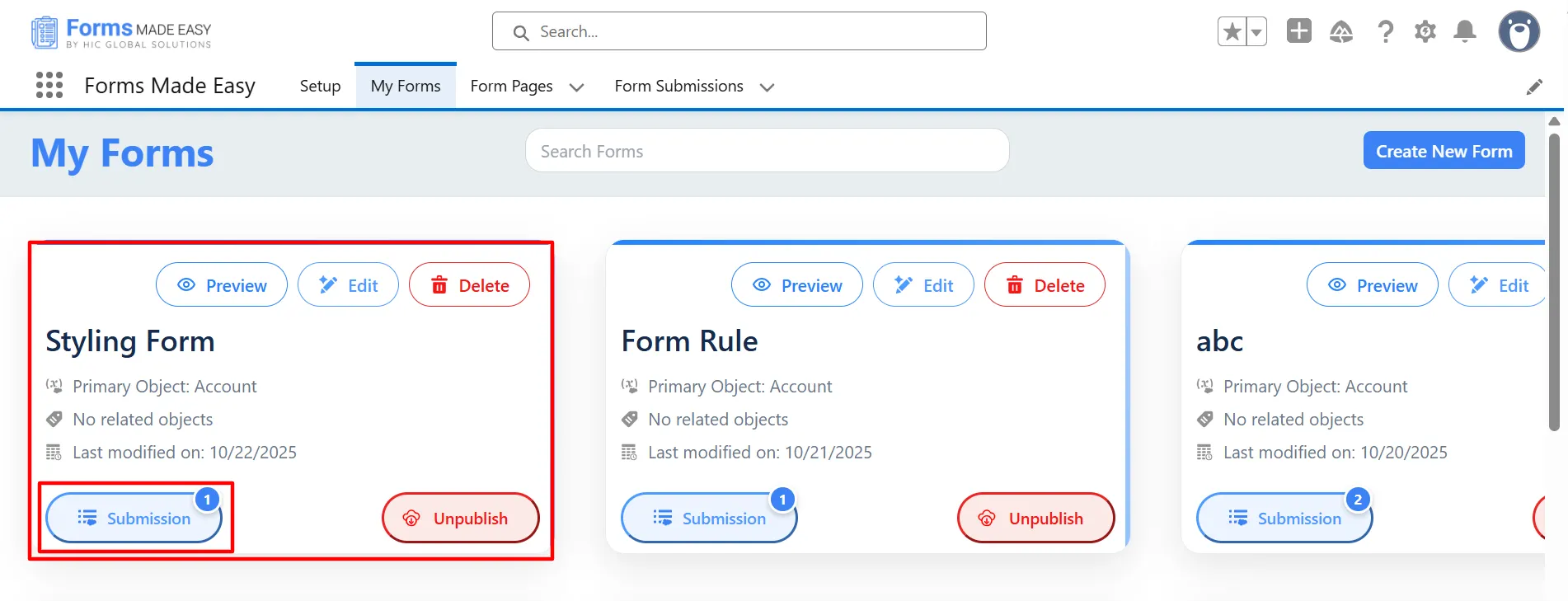
Step 22: Click on the Submission button of that form.
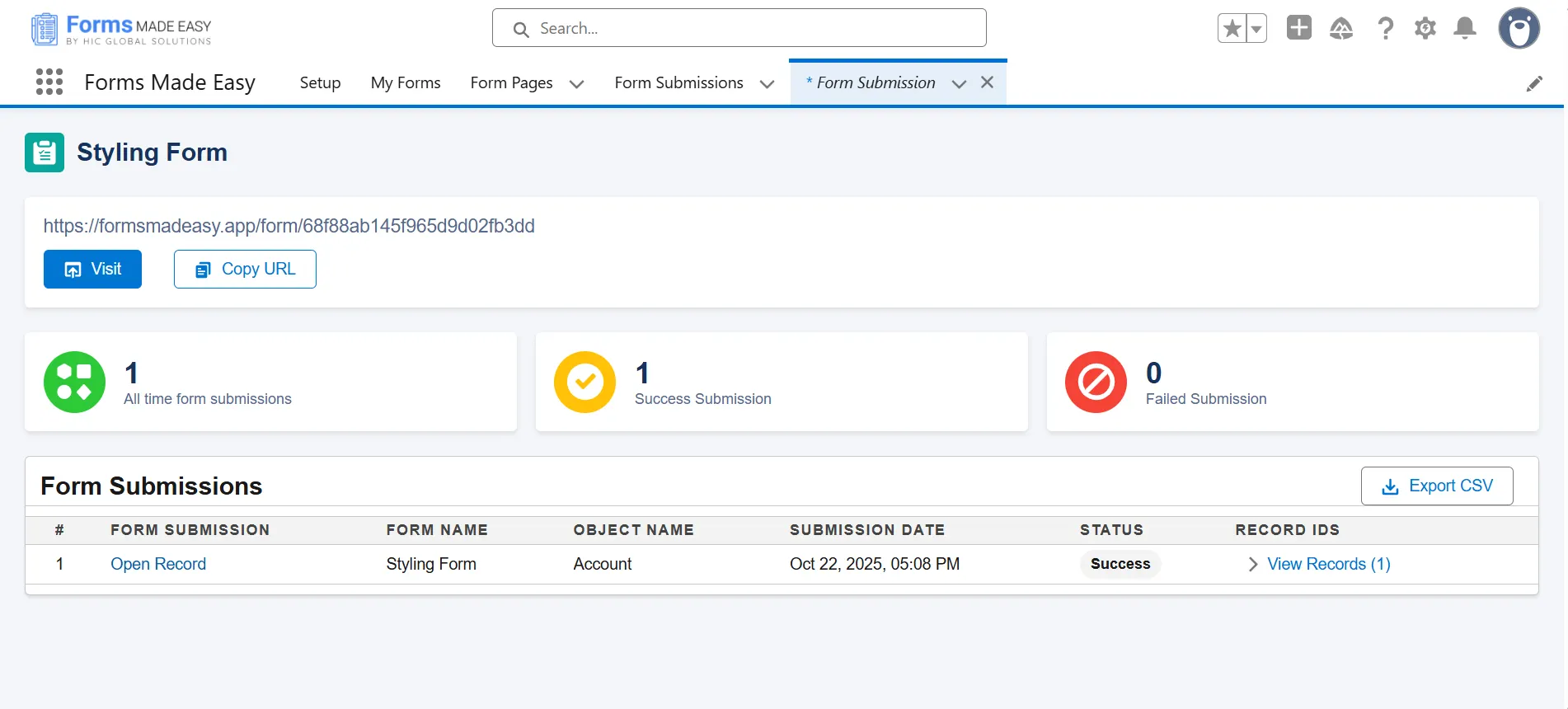
Step 23: Here, all submissions for that form will be displayed.
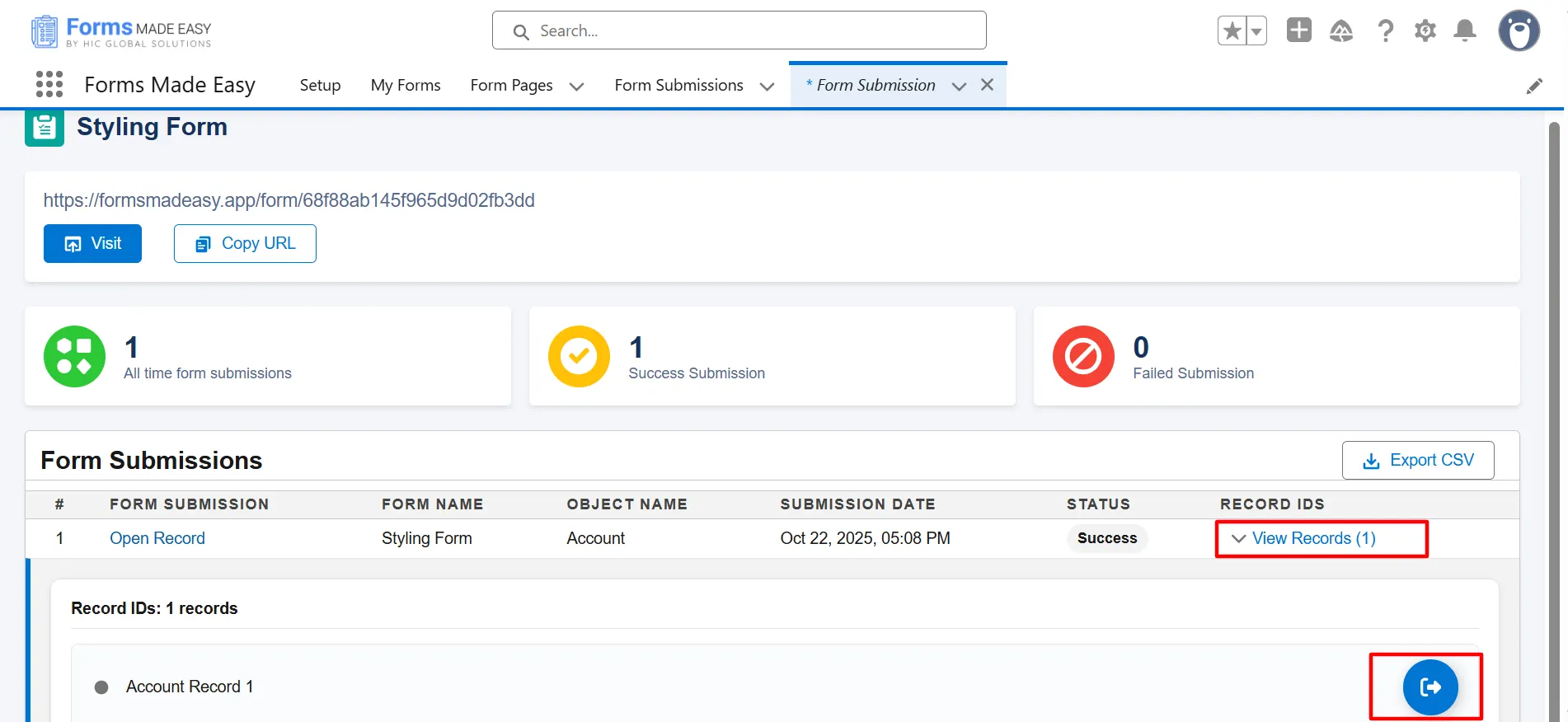
Step 24: Click on View Records, then click the Preview button to see the submitted form data.
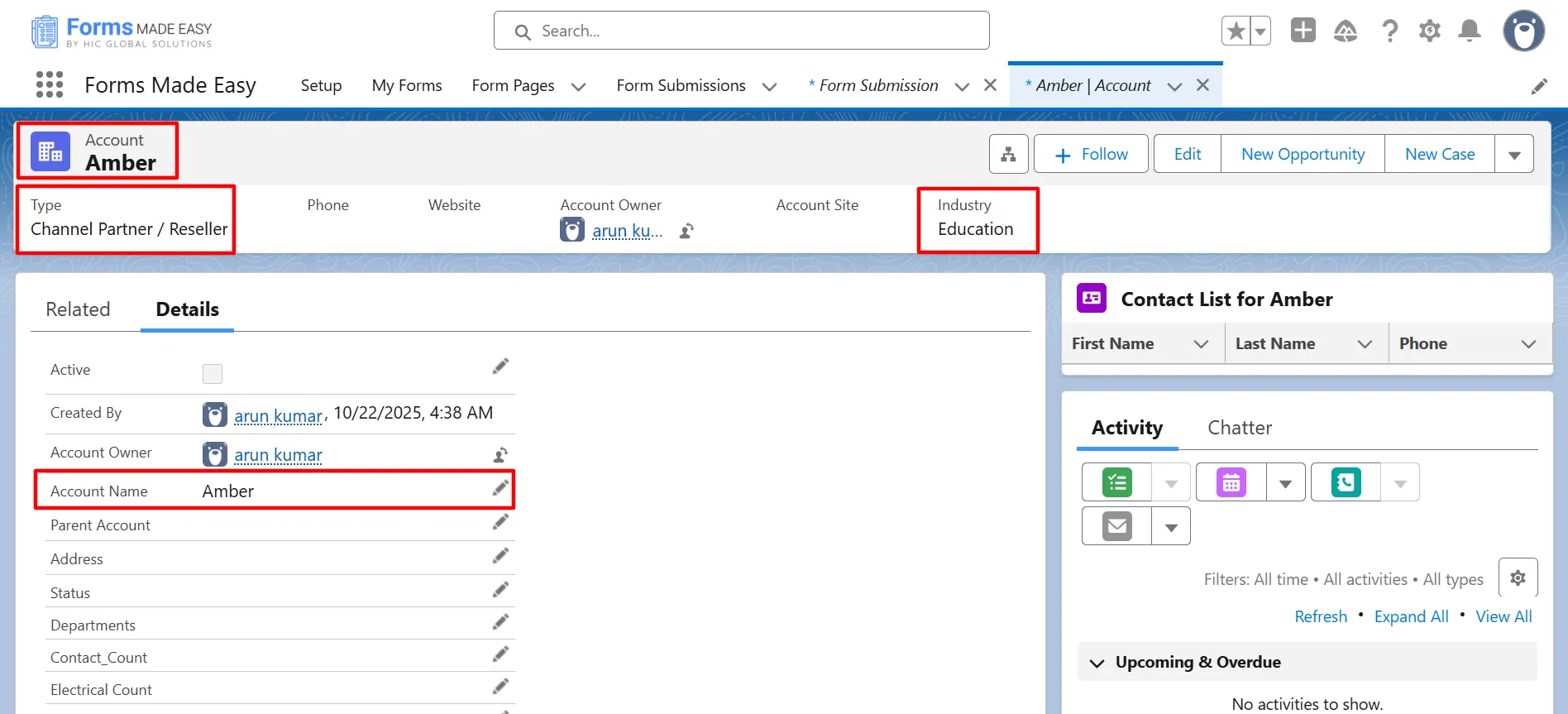
Step 25: The submitted records will now appear under the Account object in Salesforce.
Conclusion
Customizing your form’s design becomes effortless when supported by a powerful Salesforce online form builder, allowing you to deliver a polished and user-friendly experience. With intuitive options that simplify styling, Salesforce form solutions ensure consistency and clear presentation. By applying these steps, you gain complete control over layout and aesthetics, making the entire process seamless with the help of efficient Salesforce form builder solutions.