


Turn Forms Into Automated Workflows
Design dynamic forms, streamline operations, and eliminate repetitive manual tasks — all without code.
Talk to Our ExpertsBuild Smarter Forms Faster
Create no-code forms inside Salesforce and automate data collection, approvals, and workflows without complexity.
Get StartedSimplify Your Form Workflows
Replace manual processes with intelligent forms that capture, route, and manage data seamlessly in Salesforce.
Book a DemoIn this guide, we will walk you through quickly building forms using Salesforce online form builder templates designed to save time and maintain consistency. With Salesforce form builder solutions, you can select from ready-made layouts and customize them as needed. No-code form builder makes it easy to adapt fields and structure without starting from scratch.
Step 1: Go to the Setup tab and scroll down to the Start with a Template section.
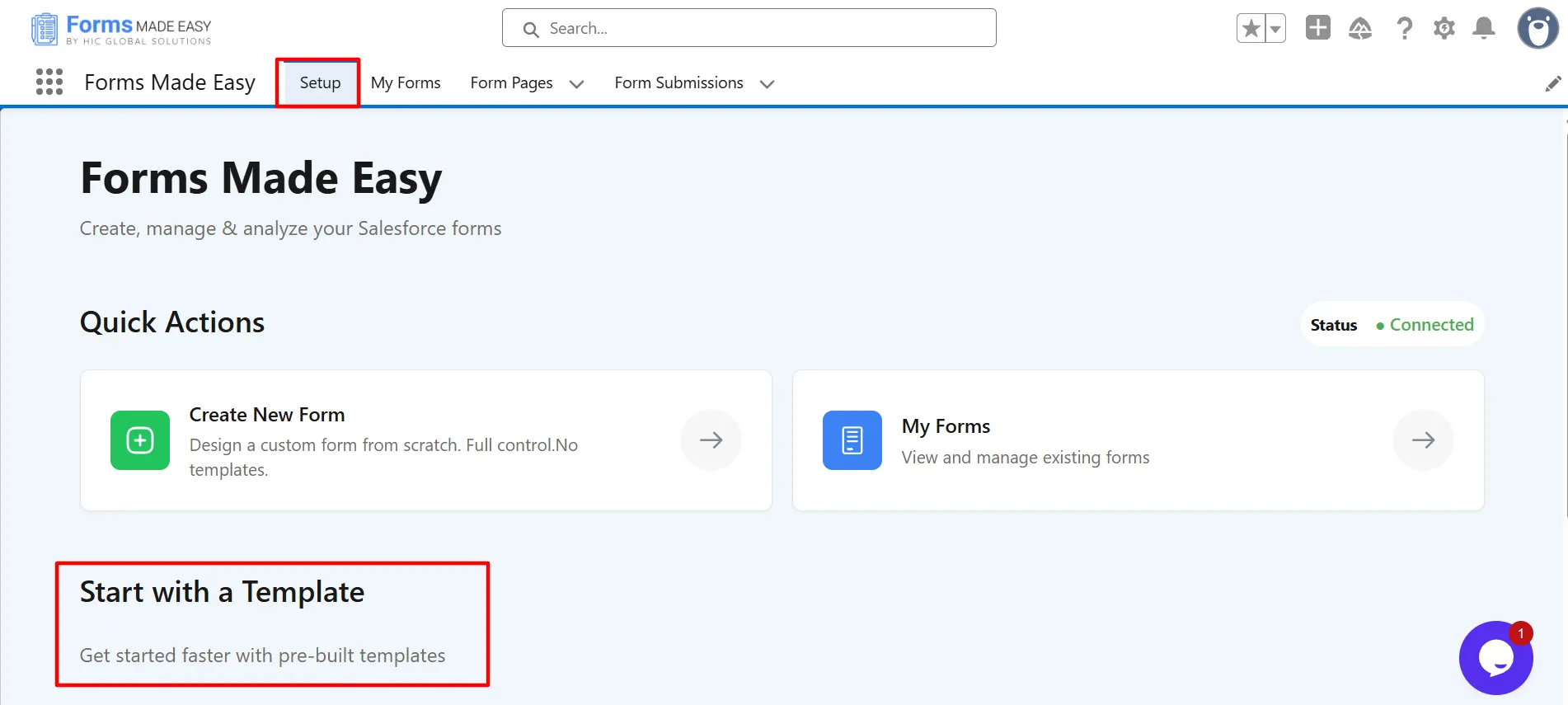
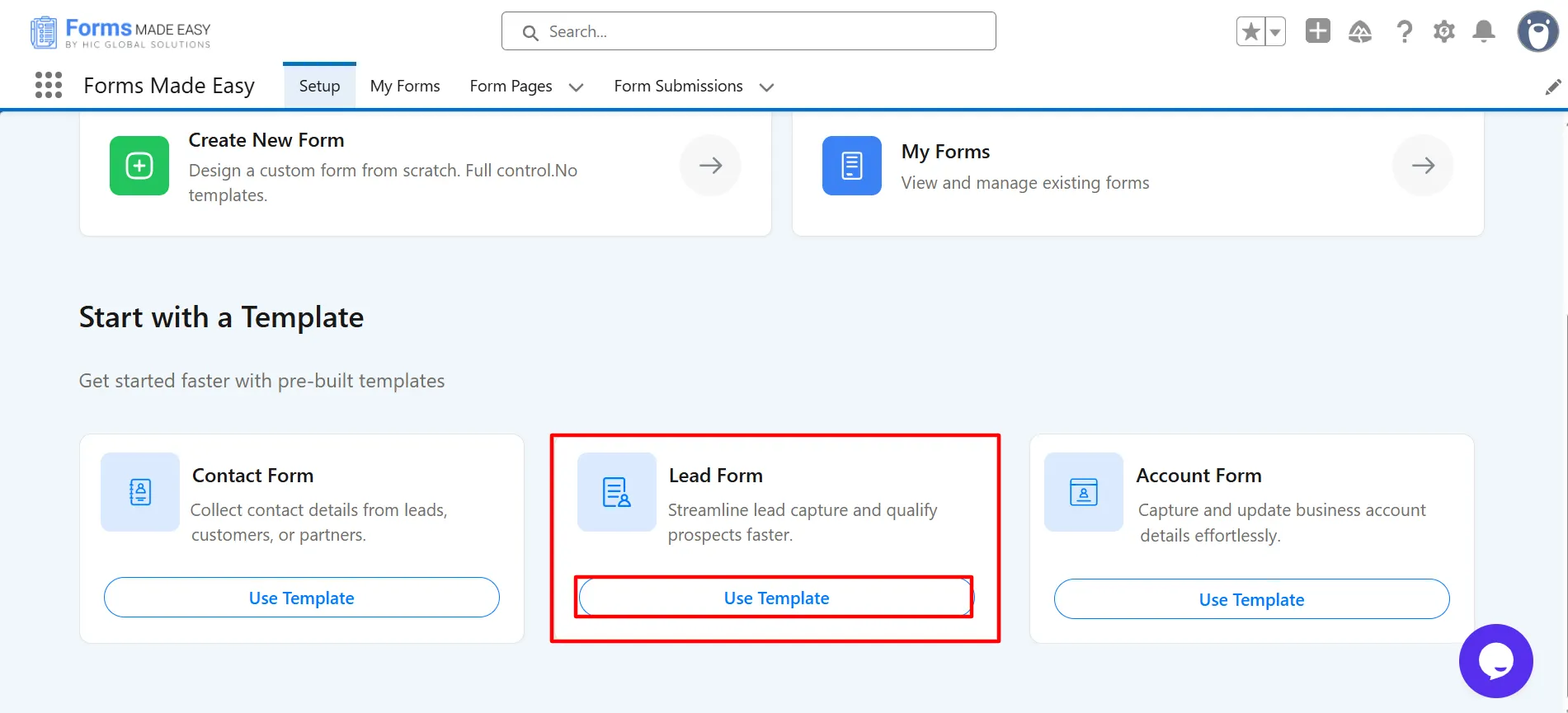
Step 2: Click on the Use Template button to access the pre-built form templates available. You can choose from Contact Form, Lead Form, and Account Form templates according to your requirements.
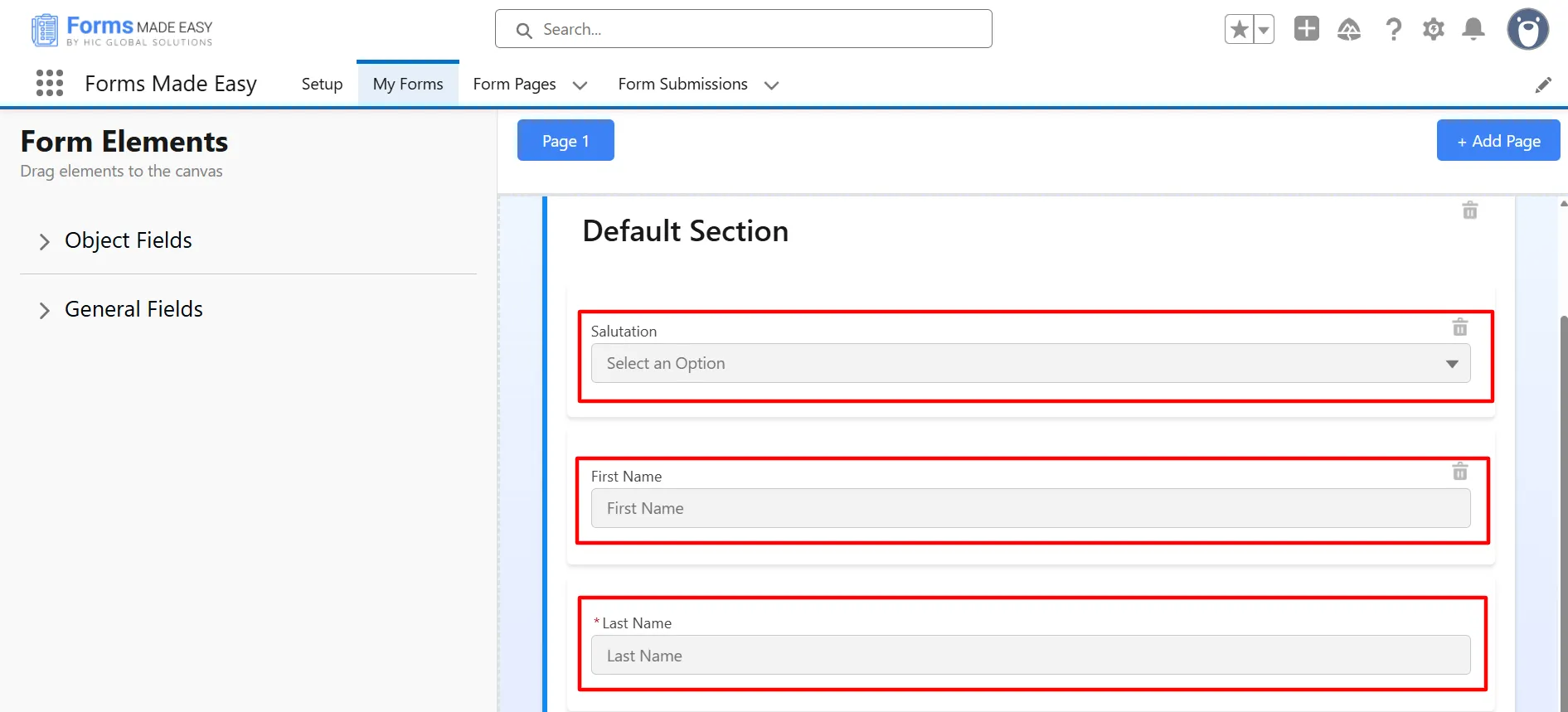
Note: In this example, we will proceed with the Lead Form template. For the Lead Form template, the fields Salutation, First Name, Last Name, Phone, Email, Company, and Status will be automatically populated. For the Contact Form template, the fields Salutation, First Name, Last Name, Mobile Phone, and Email will be automatically populated. For the Account Form template, the Account Name and Account Phone will be automatically populated.
Step 3: After clicking on the Use Template button, the predefined fields will be automatically populated in the form based on the selected template.
Step 4: Go to the Object Fields section and click on Lead.
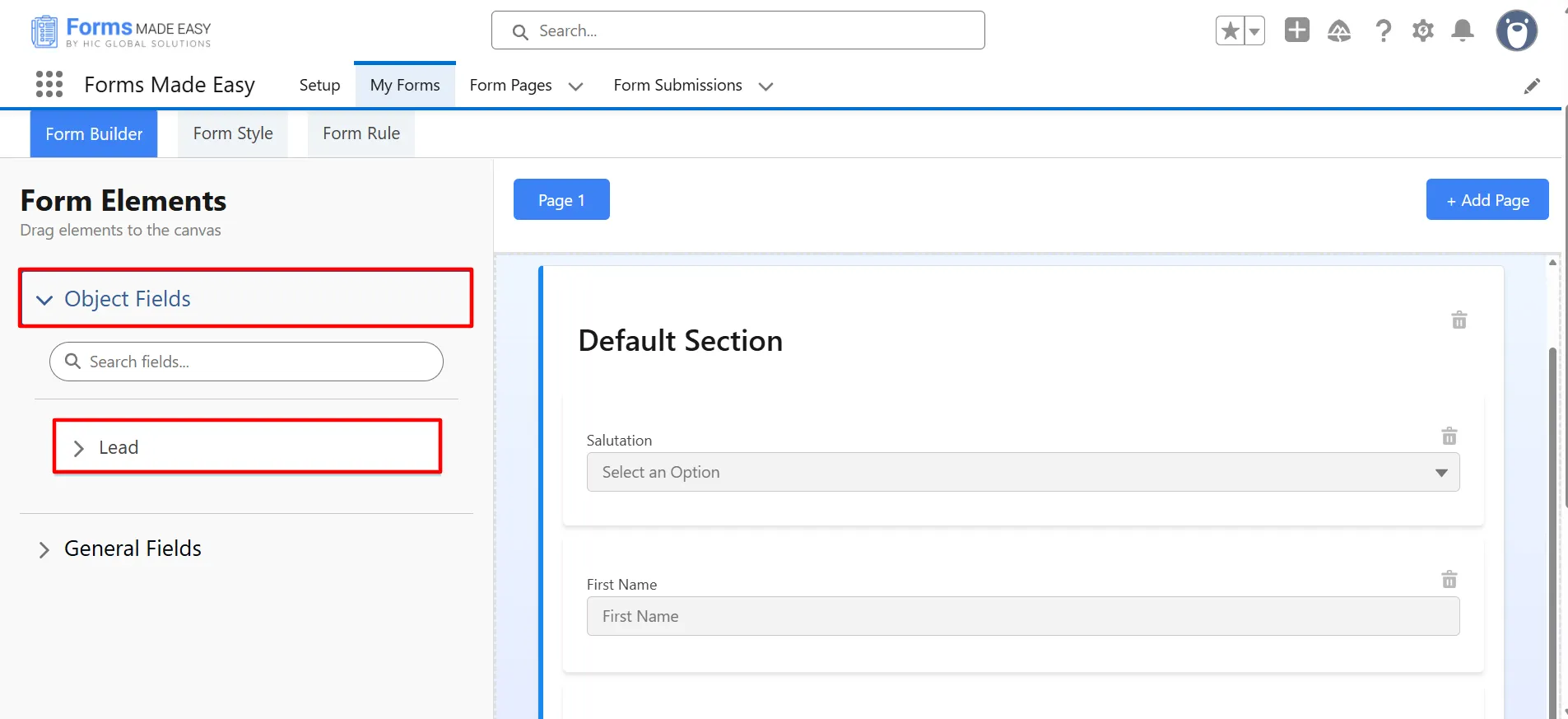
Step 5: Drag and drop your required fields onto the form.
Note: In this example, we will only drag and drop the Industry field from the Lead object, while the remaining fields will be automatically populated in the form.
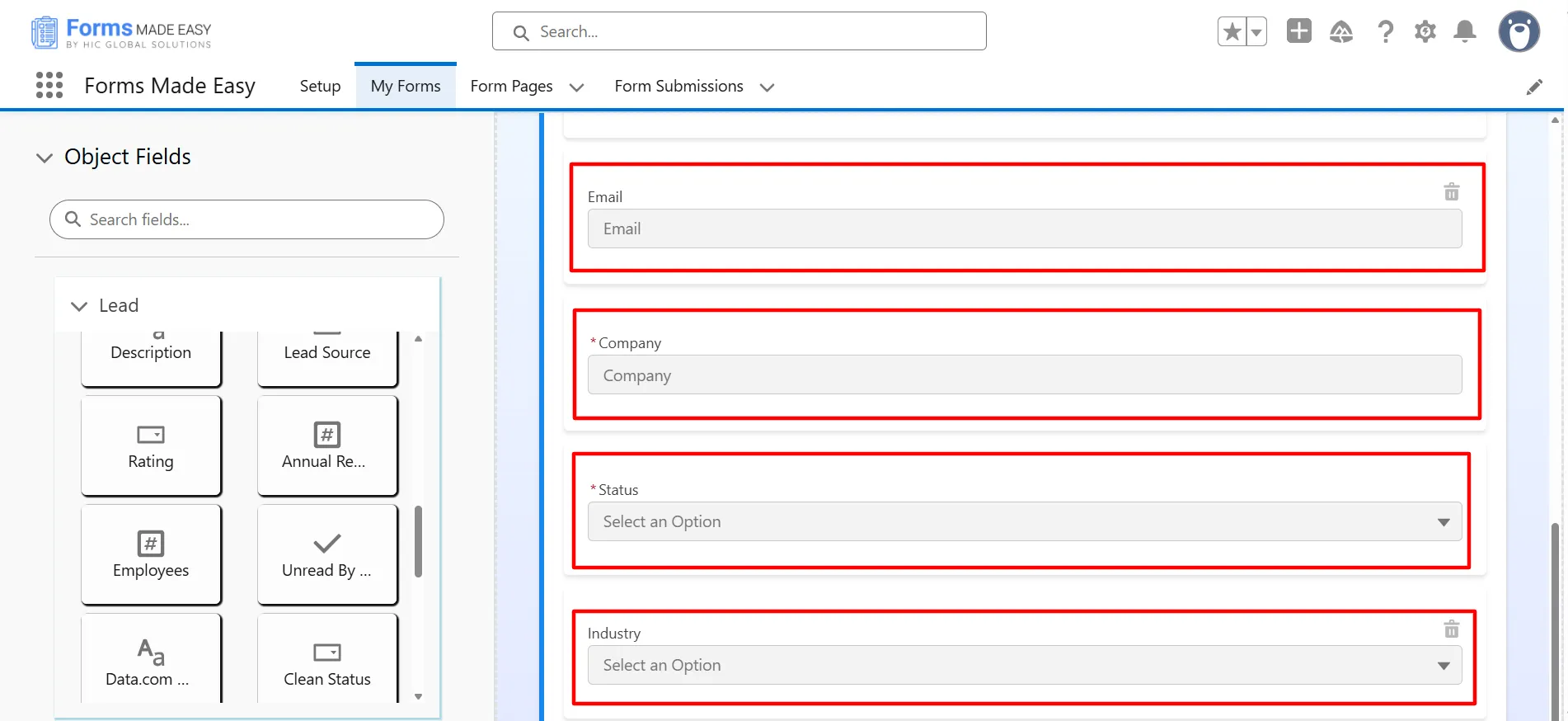
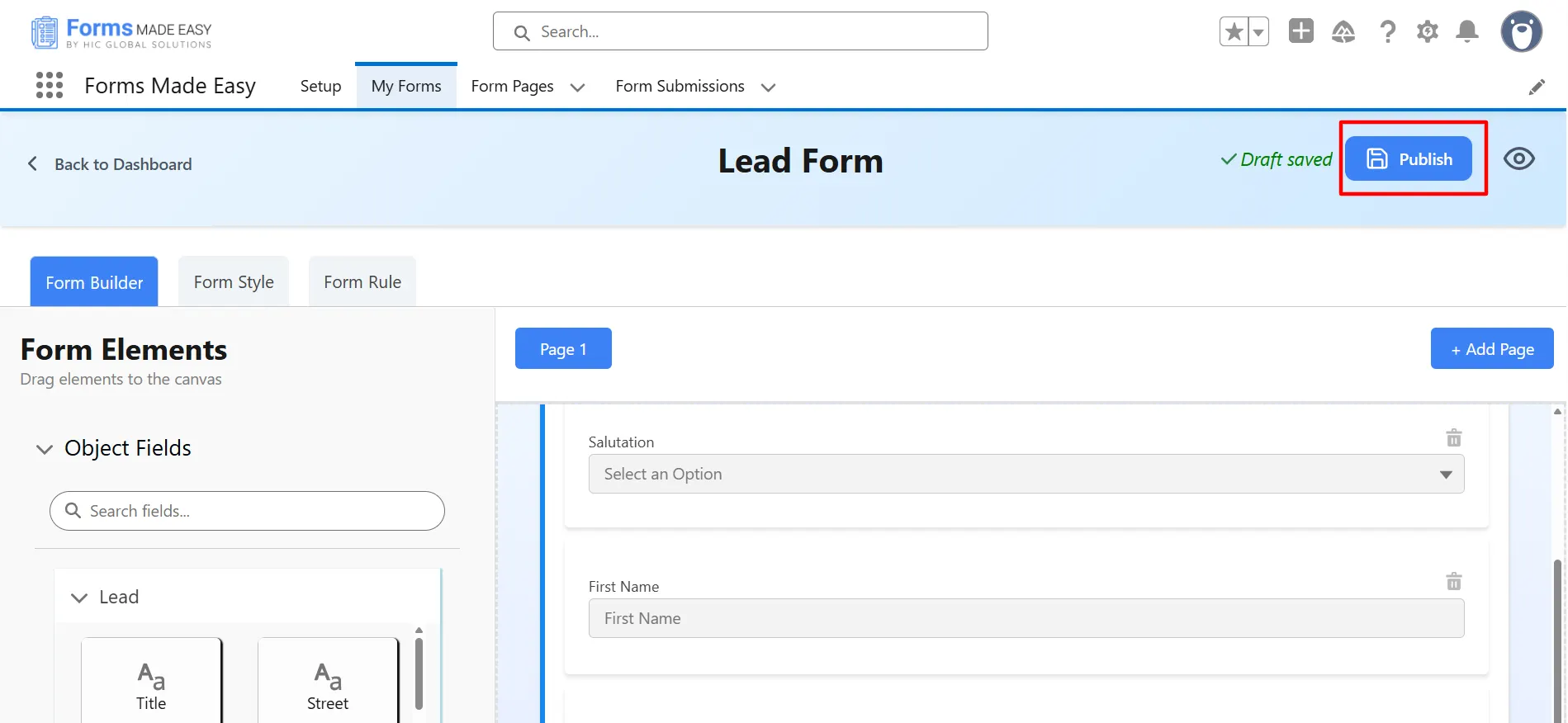
Step 6: After all of that, you can publish the form by clicking the Publish button.
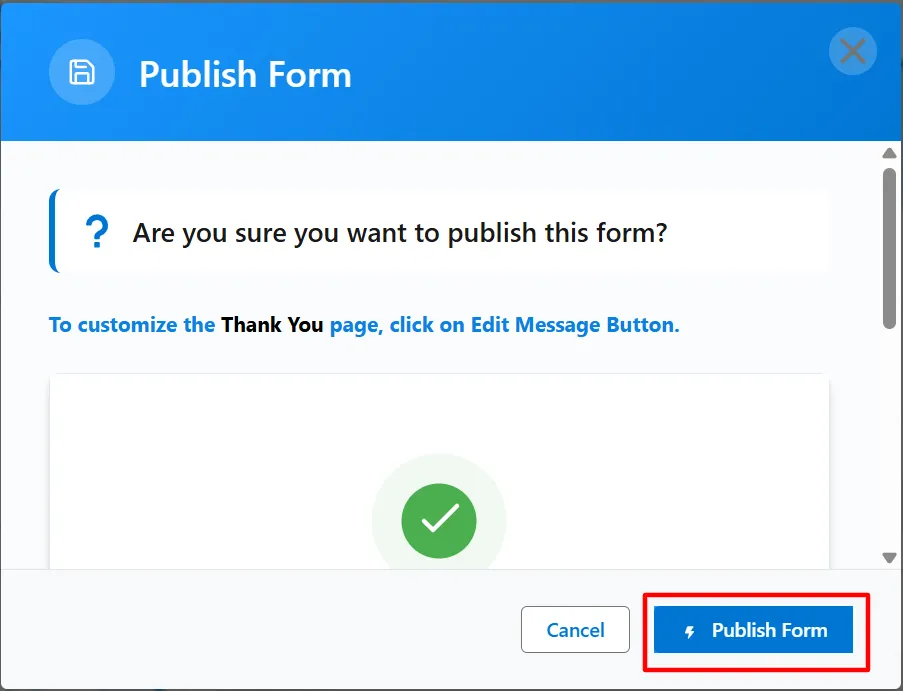
Step 7: Click the Publish Form button.
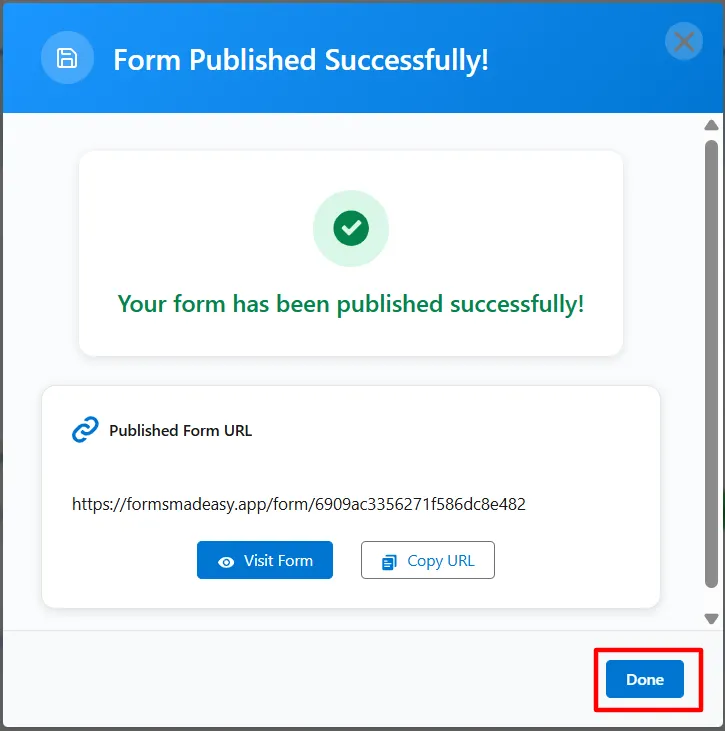
Step 8: Click on Done to close the modal.
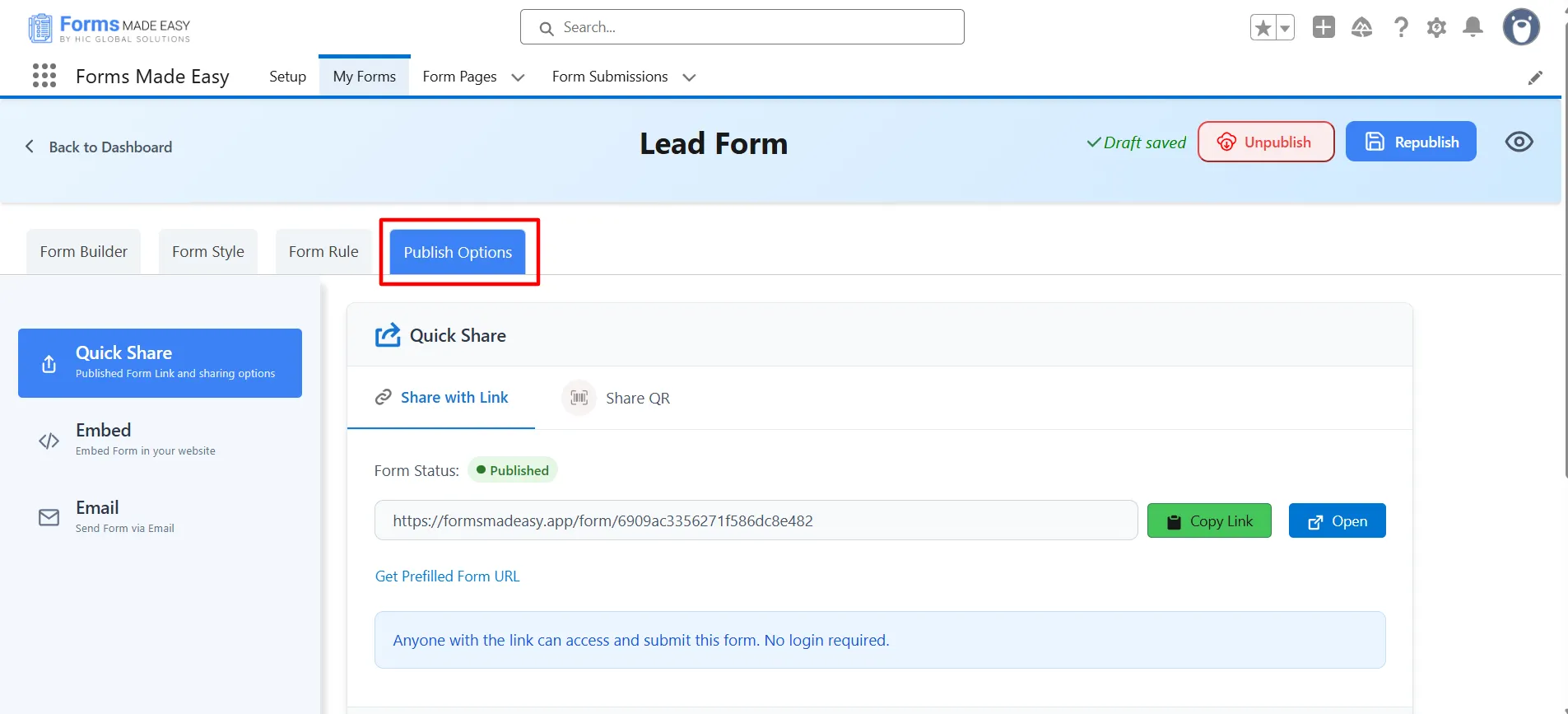
Step 9: After publishing the form, the Publish Options tab automatically appears.
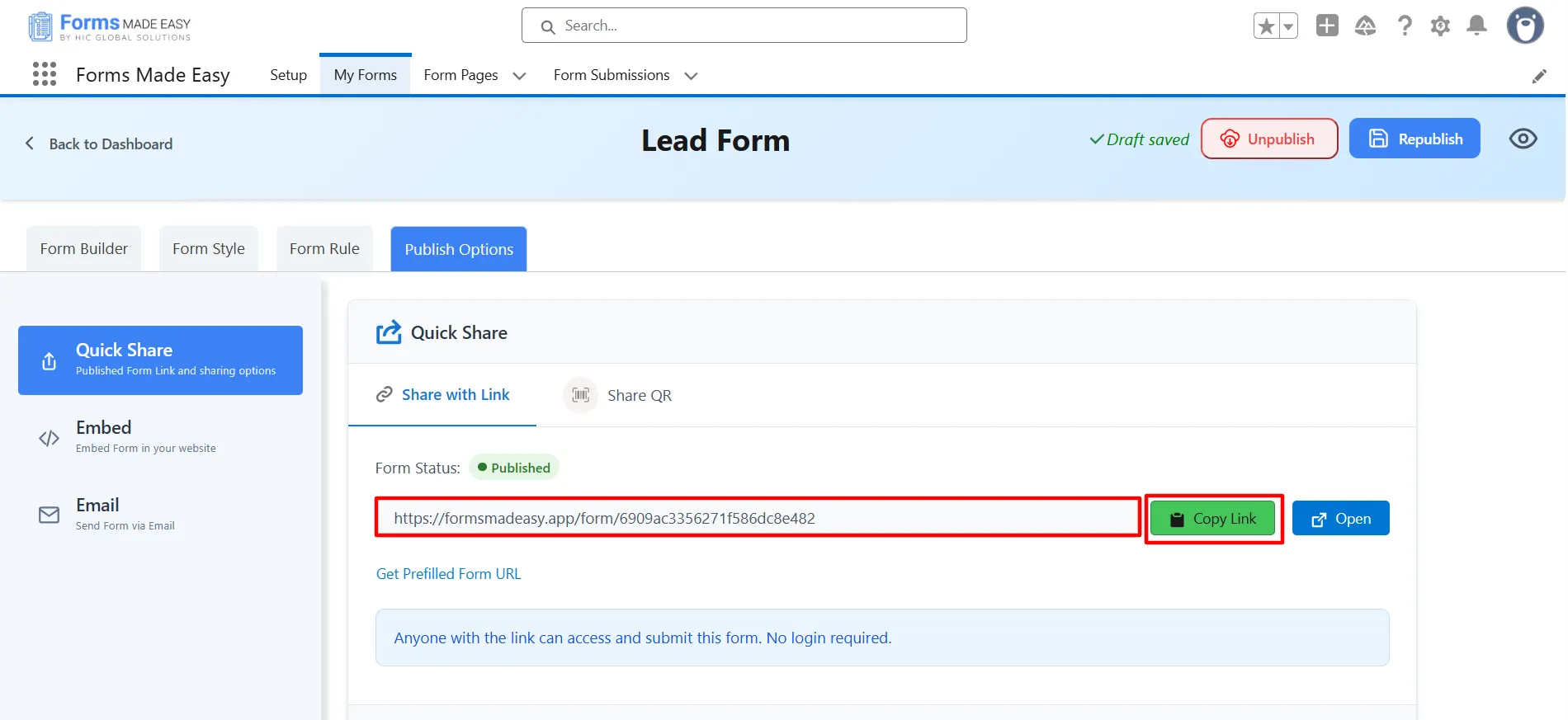
Step 10: Click on the Copy Link button to copy the form URL, which you can then share with others. You can also manually copy the link.
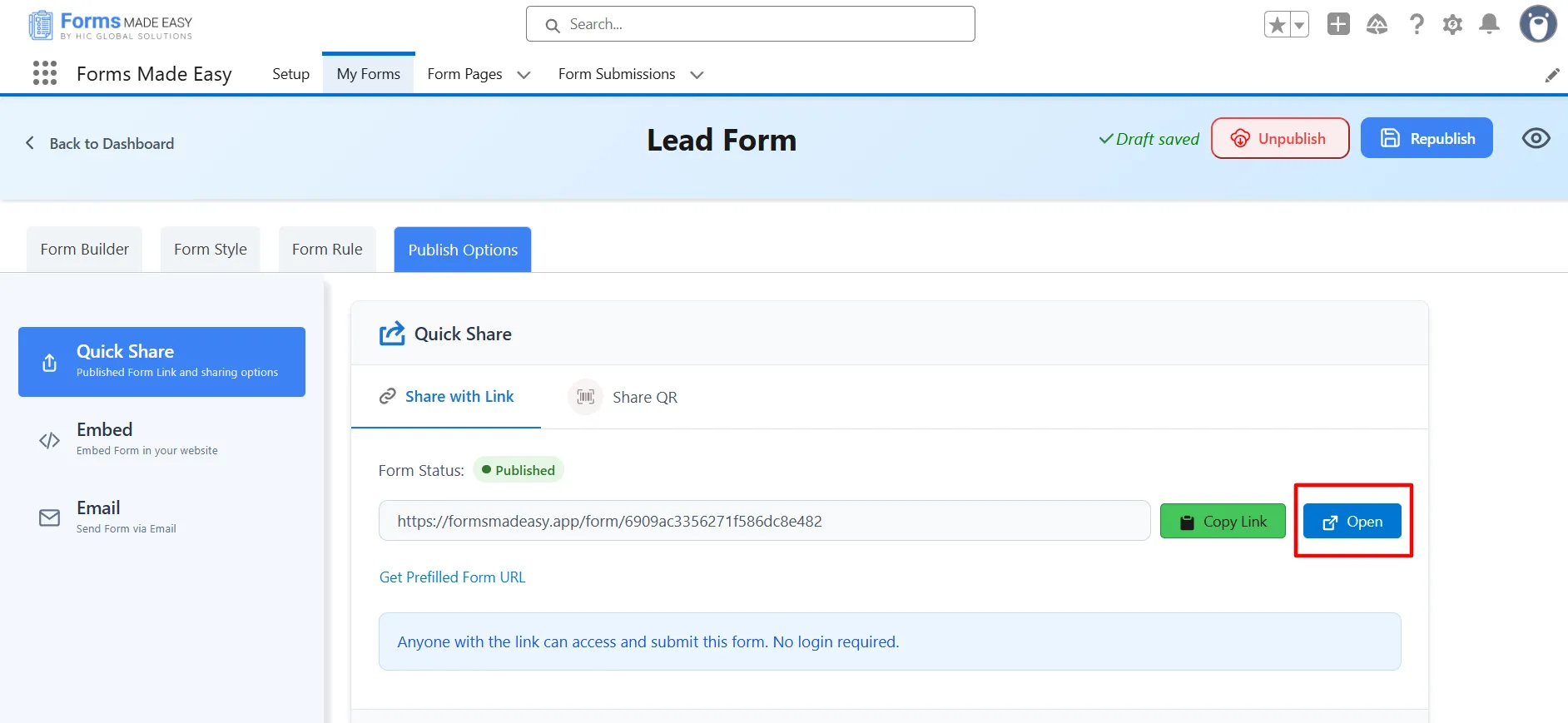
Step 11: Click on the Open button to directly open the form in your web browser.
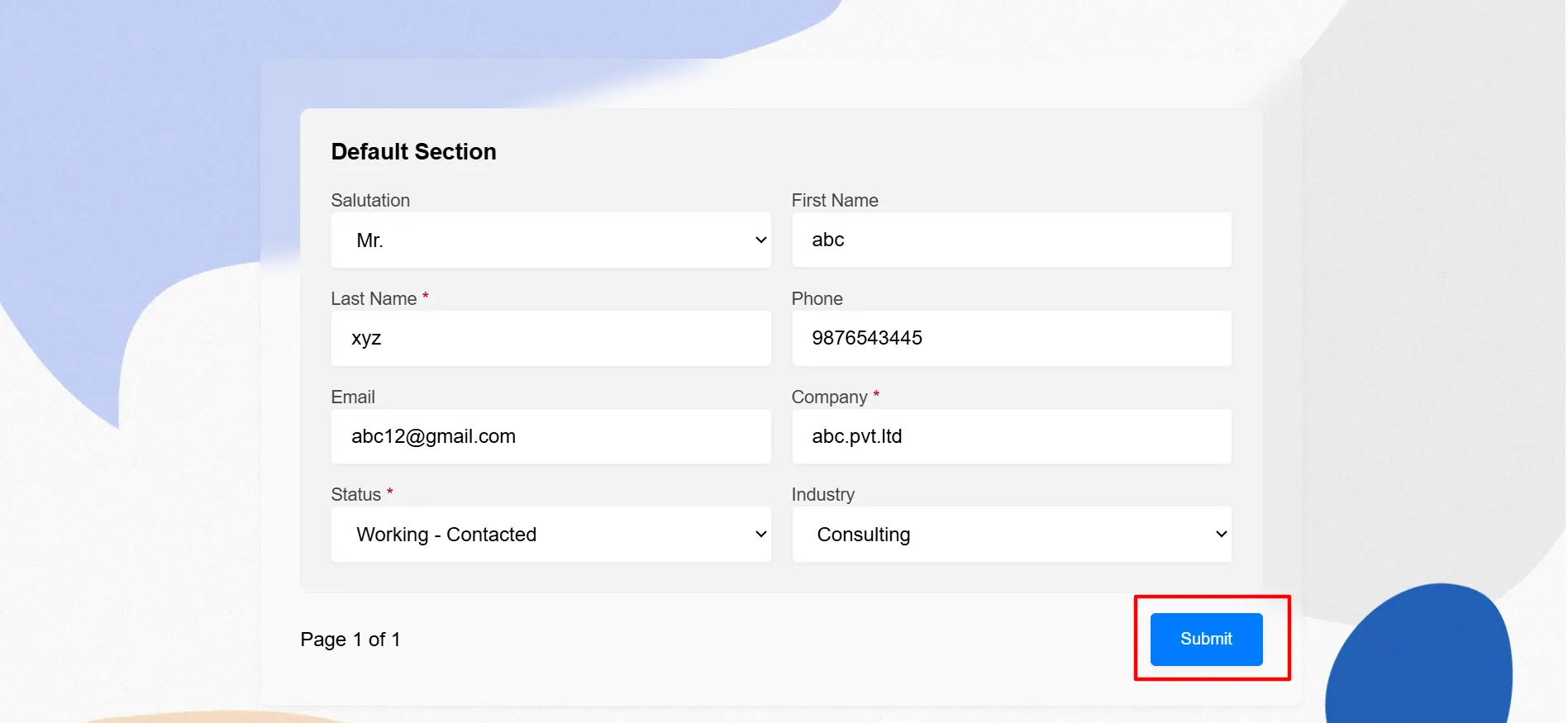
Step 12: After filling in all the information, click the Submit button to submit the records.
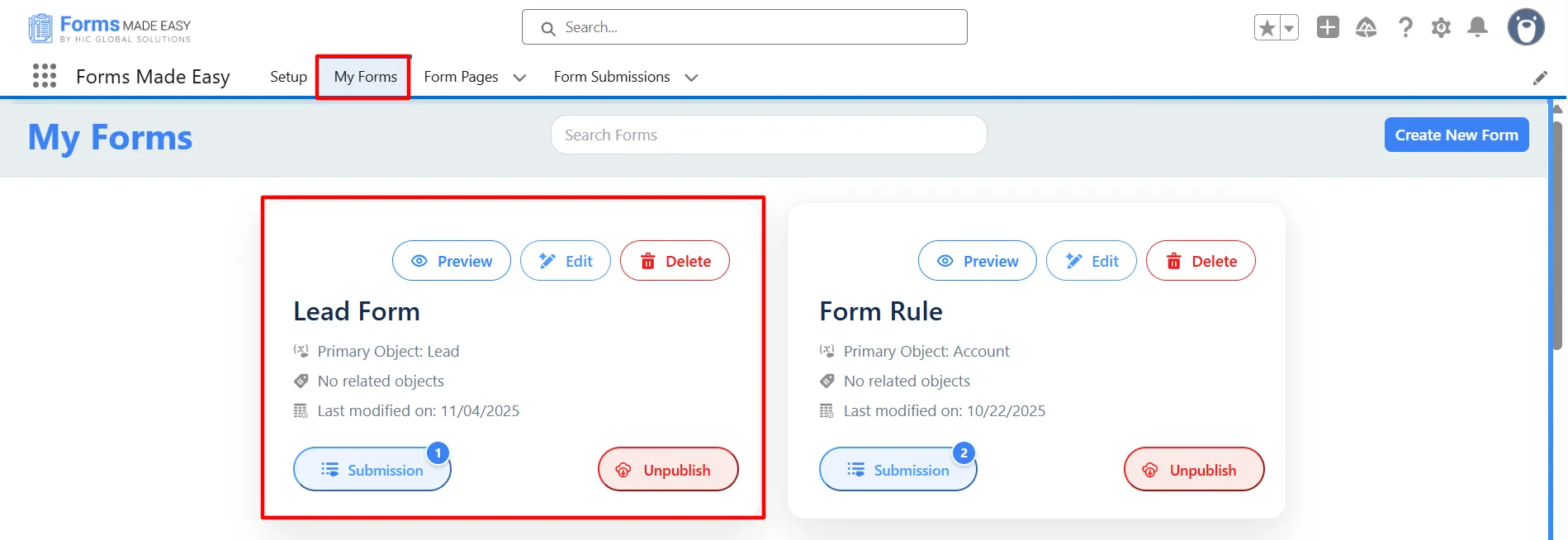
Step 13: Go to the My Forms tab and refresh the page.
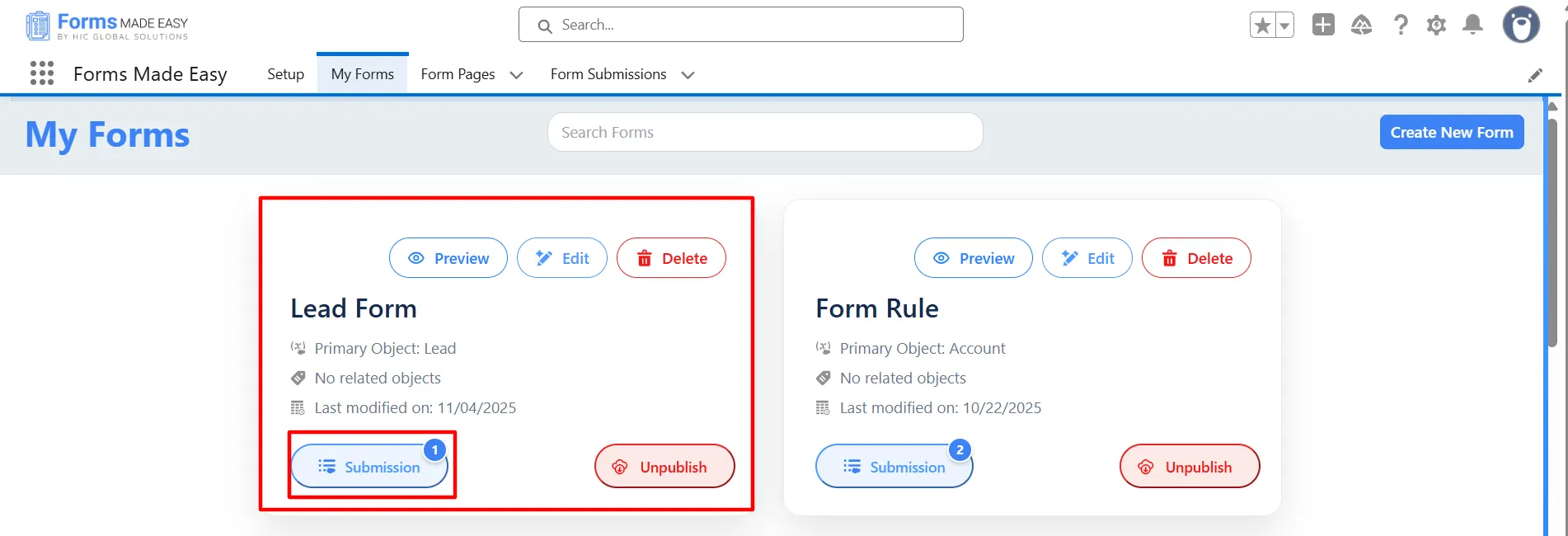
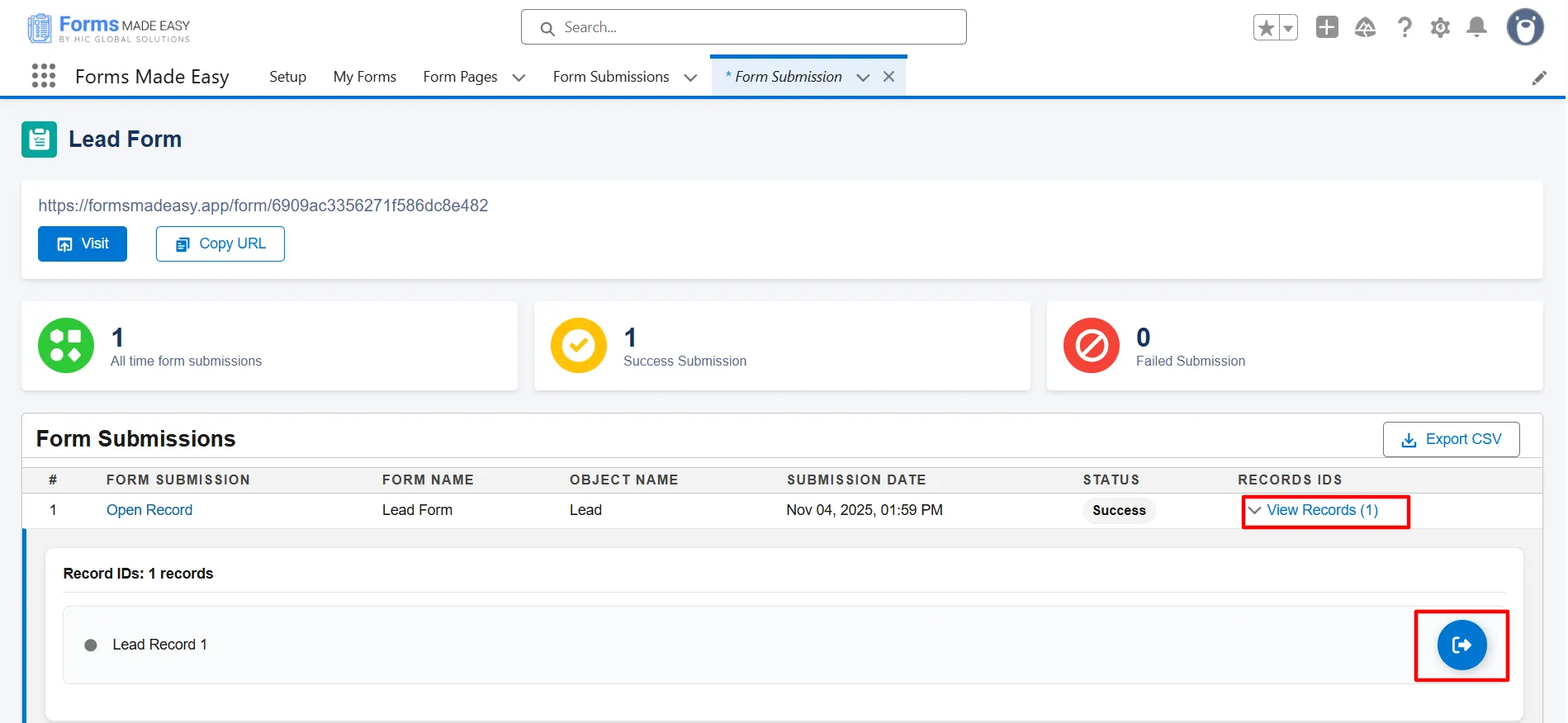
Step 14: Click on the Submission button of that form.
Step 15: Here, all submissions for that form will be displayed.
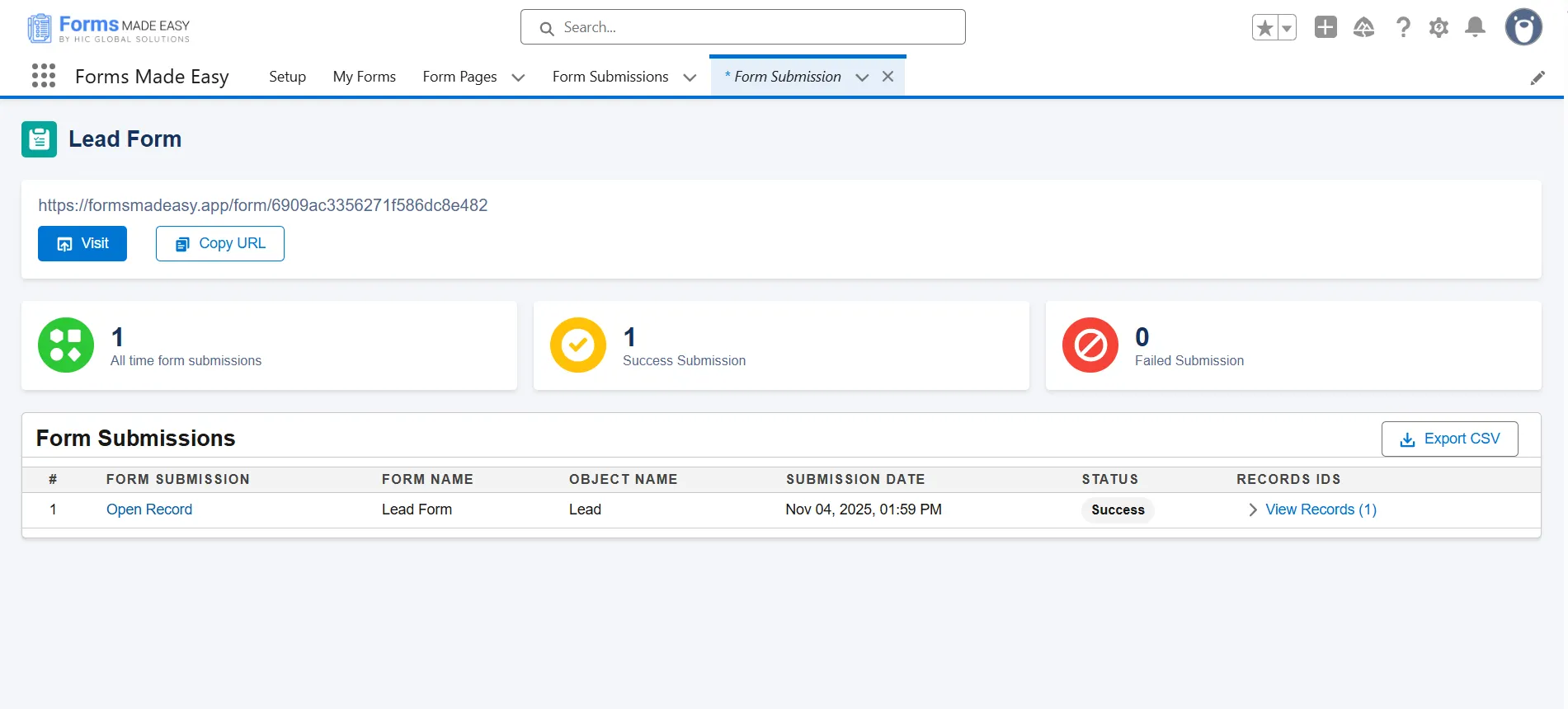
Step 16: Click on View Records, then click the Preview button to see the submitted form data.
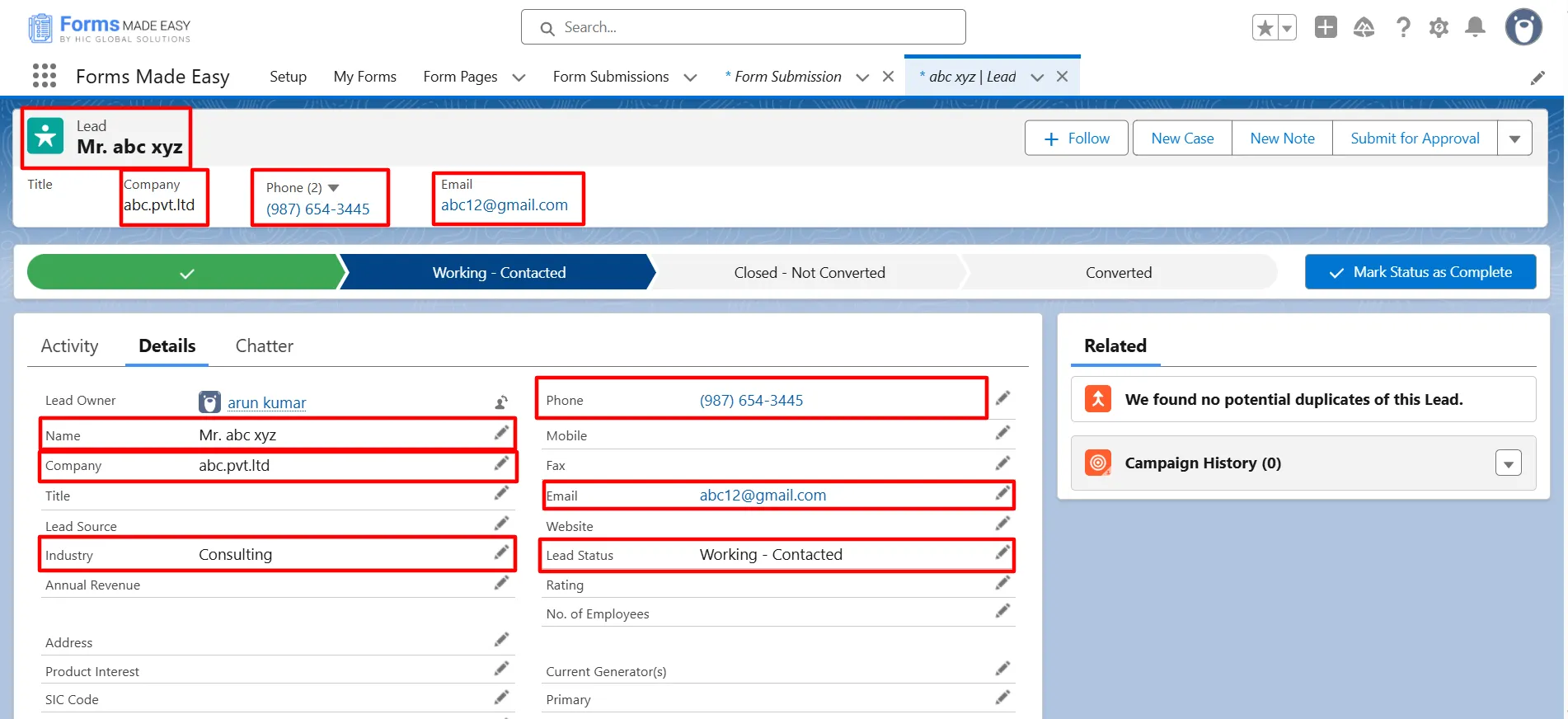
Step 17: The submitted records will now appear under the Lead object in Salesforce.
Conclusion
With a Salesforce form builder, you can streamline the entire form setup process by starting with templates that are already structured and user-ready. Salesforce form solutions ensure reduced effort, improve accuracy, and speed up deployment.