

Turn Forms Into Automated Workflows
Design dynamic forms, streamline operations, and eliminate repetitive manual tasks — all without code.
Talk to Our ExpertsBuild Smarter Forms Faster
Create no-code forms inside Salesforce and automate data collection, approvals, and workflows without complexity.
Get StartedSimplify Your Form Workflows
Replace manual processes with intelligent forms that capture, route, and manage data seamlessly in Salesforce.
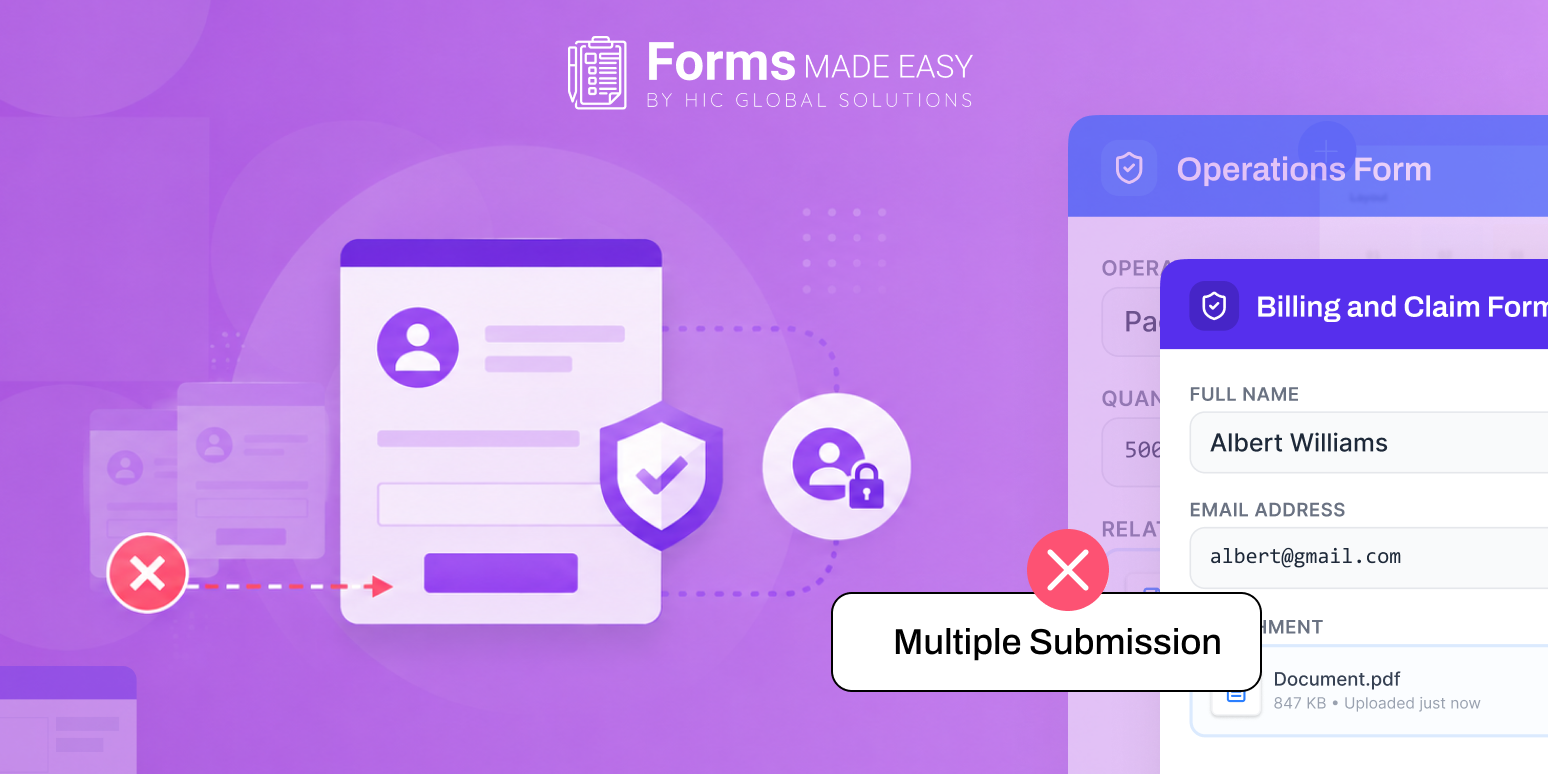
Book a DemoWhen a user fills out the same submission form multiple times, it can create duplicate records, affect reporting accuracy, trigger unnecessary workflows, and increase the time spent managing data. These duplicate entries can quickly impact the quality of information stored in Salesforce, making it harder for teams to work with reliable data.
Fortunately, Forms Made Easy provides a simple way to prevent duplicate submissions. In this tech guide, we will show you how to enable this feature and ensure your submission form online collects clean, accurate data while preventing users from submitting the same response multiple times.
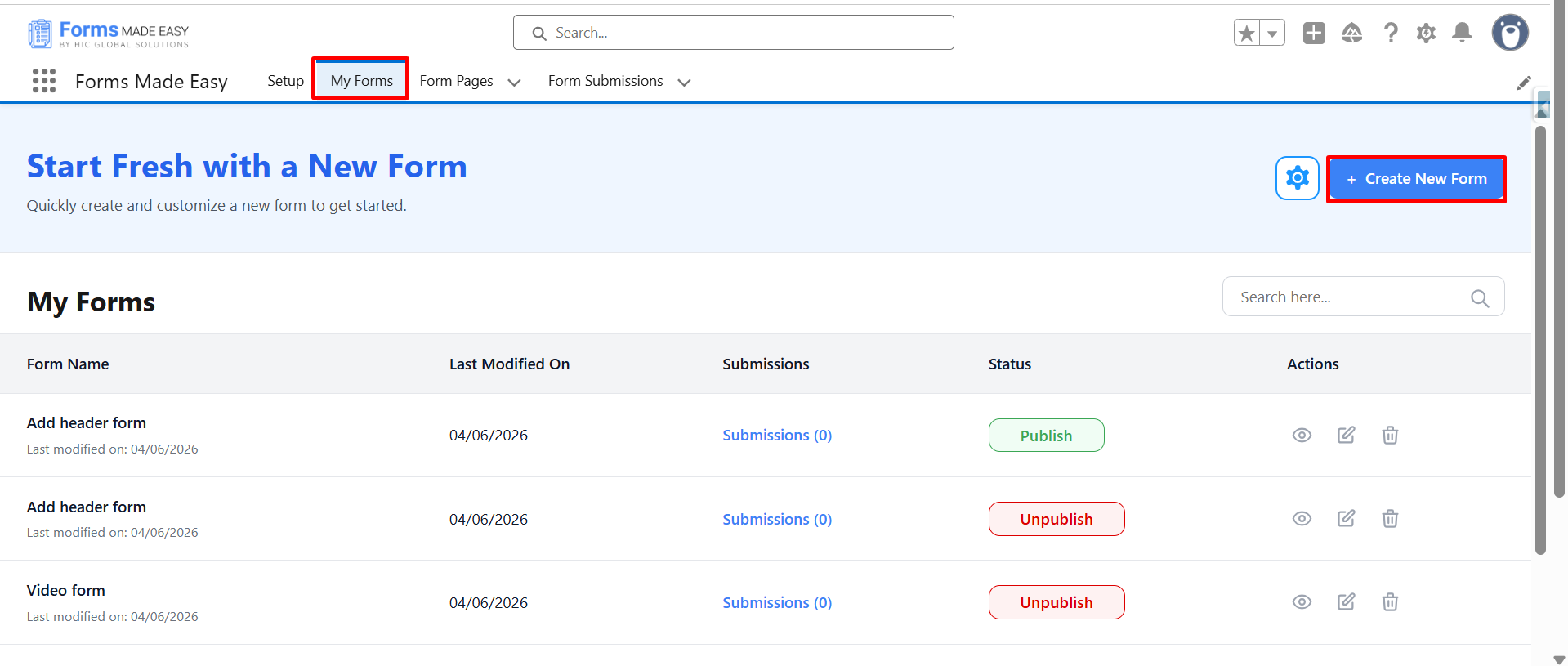
Step 1: Go to the My Forms tab and click on the “Create New Form” button.
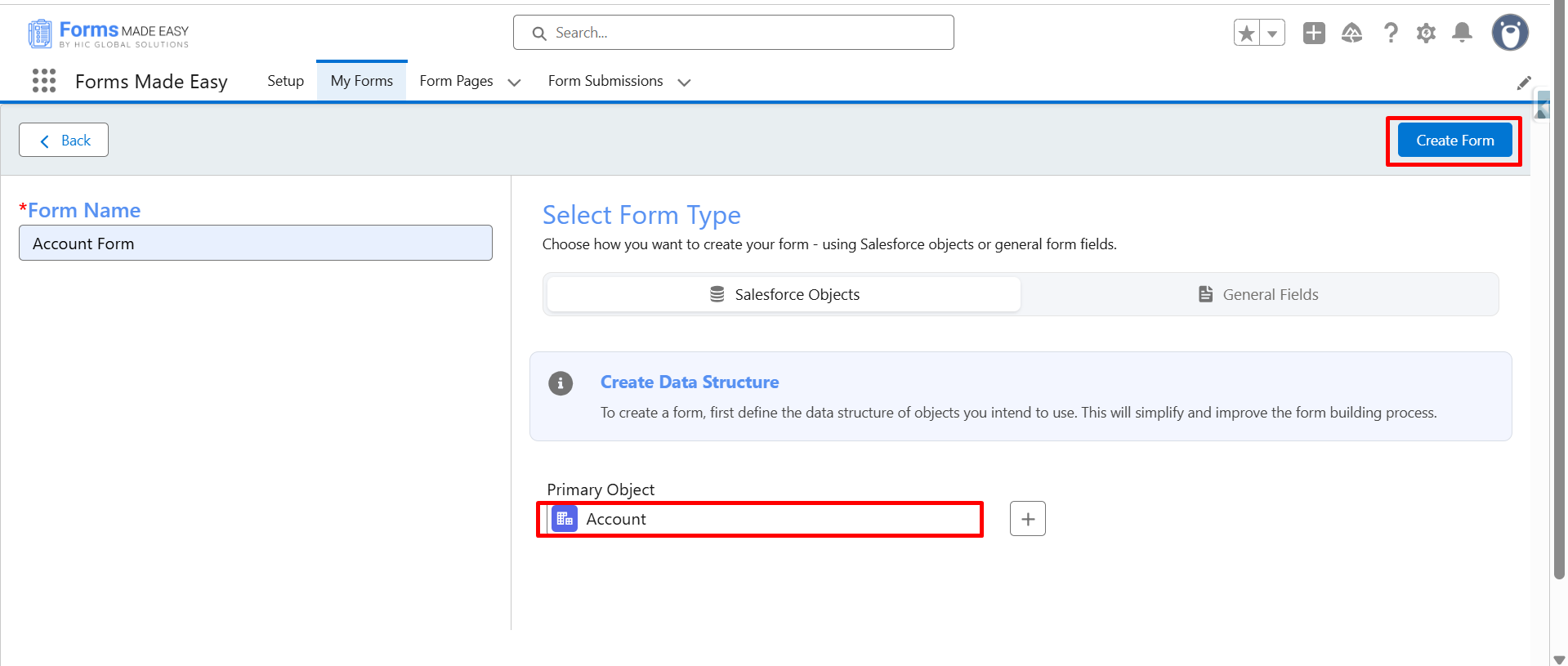
Step 2: Enter the Form Name and select the Form Type (Salesforce Objects / General Fields).
- Here, I have chosen the Salesforce Objects option.
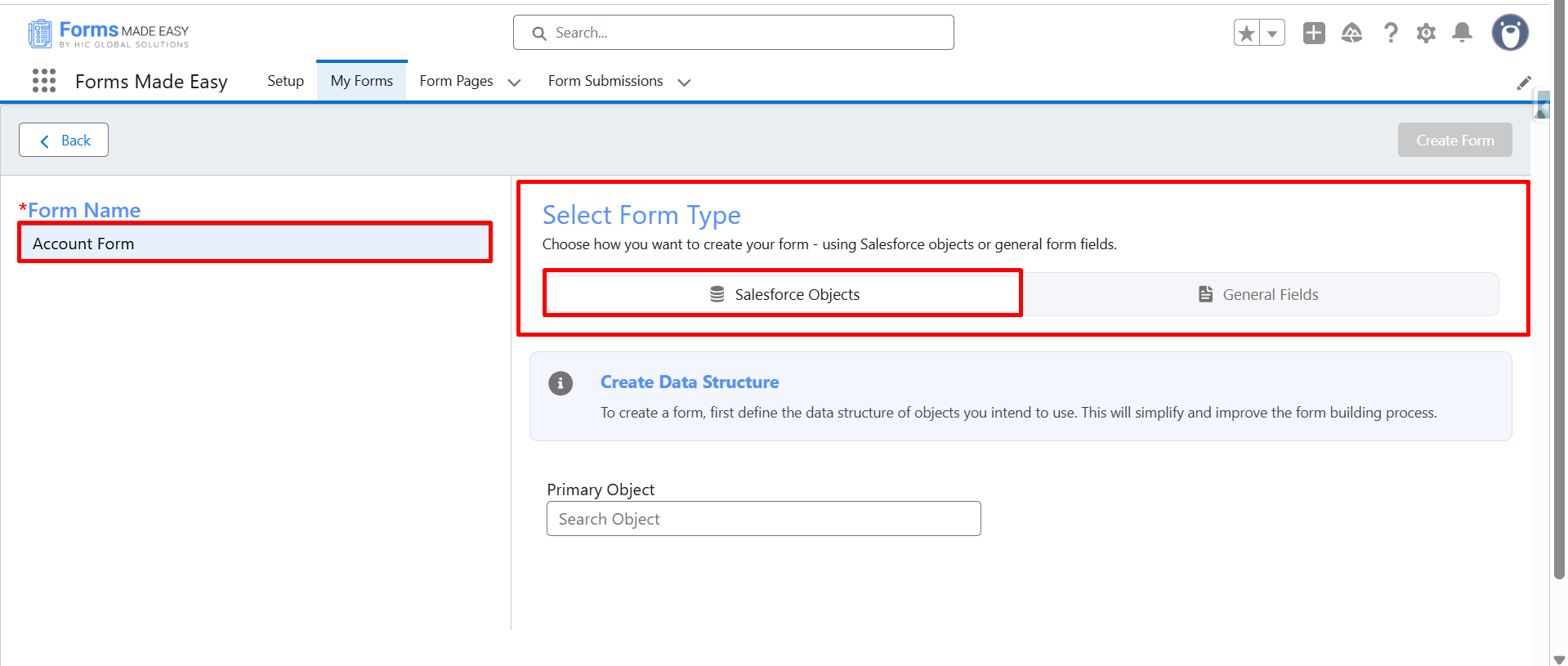
Step 3: Select “Account” as the Primary Object and click the “Create Form” button.
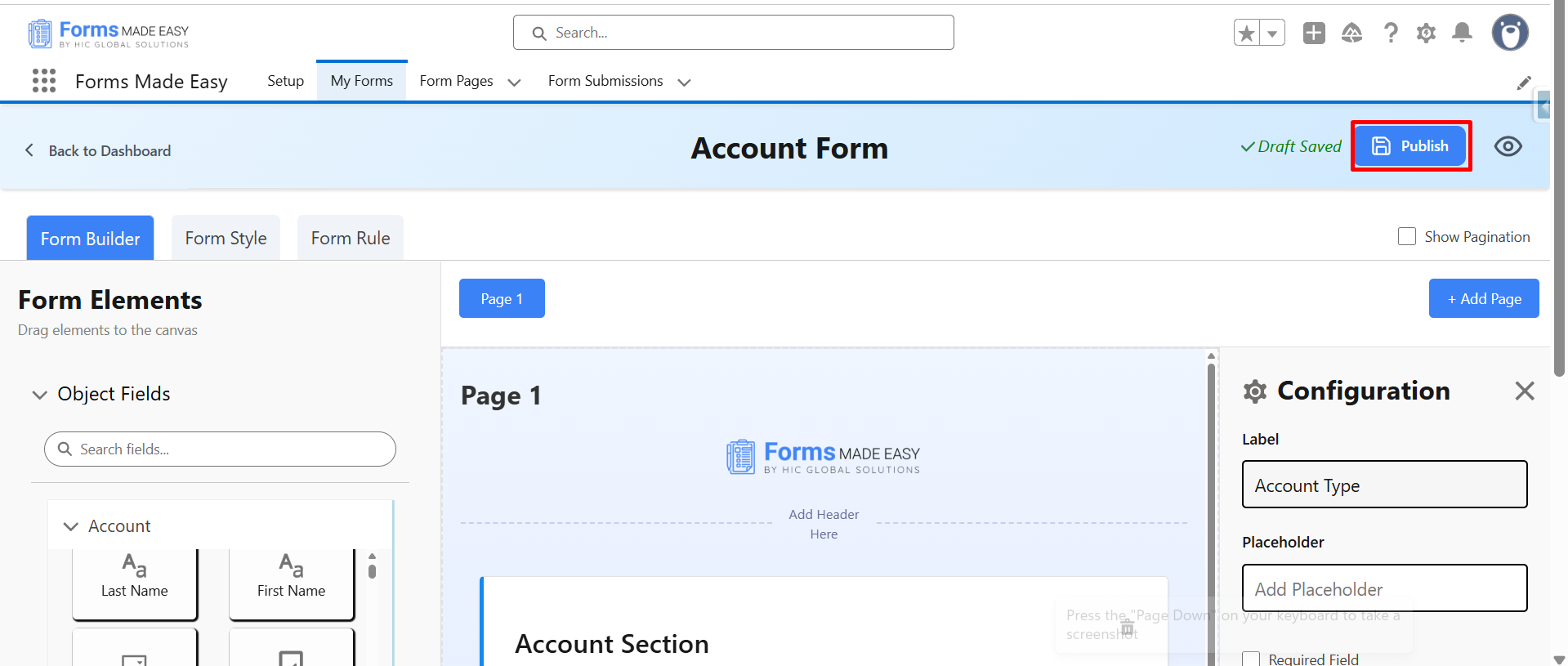
Step 4: Drag and drop your required fields on the form. After all of that, you can publish the form by clicking the “Publish” button.
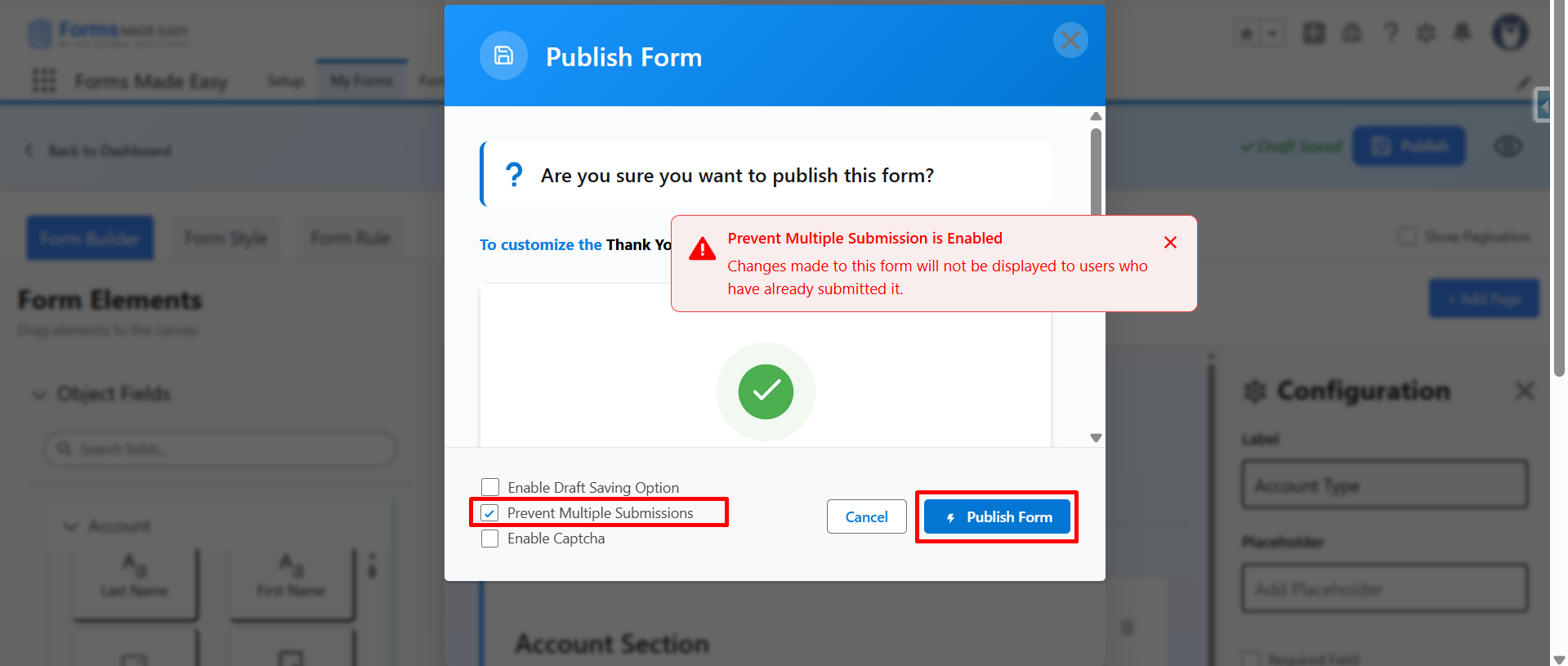
Step 5: Now, enable “Prevent Multiple Submissions”. Click on “Publish form”, and a confirmation message will appear.
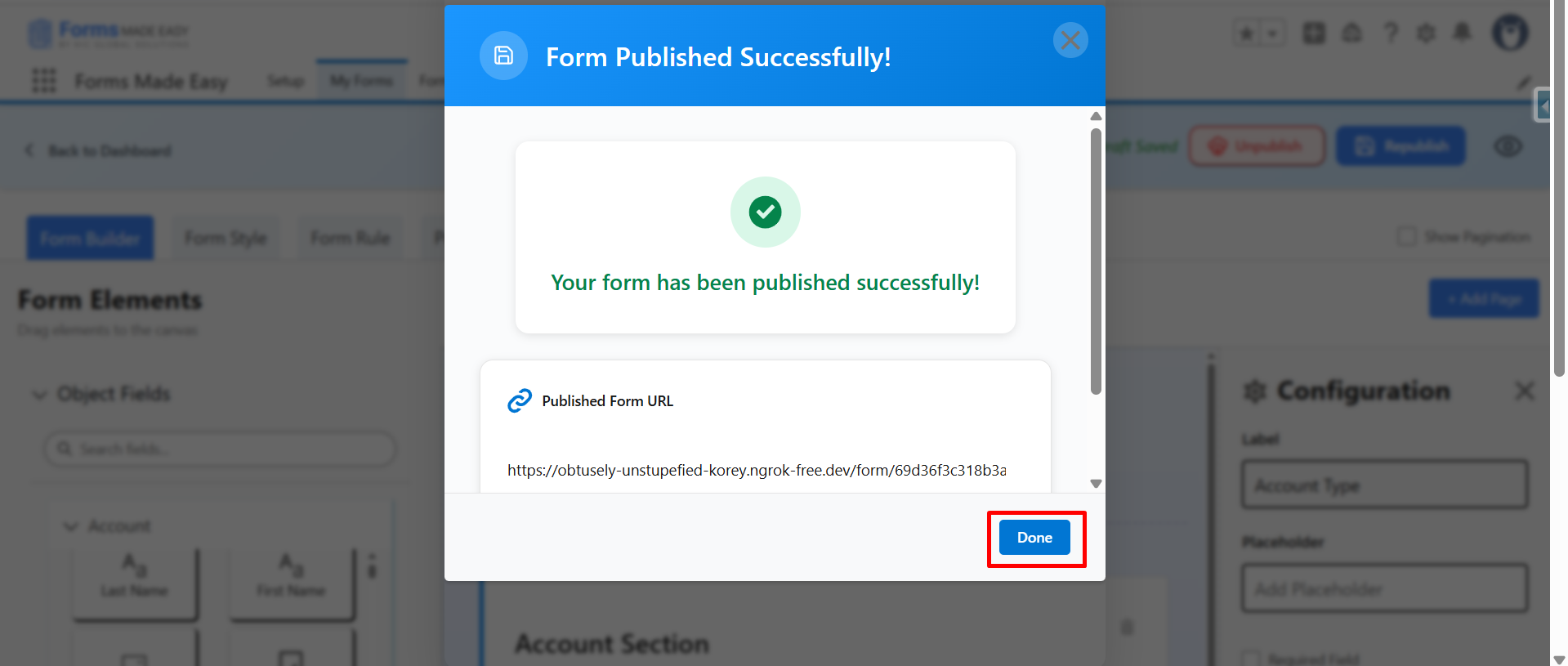
Step 6: Click on “Done” to close the modal.
Step 7: Now, click on “Publish Options”.
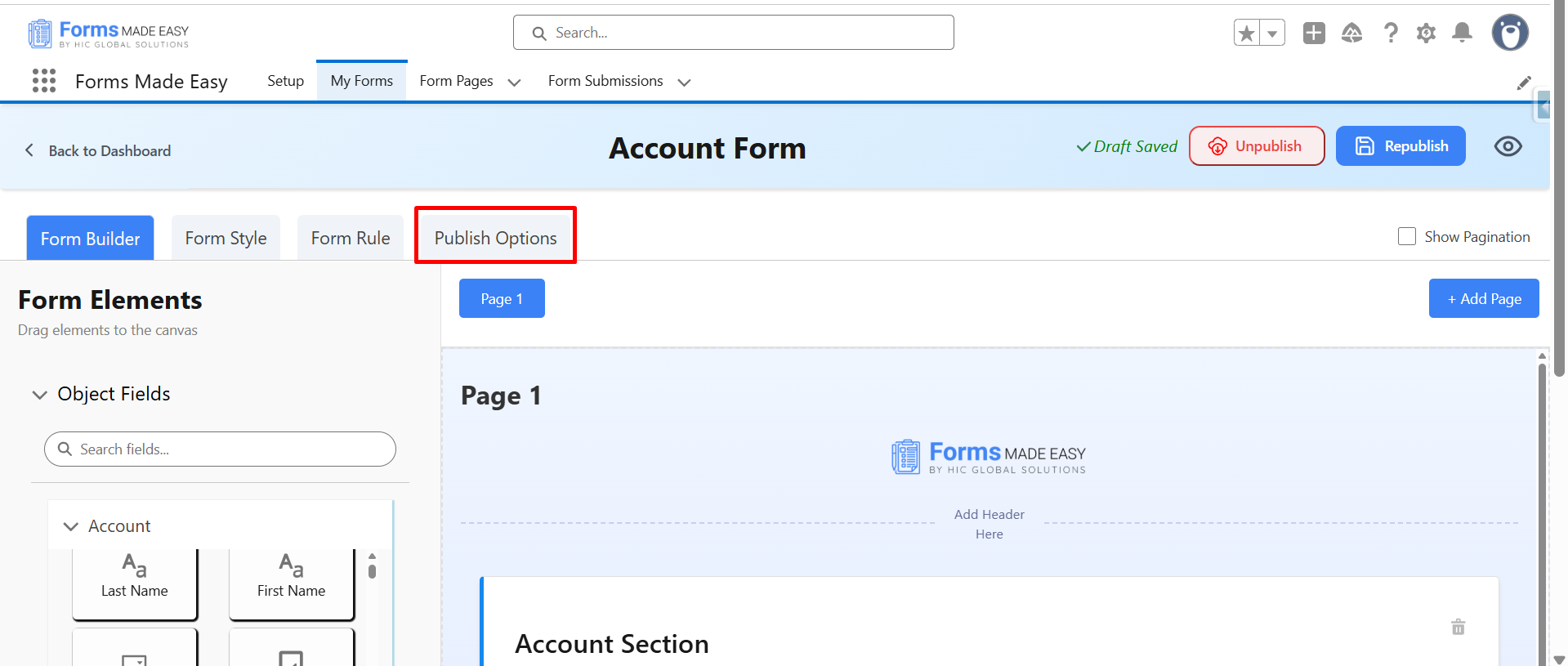
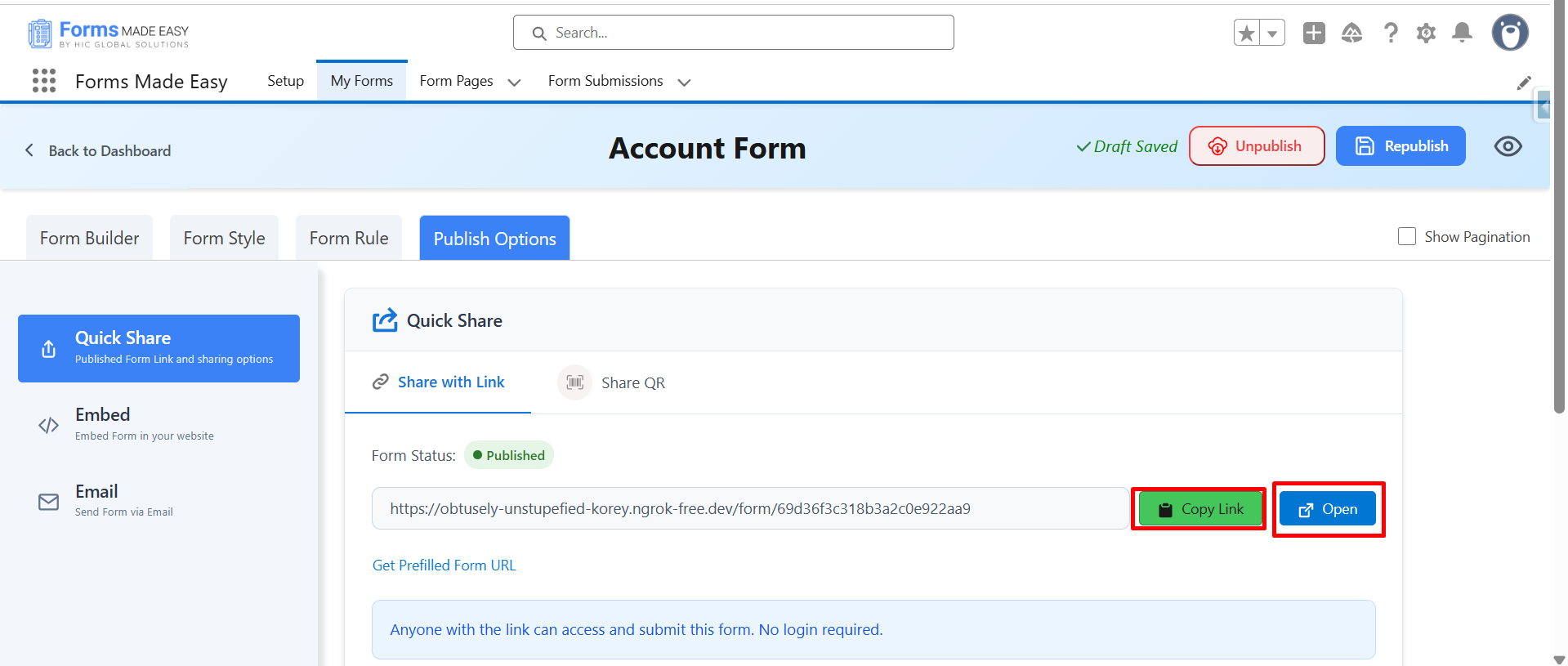
Step 8: Click on the “Copy Link” or “Open” button to open the forms directly on the web.
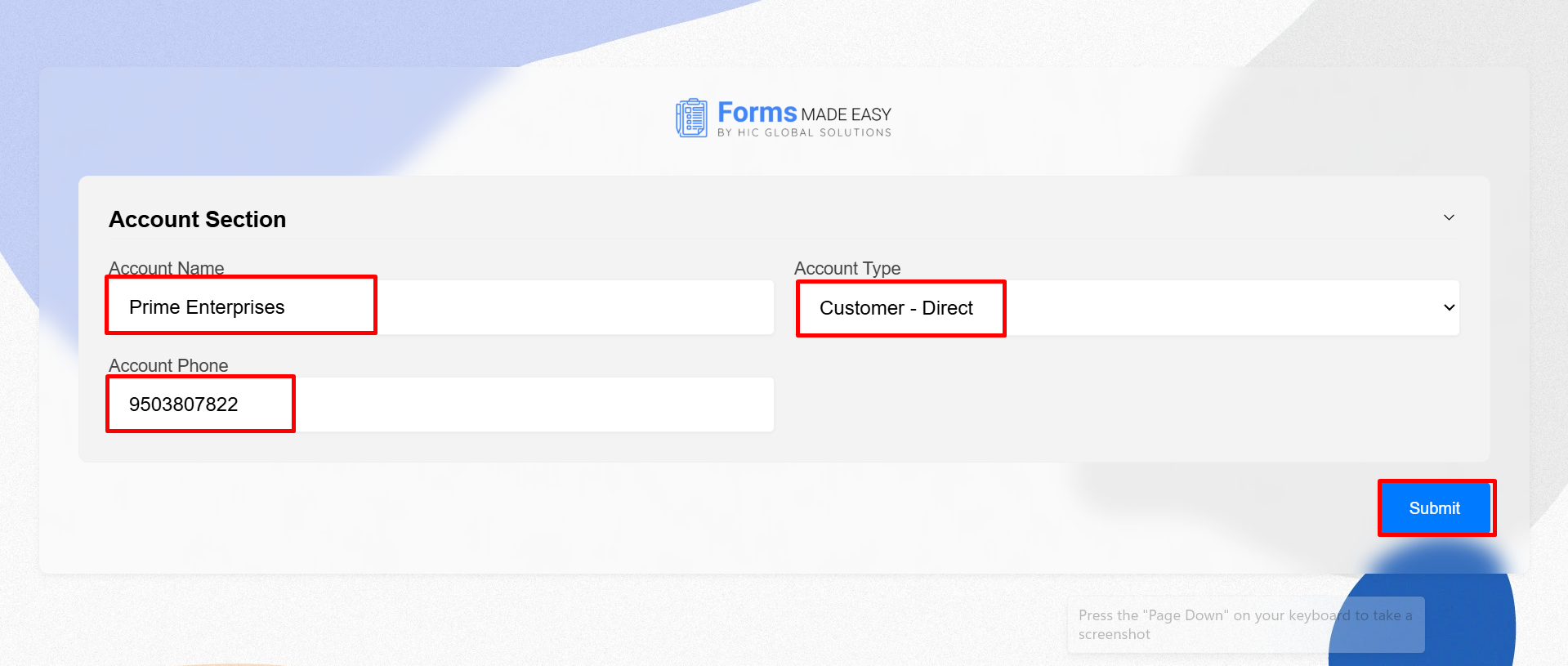
Step 9: After filling in all the information, click the “Submit” button to submit the record.
Step 10: Next, click on the “Got It” button to open the form again.

Step 11. Instead of opening a fresh form, the system shows the “Form Response – Your response has been recorded” screen.

Note: If you’re using Forms Made Easy for the first time or want to create a form in Salesforce in seconds with advanced customization, watch our demo video for a complete step-by-step walkthrough.
Watch Live Demo
Conclusion
That’s it! Preventing duplicate submissions in your forms is quick and easy with the best forms builder in Salesforce Forms Made Easy. By enabling the Prevent Multiple Submission option, you can stop users from submitting the same form repeatedly and maintain cleaner, more reliable Salesforce records.
Whether you’re using forms for Salesforce for registrations, applications, requests, or feedback collection, this simple setting helps improve data quality and reduce manual cleanup. It ensures every response is captured only once, making your forms more effective and your Salesforce data more trustworthy.