


Turn Forms Into Automated Workflows
Design dynamic forms, streamline operations, and eliminate repetitive manual tasks — all without code.
Talk to Our ExpertsBuild Smarter Forms Faster
Create no-code forms inside Salesforce and automate data collection, approvals, and workflows without complexity.
Get StartedSimplify Your Form Workflows
Replace manual processes with intelligent forms that capture, route, and manage data seamlessly in Salesforce.
Book a DemoWhen you create a Salesforce form, it’s important to ensure proper access control is in place. Without the correct permissions, teams may face restrictions while managing, editing, or configuring forms.
In the Salesforce form builder like Forms Made Easy, you can easily assign specific roles such as Admin, Standard User, or other designated roles based on responsibilities. This helps you maintain better control over form creation, configuration, publishing, and overall access management.
In this guide, I’ll show you how to assign permission sets easily, step by step.
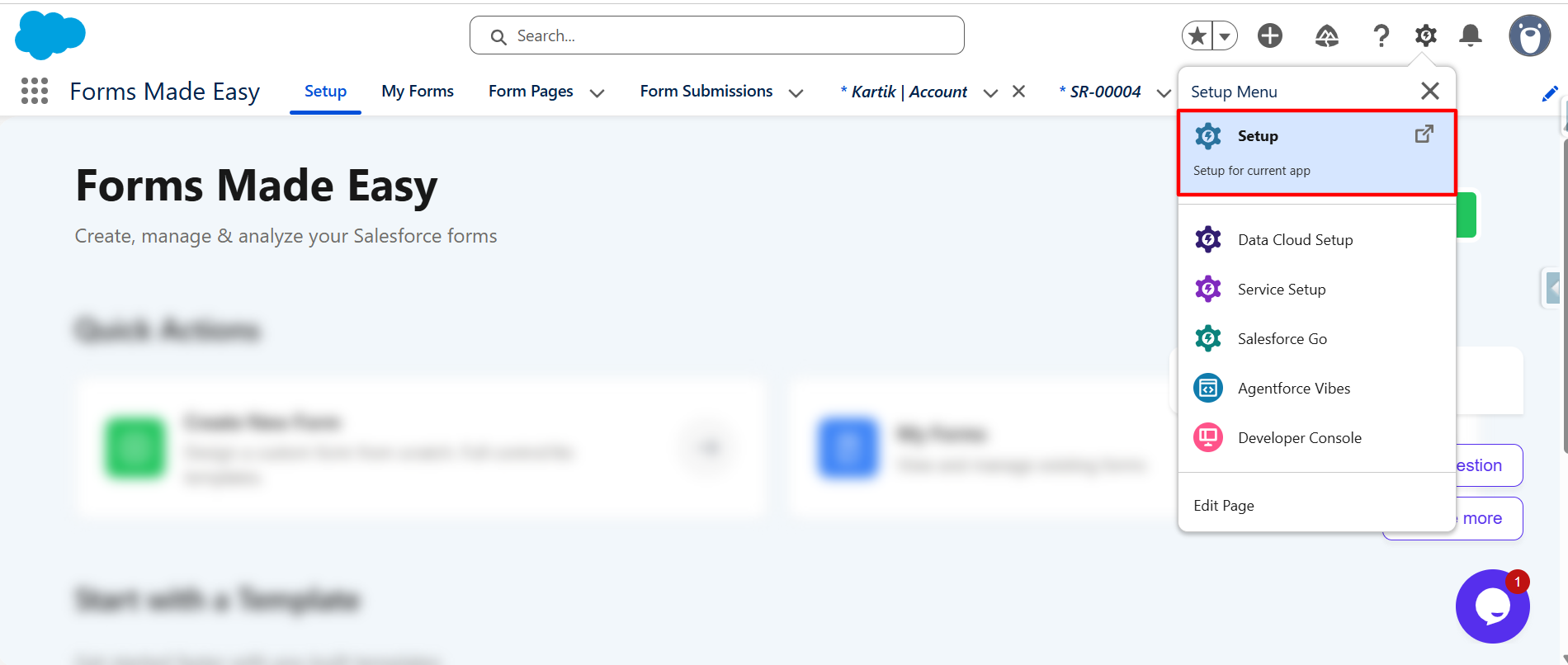
Step 1: First, you have to click on the Setup icon located in the top-right corner and select Setup to open the Setup page.
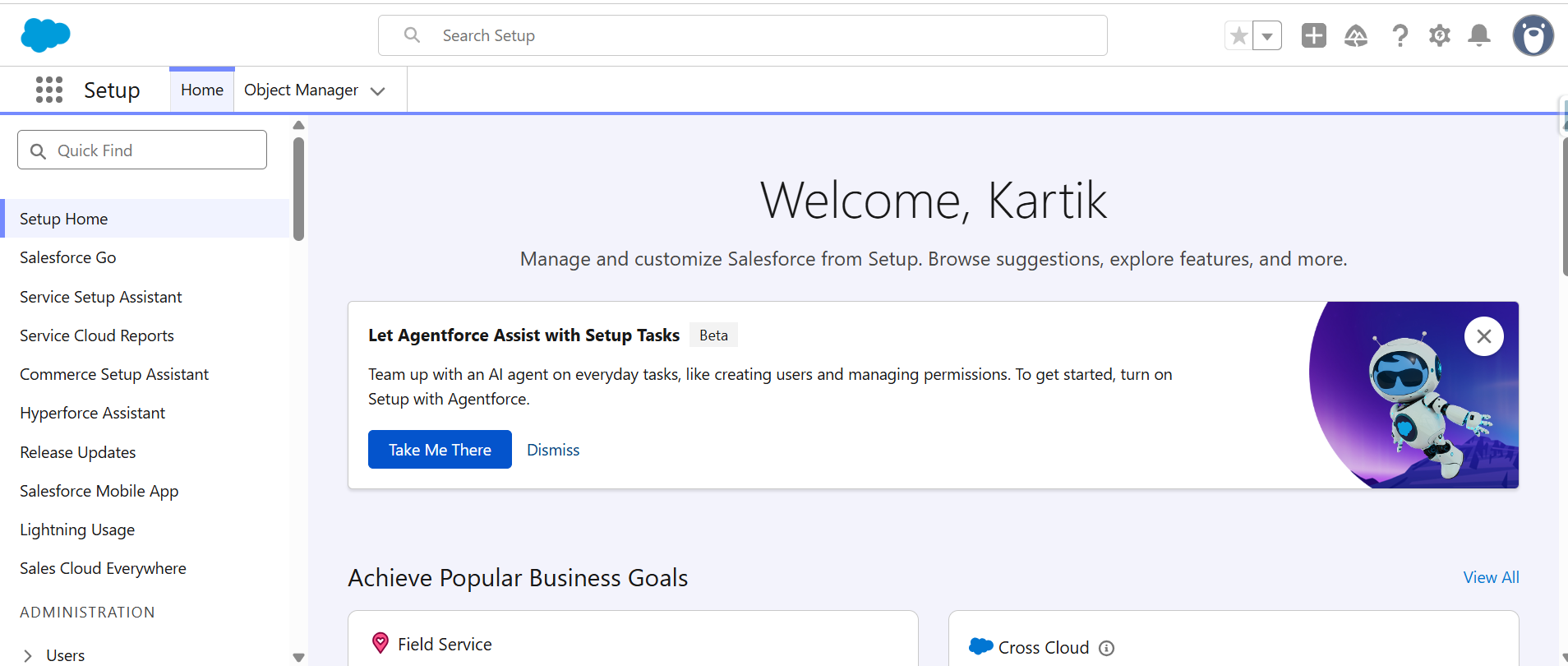
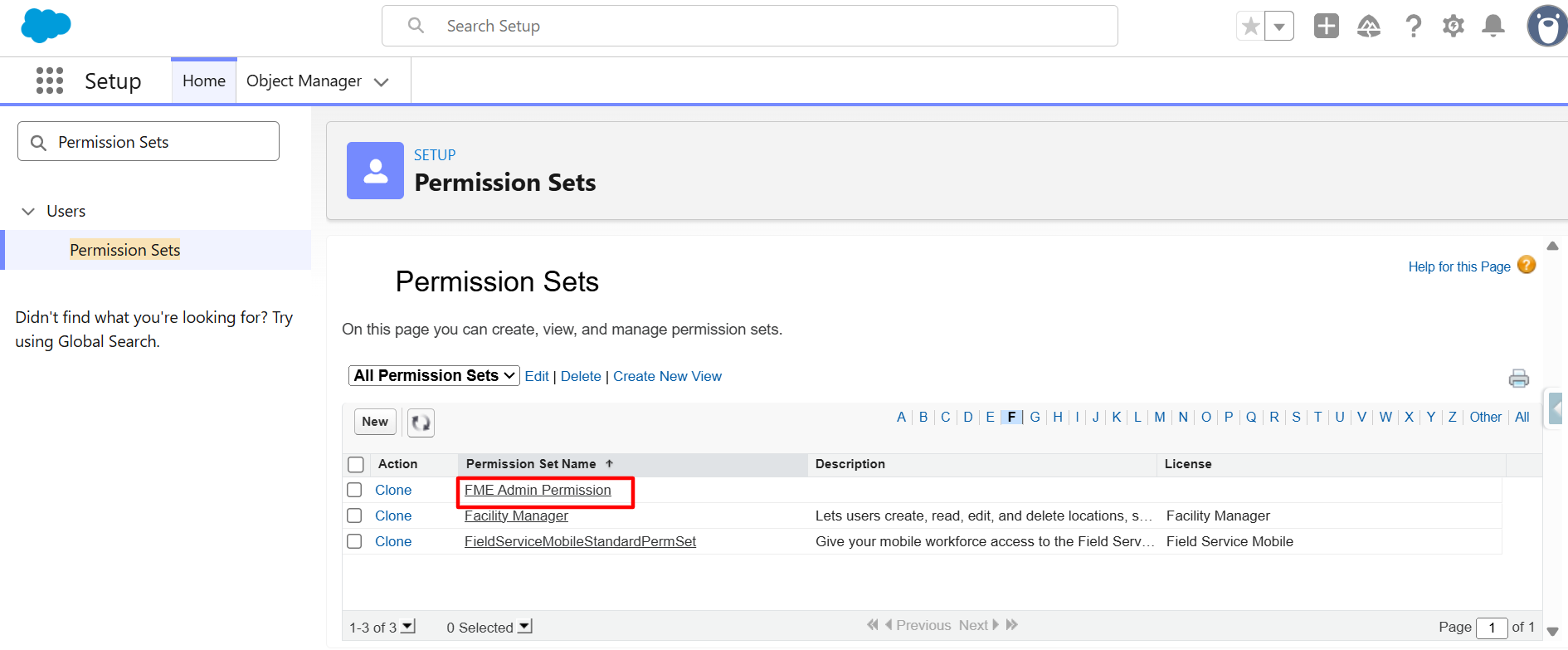
Step 2: Search for the Permission Sets in Quick Find and open it.
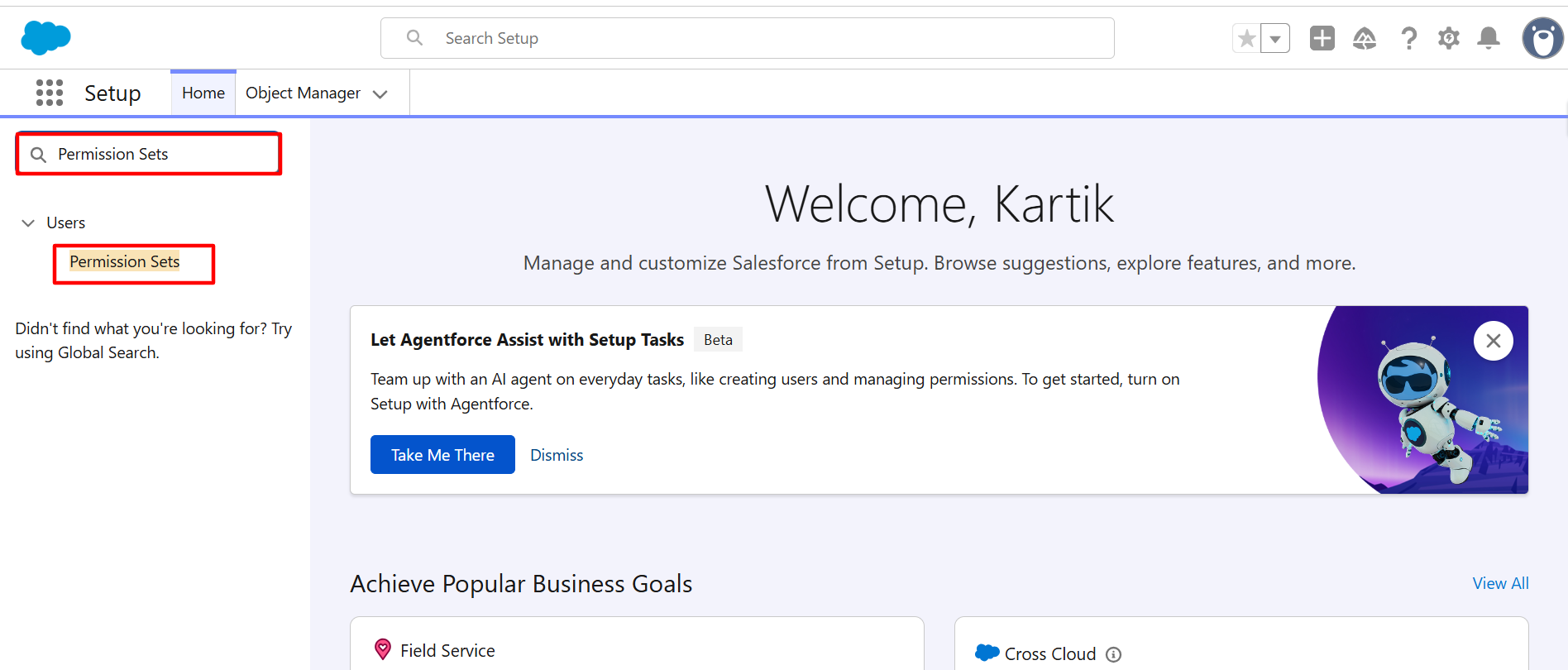
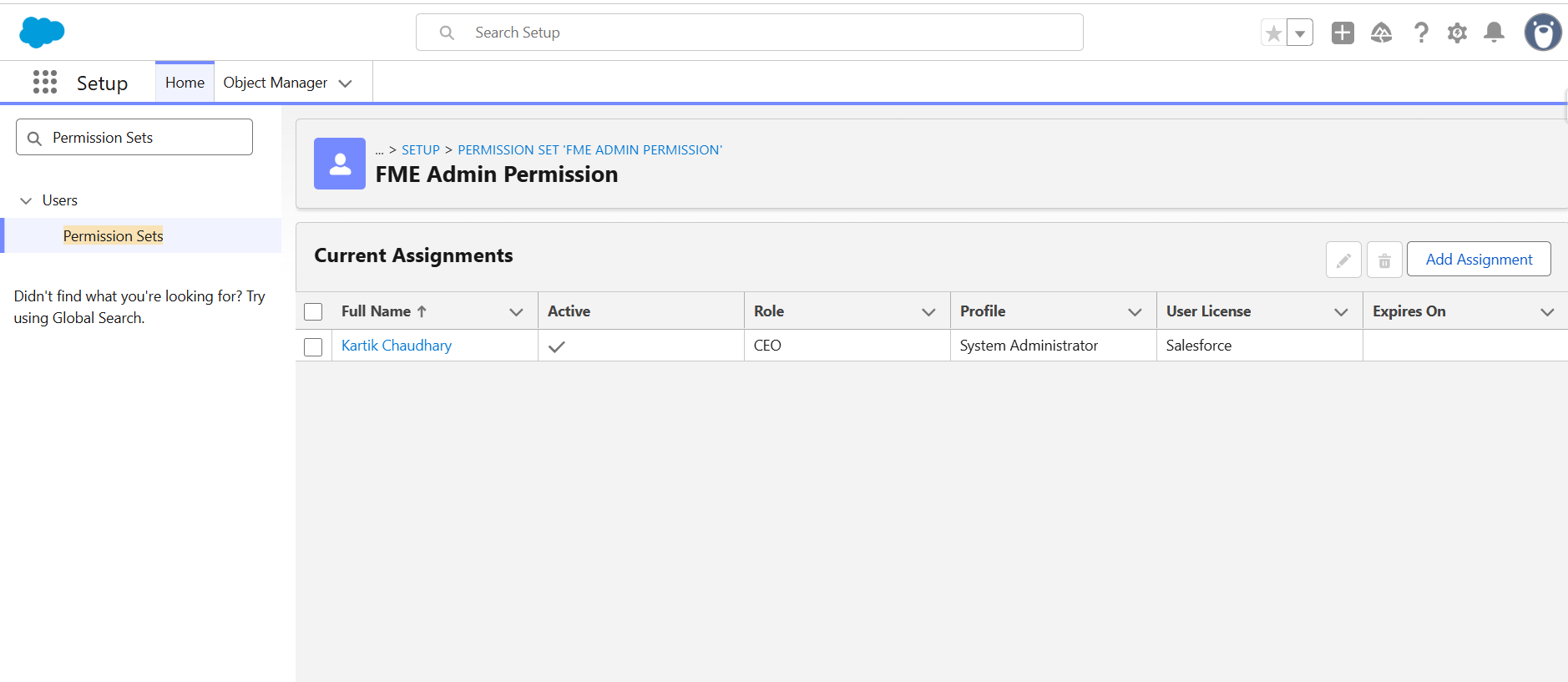
Step 3: Now, on the Permission Sets page. Find the permission set named “FME Admin Permission”, and click on the Permission Set to open its details.
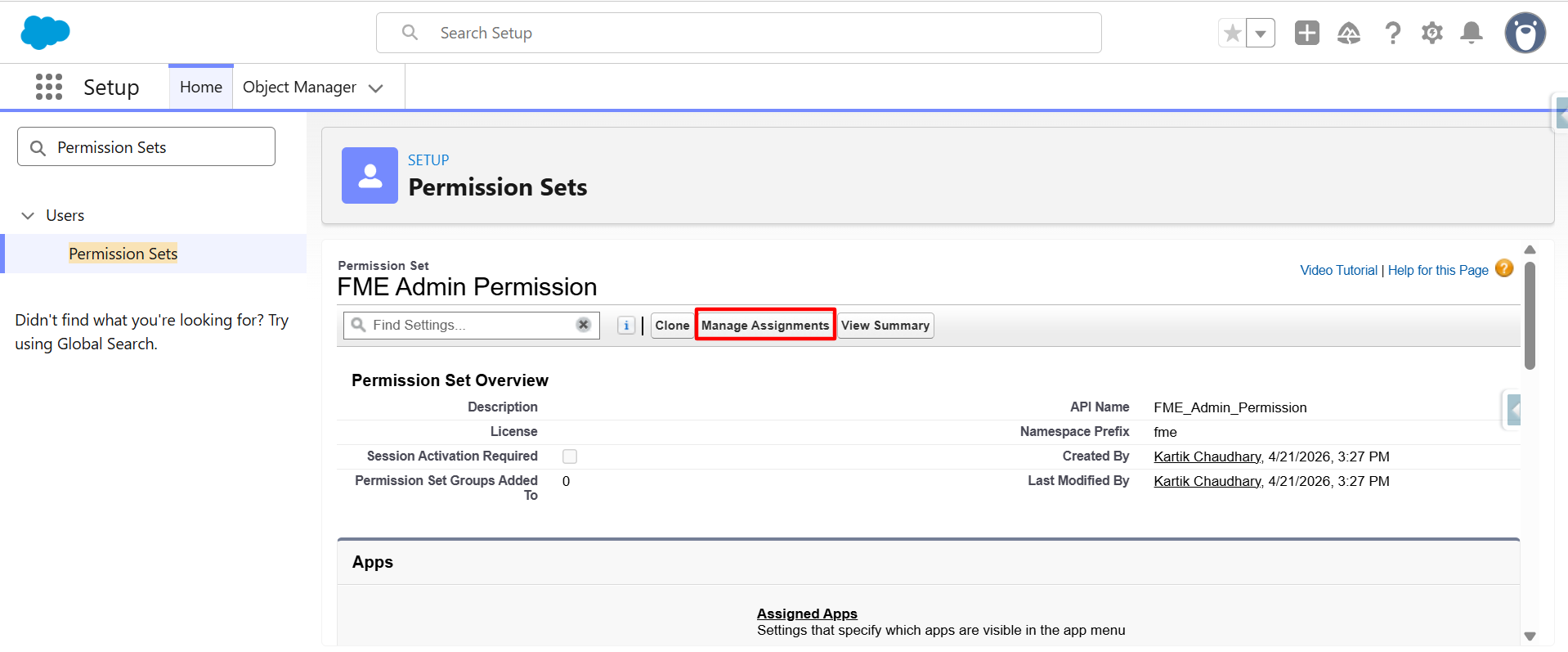
Step 4: Click on the Manage Assignment.
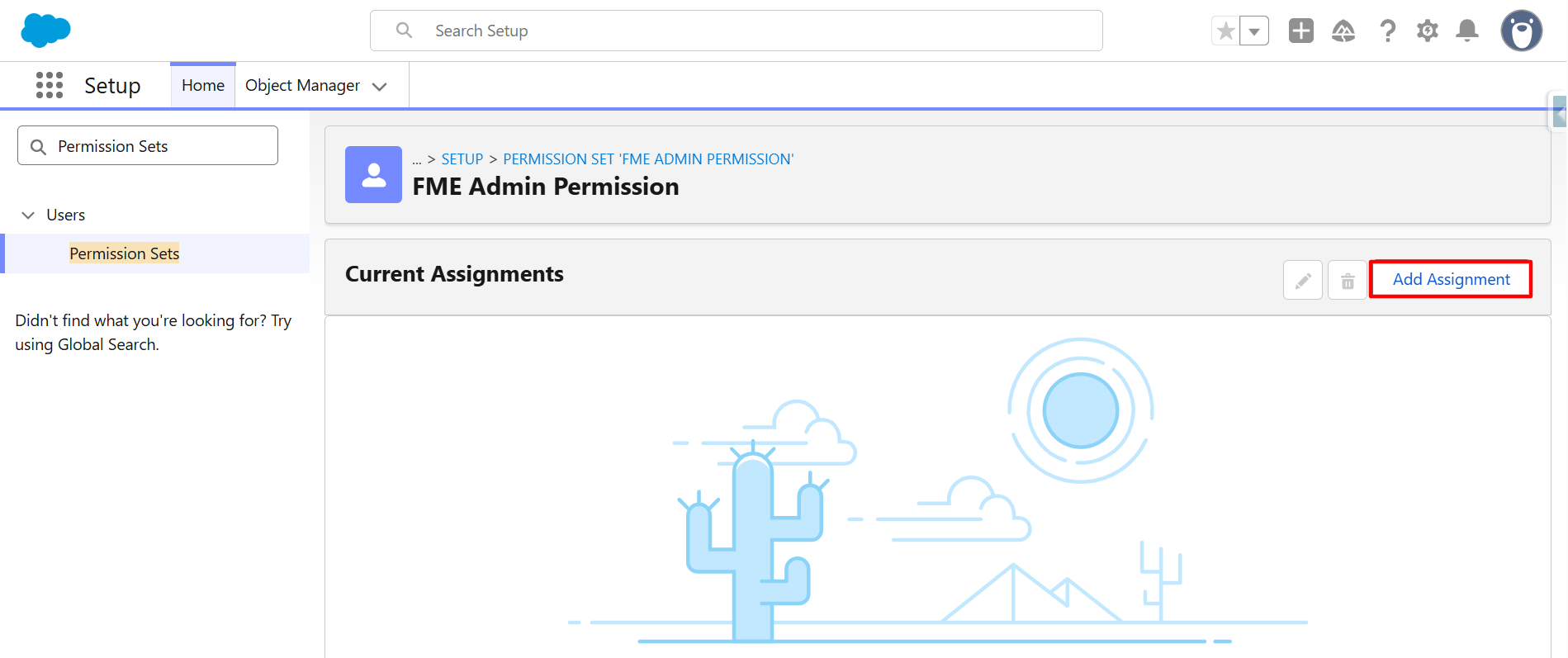
Step 5: Click on the Add Assignment button.
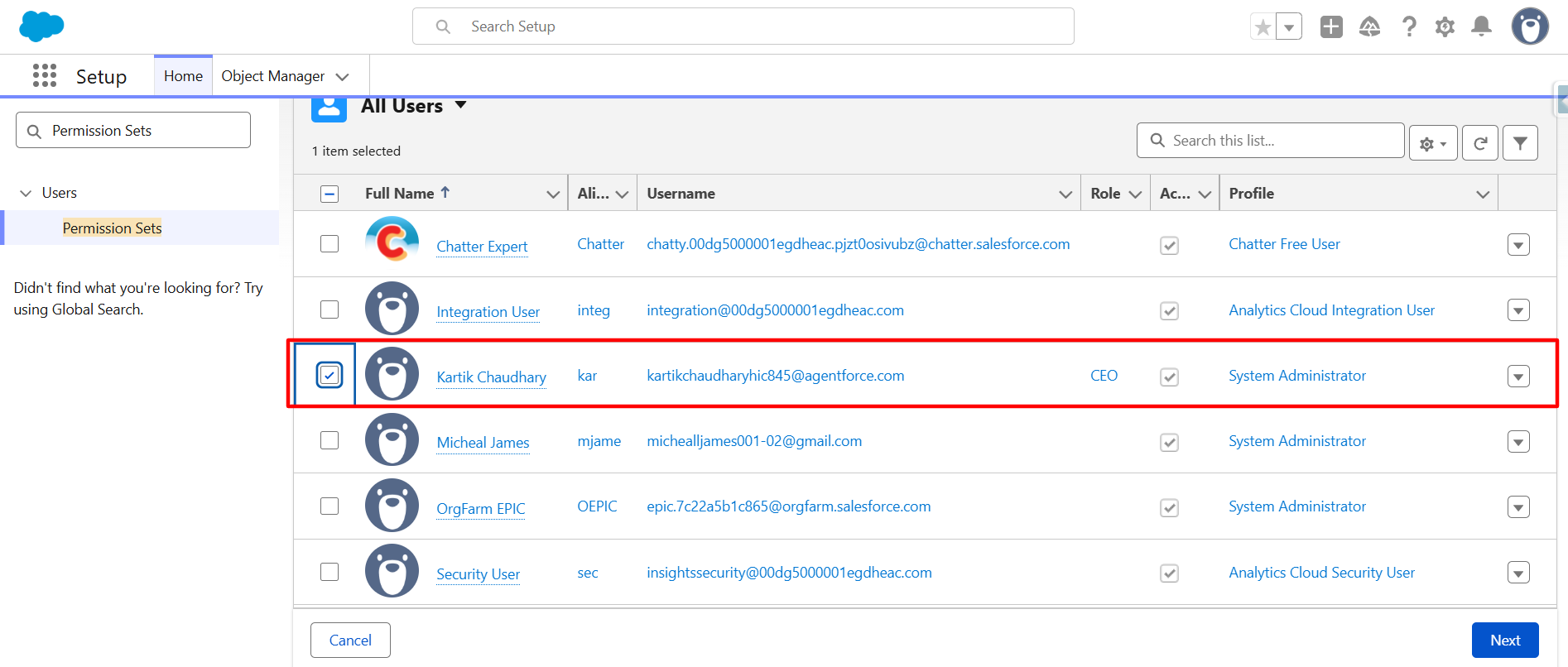
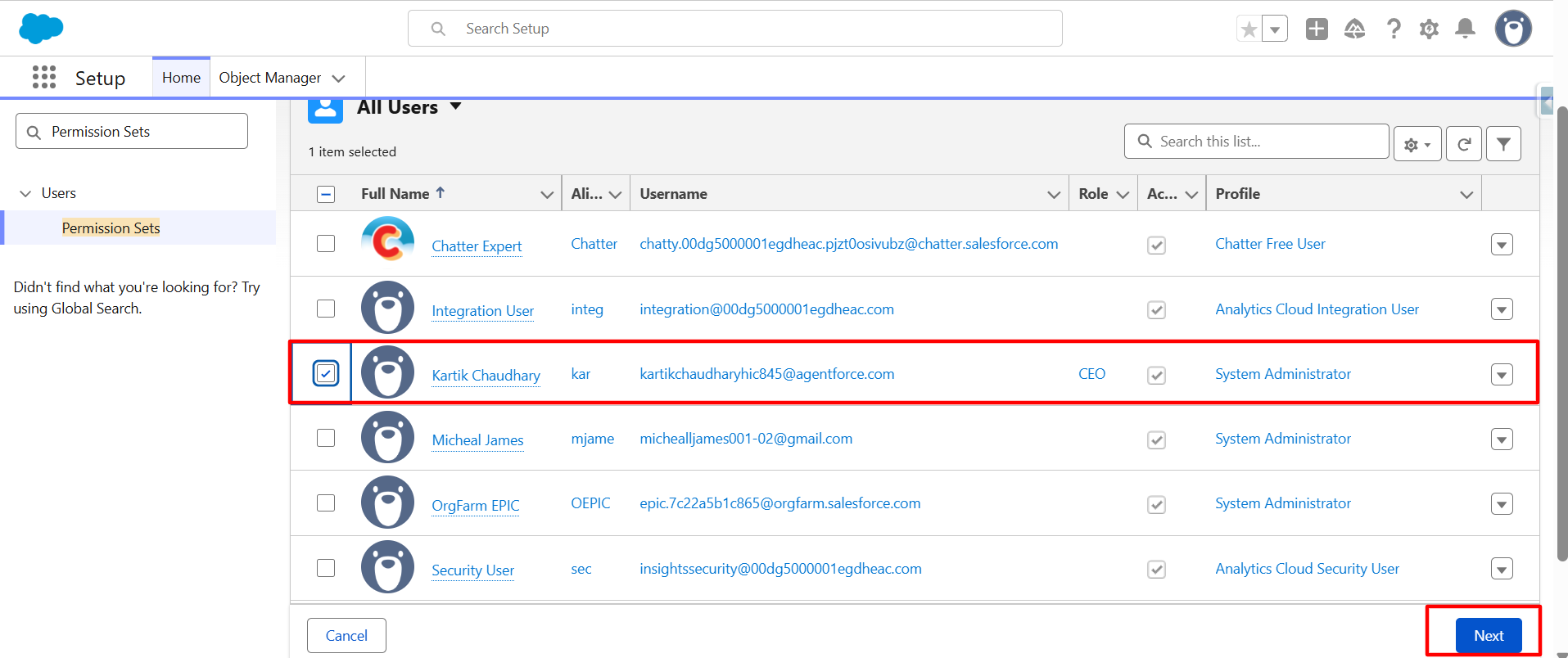
Step 6: Next, select the User whom you want to assign the permission set of Form Made Easy and click the Next button.
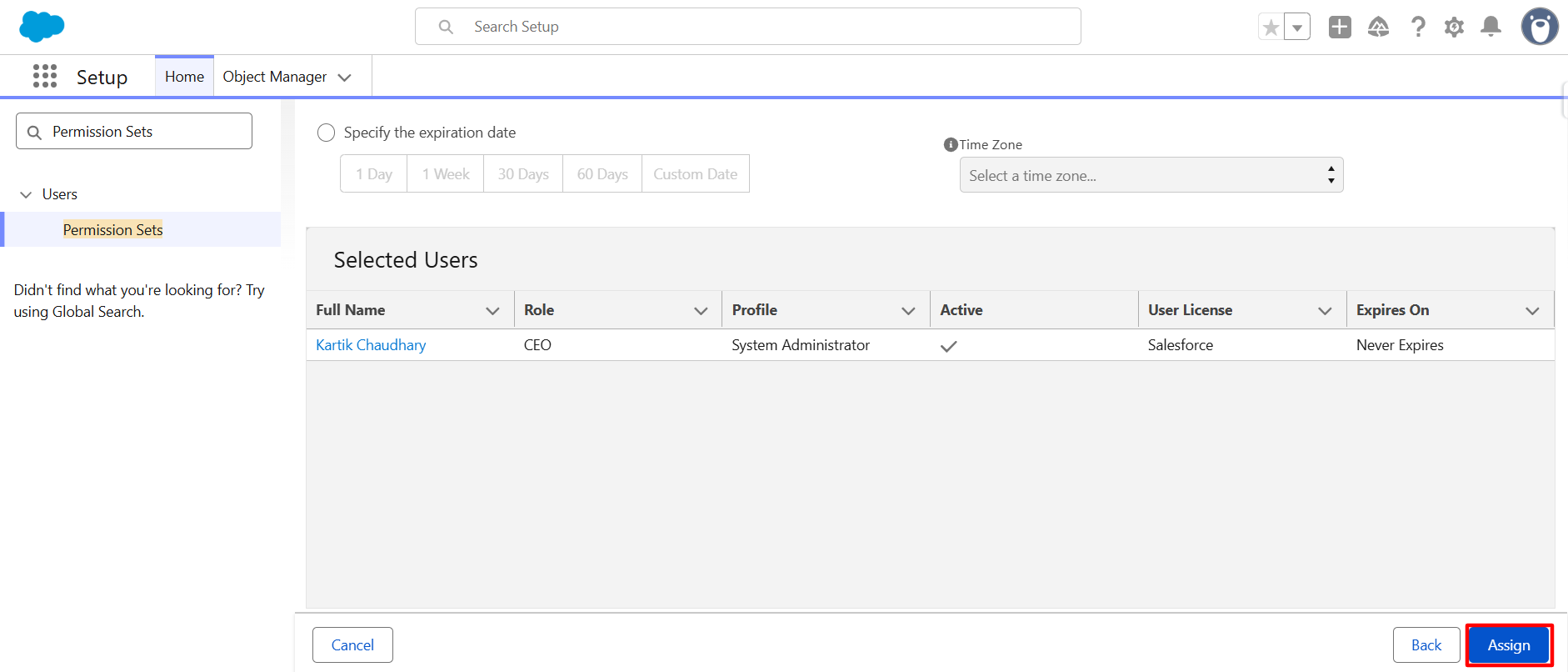
Step 7: Click on the Assign button to Assign the Permission Set of Form Made Easy.
Conclusion
That’s it, assigning the permission set only takes a few clicks, but it makes a big difference. Once access is given, users can easily manage forms without facing restrictions. Salesforce form builder works smoothly when the right permissions are in place, especially while handling Salesforce form templates. If you need further assistance, please contact support.